

One photo or video
Use one photo or one video between 2 and 15 seconds. A single, clearly visible person gives the effect a clear subject.
Use one photo or video to make a short transition: the picture tears, the colors split, and the next shot settles into view.
Explore models for other image and video ideas.
Start on a clean view, break it into offset strips for a moment, then settle into a new framing of the same subject. Use a short burst so the viewer can read both shots.
Use one photo or one video between 2 and 15 seconds. A single, clearly visible person gives the effect a clear subject.
The effect is built in. You can leave the field blank, then choose a duration and review the credit estimate.
Review the credits shown on the button before generating. The quote can change with resolution, clip length and the length of a reference video.
Keep the face away from the edge. A little space around the subject lets the offset bands move without losing the silhouette.
Use the output duration for the whole clip. To shorten only the tear, add a note asking for one brief burst.
Play through the cut. The angle should change visibly and the interference should clear so you can read the next shot.
Start with a well-lit reference in which the subject is easy to recognize. Hold a clean opening shot, then use offset strips and split color channels to signal the cut. The still shows the interruption in the edited example.
Add “use one brief digital tear at the cut” and replay the result. Check that there is a clear shot on each side.
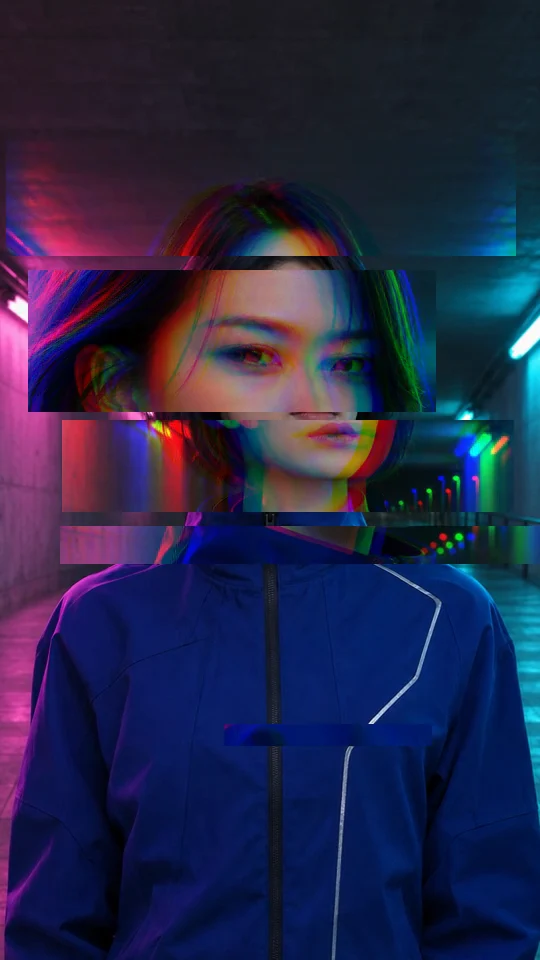
To bring the viewer closer to an expression, ask for a tighter three-quarter view of the same person. In the edited example, the blue jacket and neon lighting carry over to the new angle, so the cut is easy to follow.
Use your video editor to align the cut with a specific frame or beat.
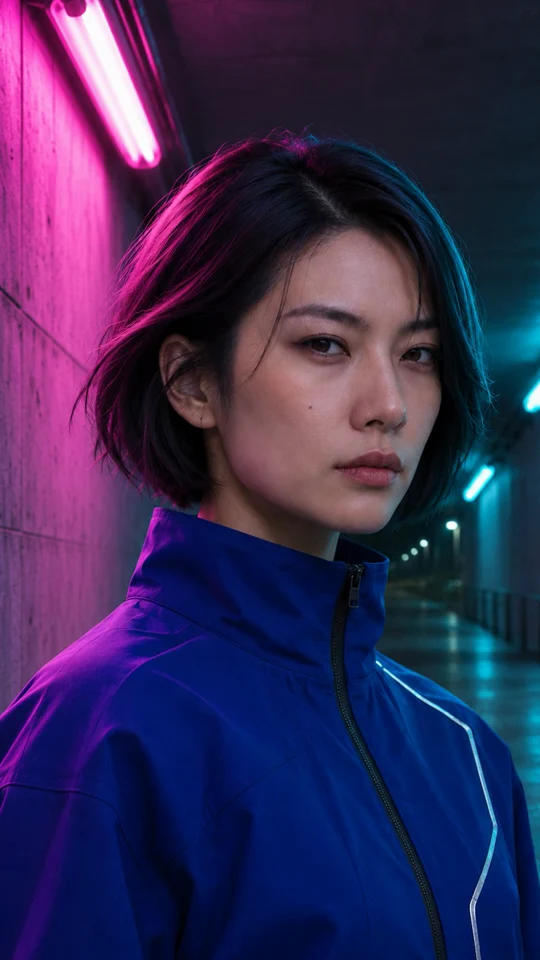
Start with a well-lit reference that shows one person clearly. Leave a little space around the head and shoulders so the tear has room to move.
The effect is built in. You can leave the field blank, then choose a duration and review the credit estimate.
Sign in to generate. If the glitch covers both shots, ask for one short burst and a steady view on each side.
The effect creates a silent clip. You can add a track you have permission to use in a video editor.
Use one photo or one video between 2 and 15 seconds. A single, clearly visible person gives the effect a clear subject.
The model creates a new silent clip guided by your upload. It can change the framing, motion and timing, so use an editor if a cut needs to land on a specific frame.