1
Use a clear photo with an easy-to-see subject. Portraits, pets, flowers and everyday objects are good starting points.
Turn your photo into a black-and-white coloring page. Choose the detail level and background, then generate without writing a prompt.
Example coloring page
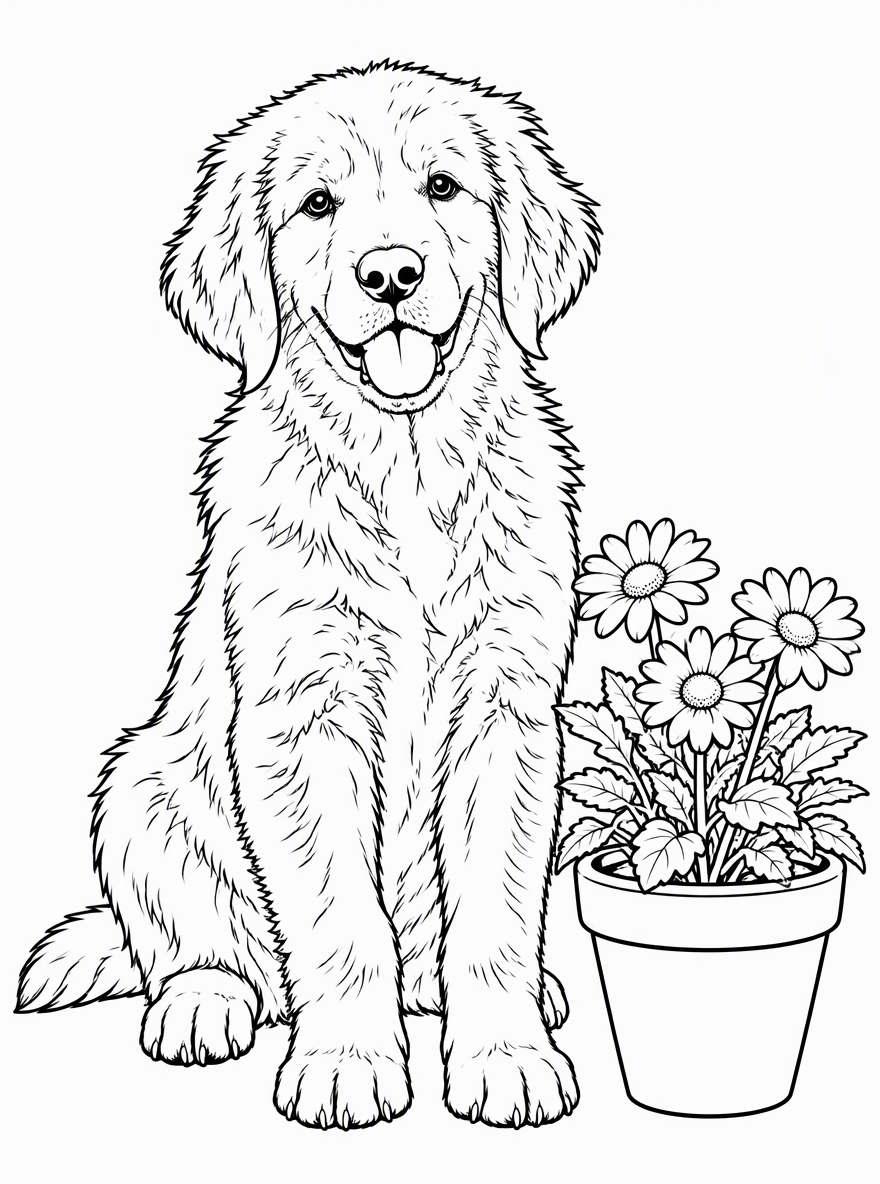
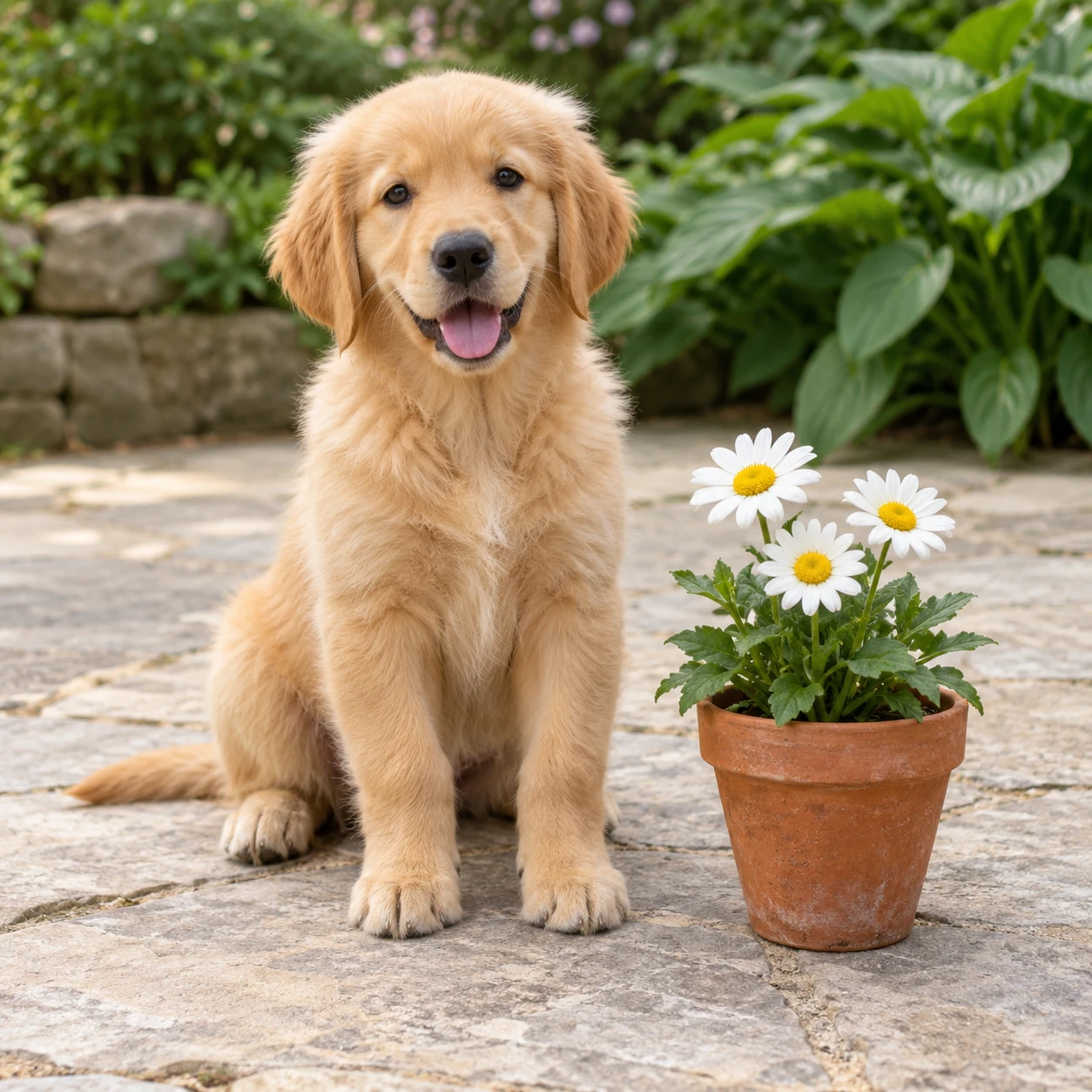
Example conversion made with this tool from an AI-generated source photo. Your result will vary.
Explore other image models for generation and editing.
Create a personal coloring activity from a favorite photo. The tool redraws recognizable shapes as black outlines and leaves white areas for crayons, pencils or markers.
Use a clear photo with an easy-to-see subject. Portraits, pets, flowers and everyday objects are good starting points.
Simple leaves larger spaces to color; Detailed adds smaller contours.
Choose 1K or 2K output. Review the credit estimate before generating.
Simple reduces small textures and uses bolder outlines. Start here for a busy photo or a page with fewer small areas.
Balanced keeps key details; Detailed asks for finer interior contours. These are generation instructions, so line density can vary by photo.
Remove background isolates the main subject. Keep background retains larger scene elements as simplified outlines, with less clutter.
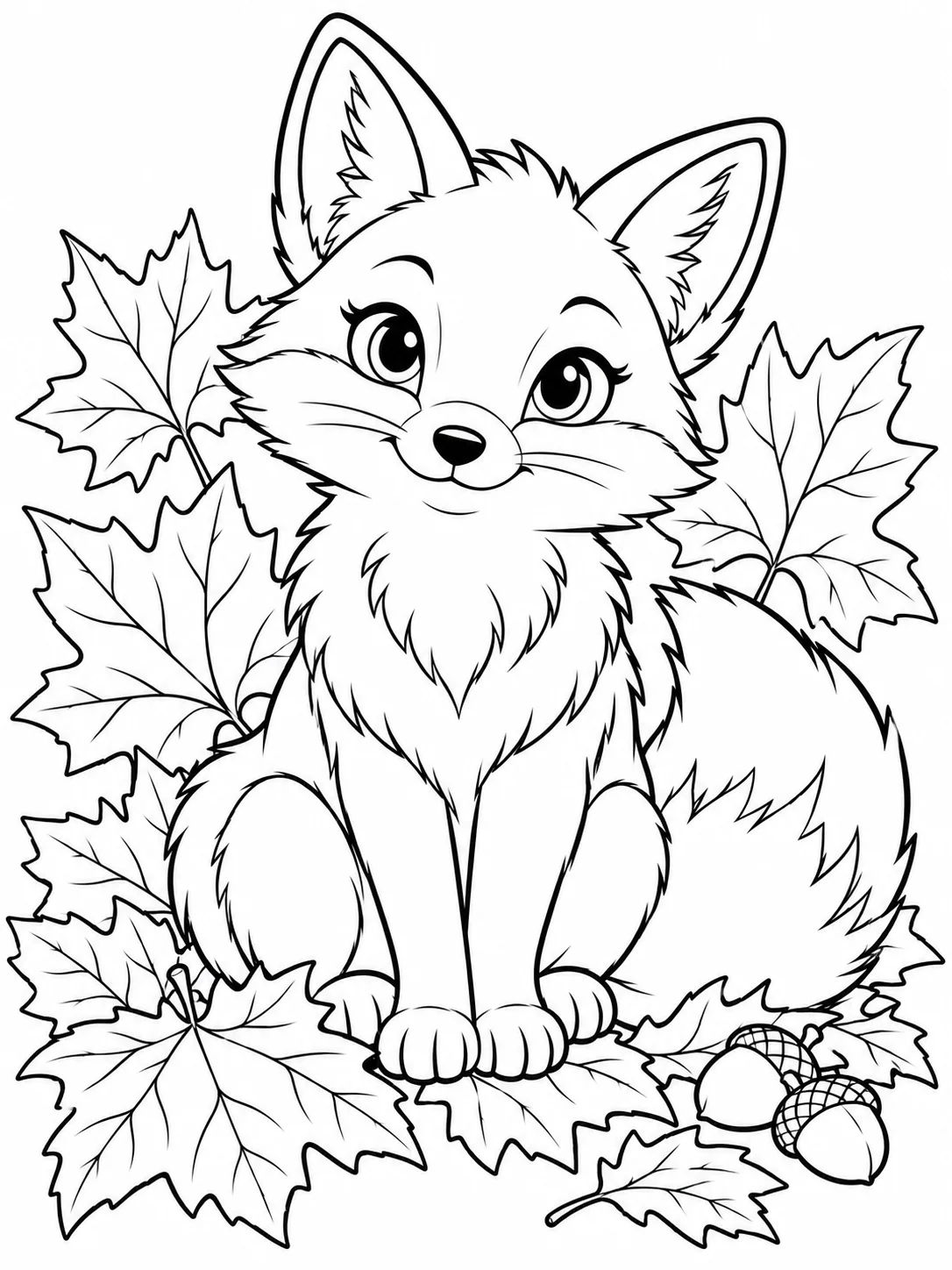
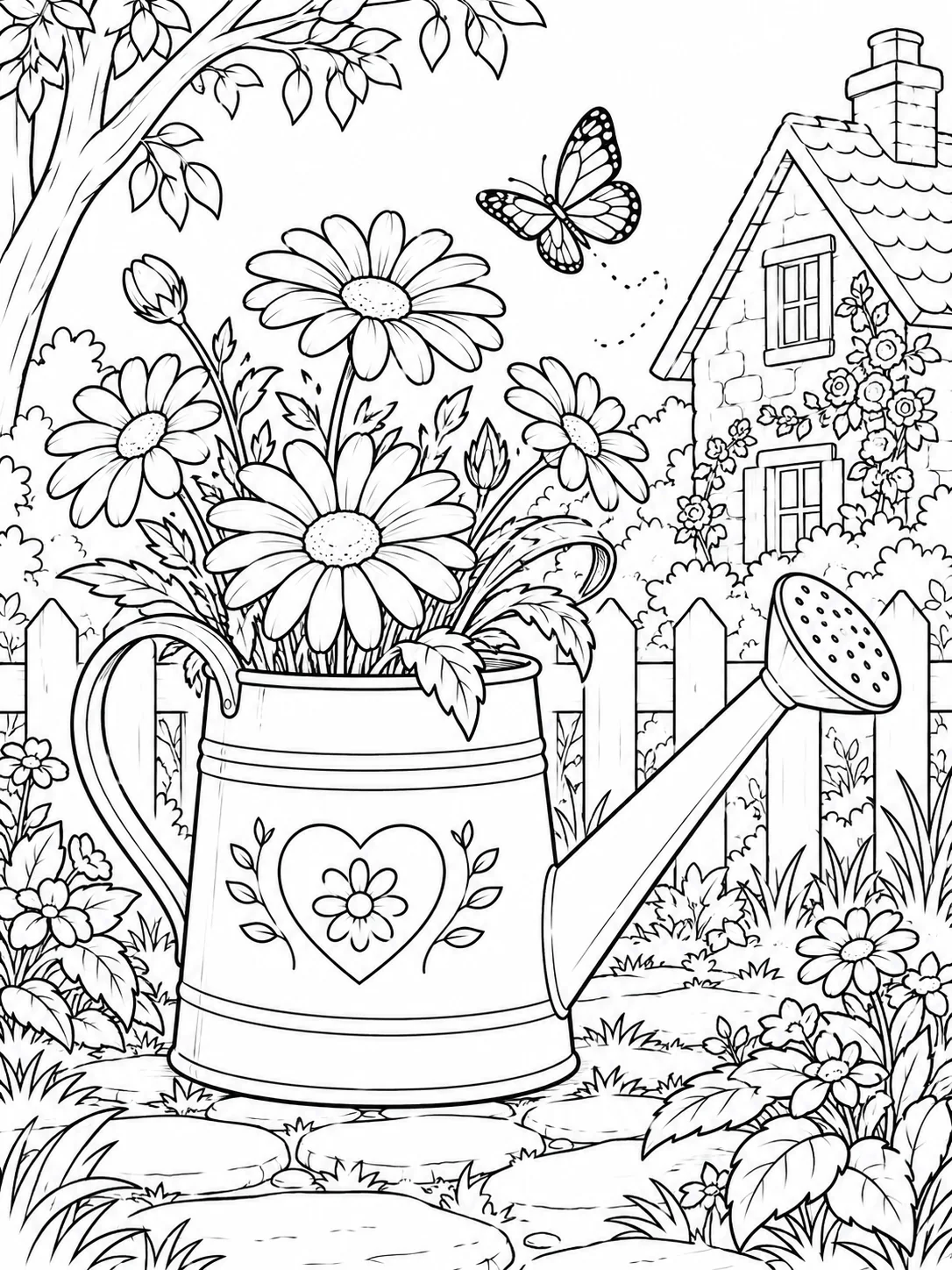
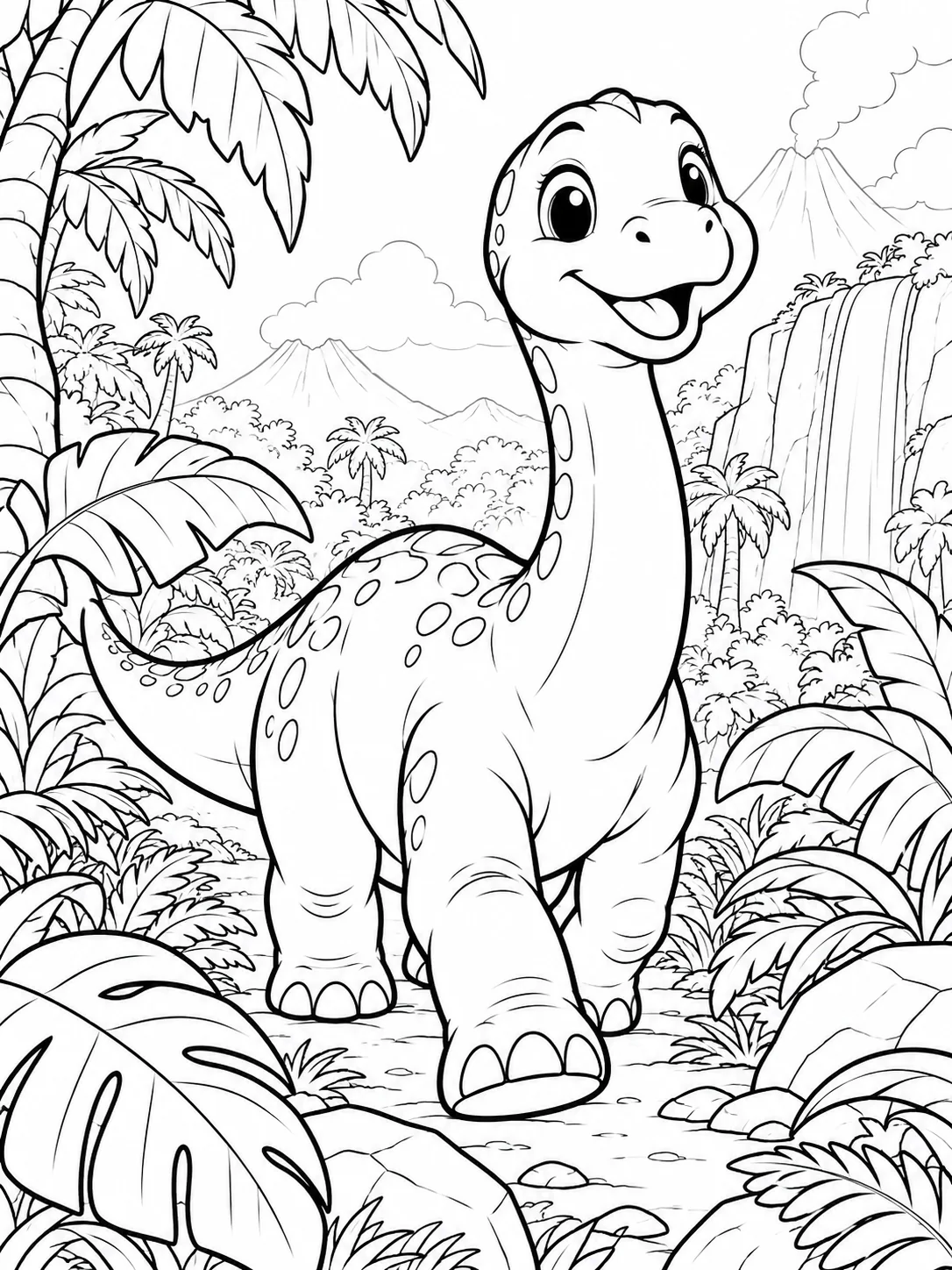
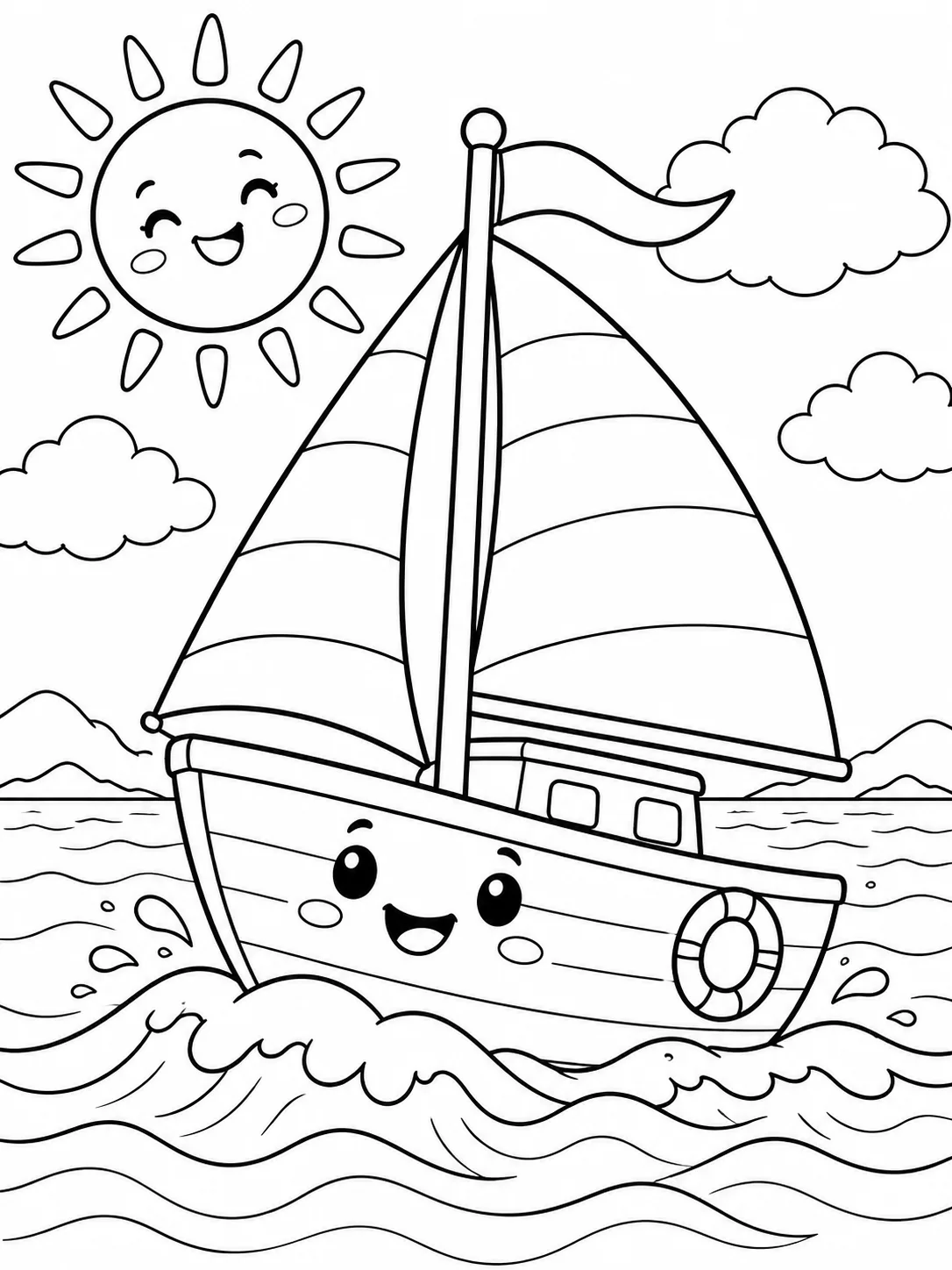
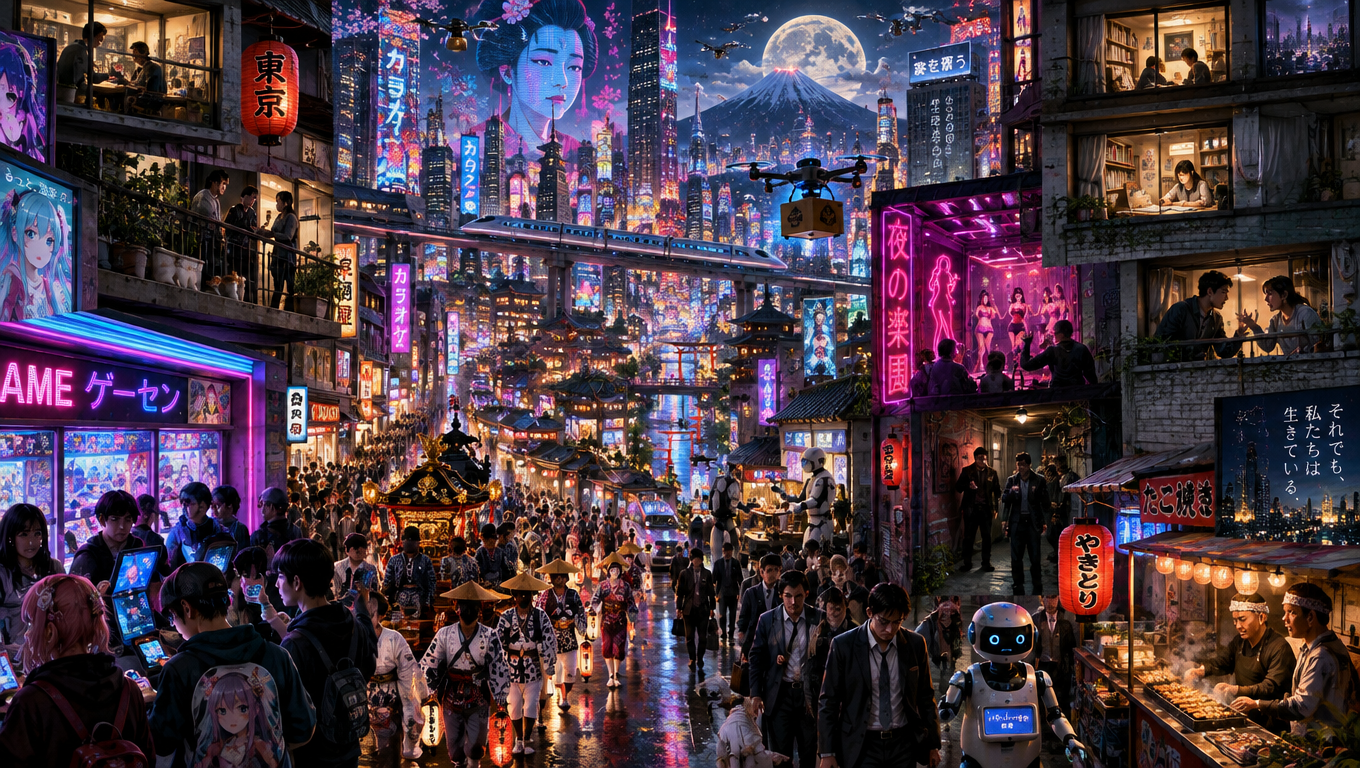
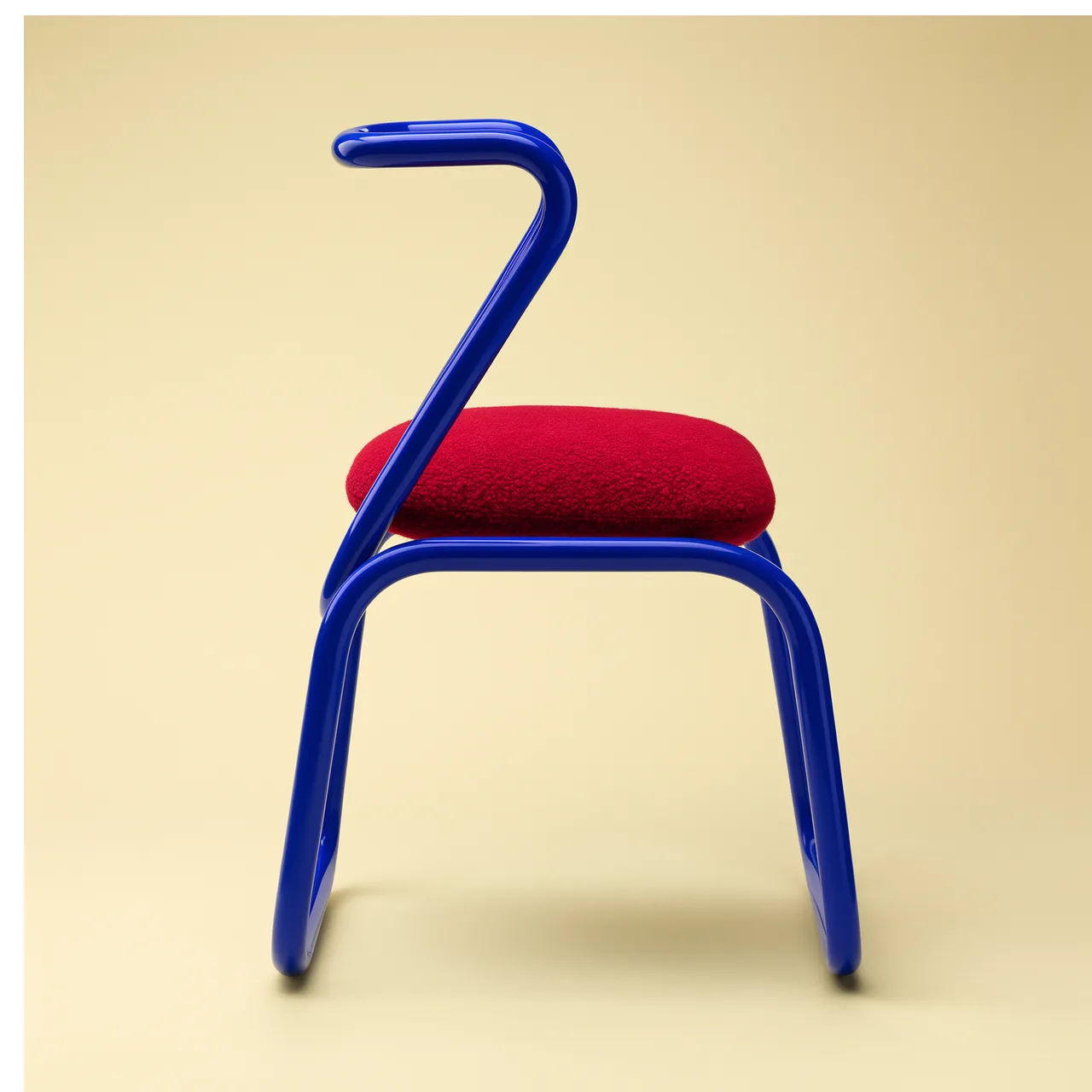
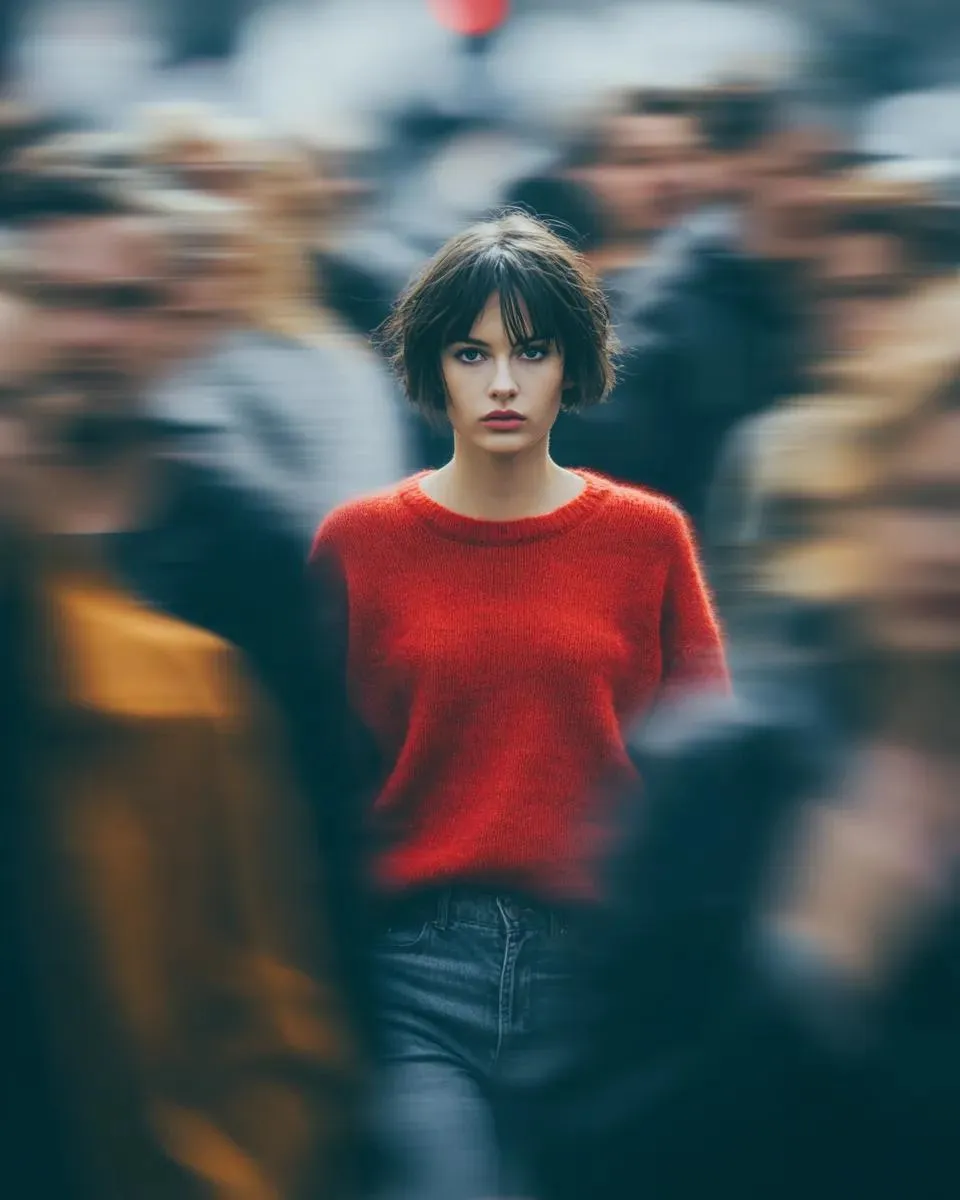
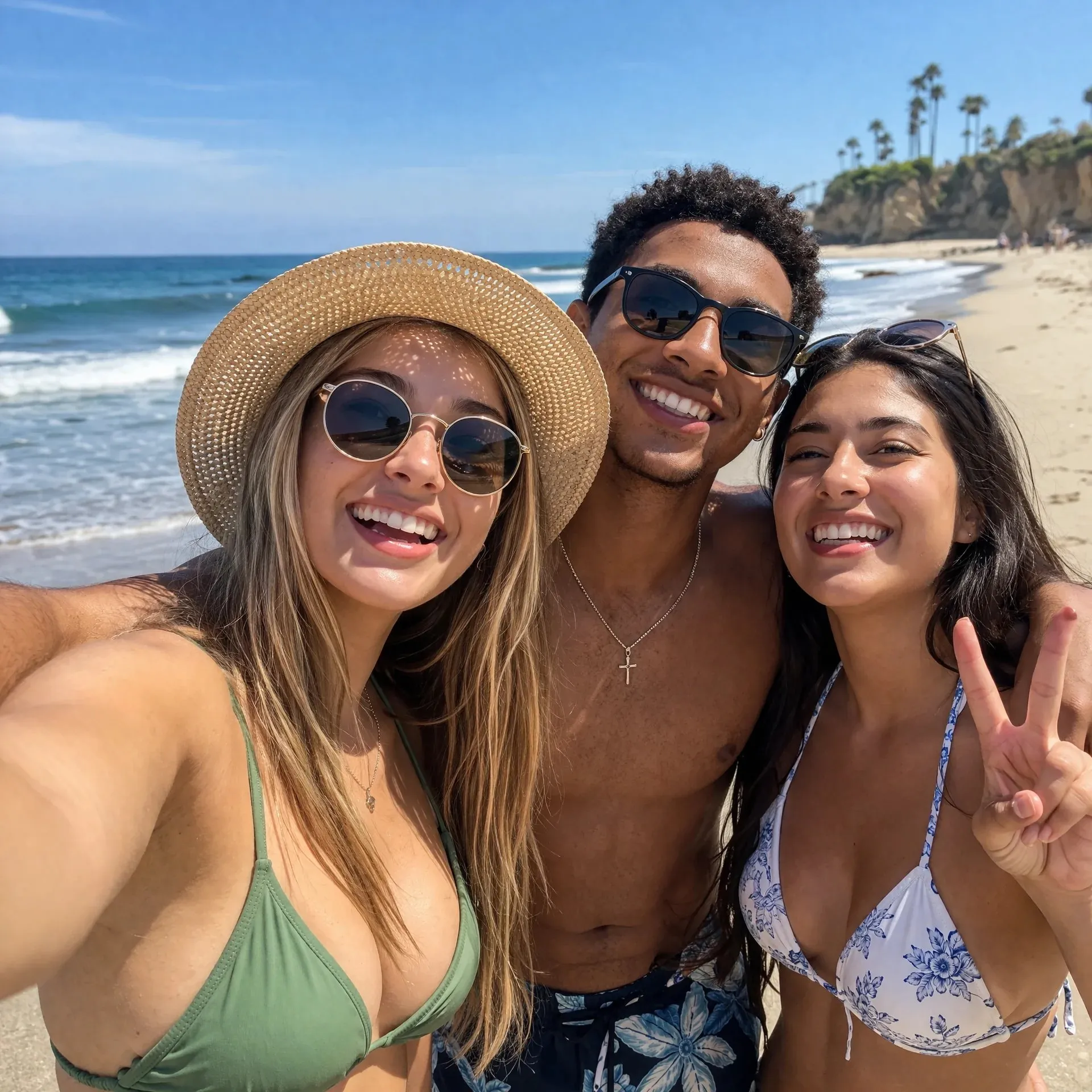
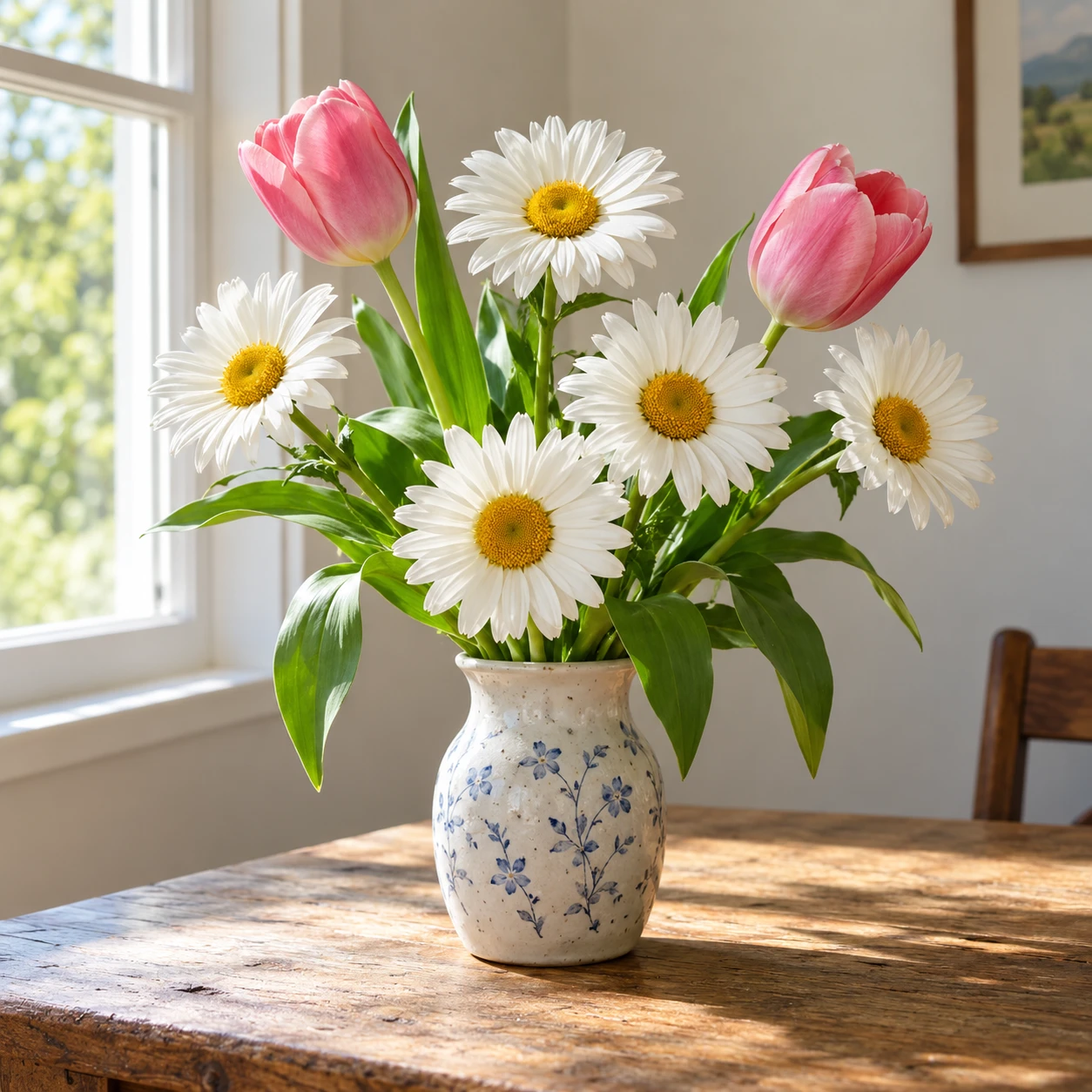
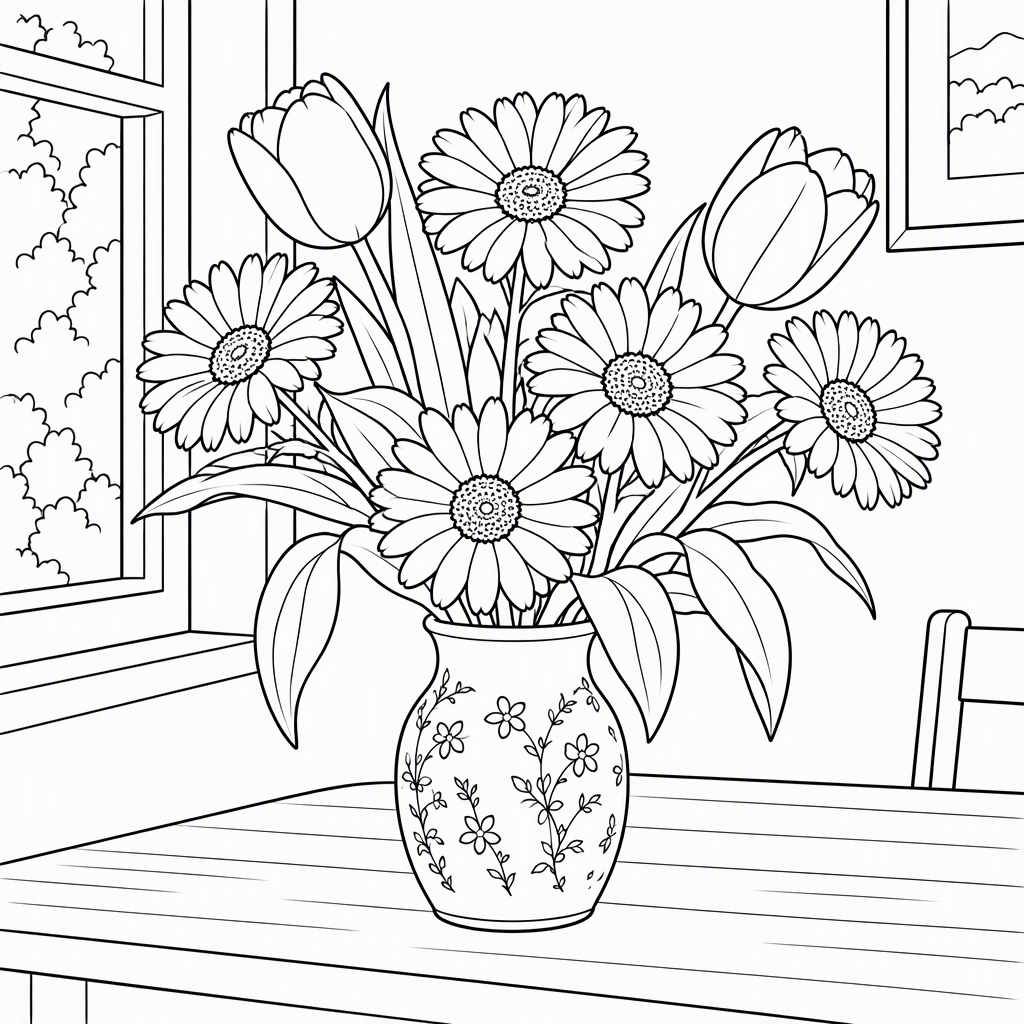
These examples use AI-generated source photographs converted with this tool. Compare the photos and line art to see what changes.
Keep the pet’s pose and main features while simplifying fur into outlines. A close, clear photo usually gives the subject more room on the page.
Avoid motion blur and overlapping animals; crop closer when the original has too much empty space.
Review eyes, paws and open coloring areas before printing. The conversion can alter fine details.
Use flower and object photos for a page of petals, leaves and clear shapes. Keep a simple background when the surrounding scene is part of the activity.
Larger spaces suit crayons; smaller contours may suit fine pencils. Pick the setting for the way you want to color.
Download the image and use Fit to page in your print dialog. Paper size, margins and the printer determine the final printed size.
Choose a sharp JPEG, PNG or WebP. Use a visible subject and avoid crowded scenes when you want simple outlines.
Select detail and background, then choose a square, portrait or landscape ratio and 1K or 2K resolution. Check the estimated credits.
Sign in and generate. Review the outlines, download the image, and print with Fit to page. Another generation uses credits again.
No. Upload one photo and choose the settings. The tool builds the coloring-page instructions for you. Uploads and choices reset when you refresh.
A coloring page aims for black outlines, white interiors and no pencil shading. A sketch can include gray tones and hatching, leaving less open space to color.
No. It redraws and simplifies the photo. The subject, pose and main features guide the result, but faces, fine outlines and background objects can change. Review the output before using it.
You can download the generated image and print it using your device’s print dialog. Choose Fit to page and check the margins. Direct PDF export and multi-page coloring books are not included.
Generation requires sign-in and SceneFlare credits. The button shows an estimate for your photo and selected resolution before submission. Each new generation uses credits.
Upload a photo, choose the outlines, and make your own coloring page.
AI-generated creative concepts, not tested outputs from the featured model or tool.