
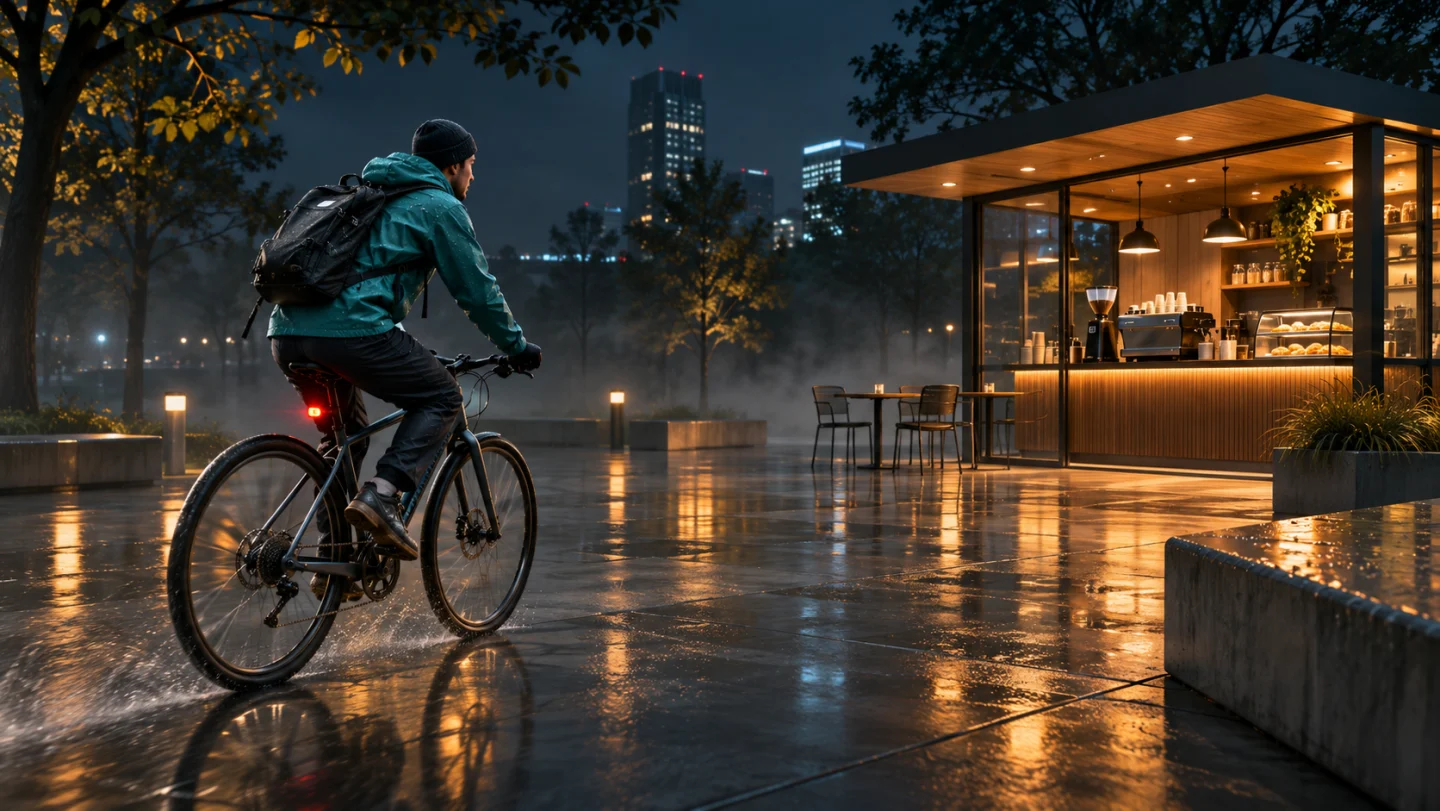
Start from text or keyframes
Text to video needs only a scene description. Image to video accepts a first frame and an optional last frame. With two frames, describe the motion that connects them.
Create 4–30 second clips from text, keyframes or media references. Edit an existing video and choose 480p or 720p with optional audio.
Explore other video models for your next project.
On SceneFlare, use text for an original scene, keyframes to anchor its framing, or reference media to guide its look and motion. Use Video edit when you have a specific change to make to an existing clip.
Text to video needs only a scene description. Image to video accepts a first frame and an optional last frame. With two frames, describe the motion that connects them.
Reference to video accepts up to 10 images, 5 videos and 5 audio clips. Say which file should guide the subject, motion or sound. Reference video and audio are each limited to 30 seconds in total.
Upload one video between 4 and 30 seconds and describe the change. The edit follows the source duration and aspect ratio. SceneFlare accepts reference video uploads up to 50 MB each.
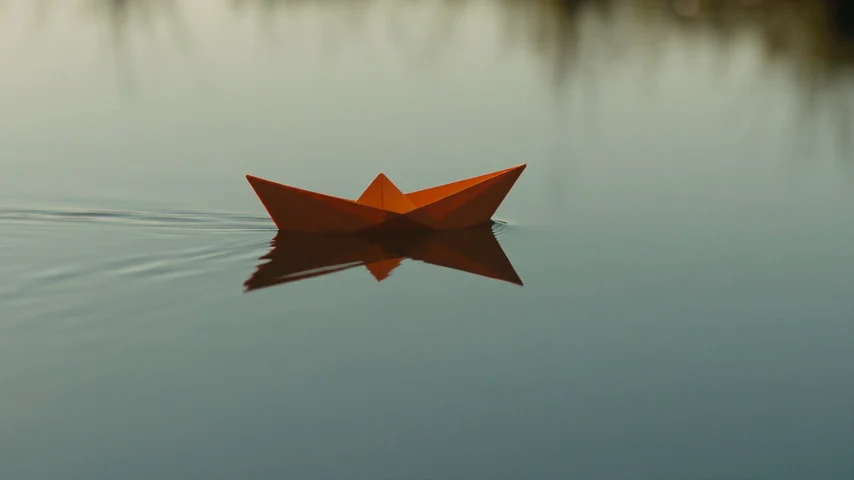
We generated this clip on November 13, 2026 from text alone. It is about four seconds long, plays at 480p, includes stereo audio and cost 96 SceneFlare credits.
Choose Text to video, 480p, 16:9, 4 seconds and Audio on. Ask for an orange paper boat crossing a turquoise pond, tracked from a low angle, with quiet water and birdsong.
The low camera angle shows the boat’s reflection and the ripples trailing behind it.
These two stills come from the same text-to-video sample. Use them to see how two keyframes can specify the boat’s position and scale. Describe how it should move between them when using Image to video.
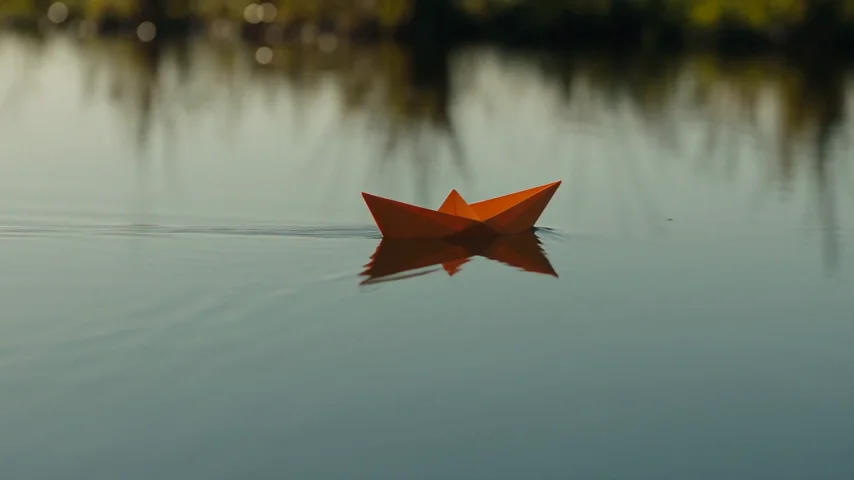
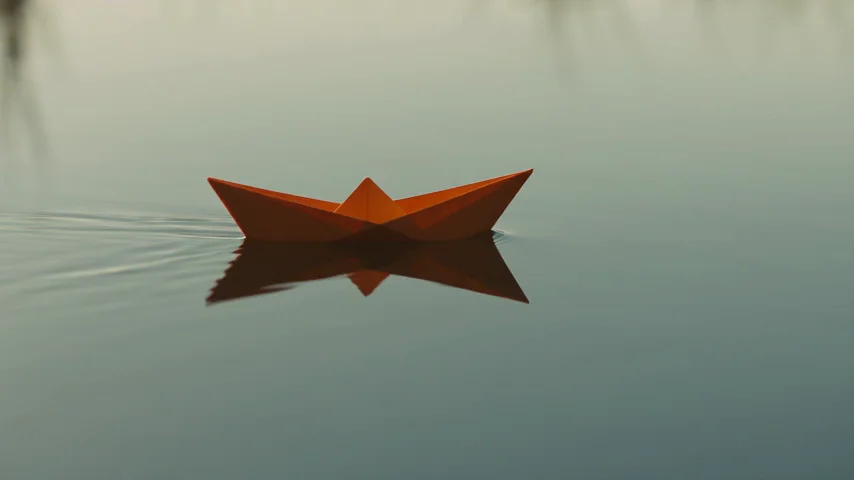
Use text, upload keyframes or references, or select Video edit to modify a source clip. Identify what each upload should guide.
Write the starting frame, the main action and how the camera moves. Describe the sound separately if Audio is enabled.
Pick 480p or 720p, choose the duration where available, and sign in to generate. Play back the result before downloading.
New clips are 4–30 seconds at 480p or 720p. Video edit follows the source duration and aspect ratio. This model offers up to 720p.
Without video input, 480p costs 24 credits per output second and 720p costs 48. With a video reference, the quote uses both the requested duration and the total reference duration. An edit is priced by source length. Check the quote before submitting.
Yes. Turn Audio off. With Audio on, you can describe dialogue, ambient sound or sound effects in the prompt.