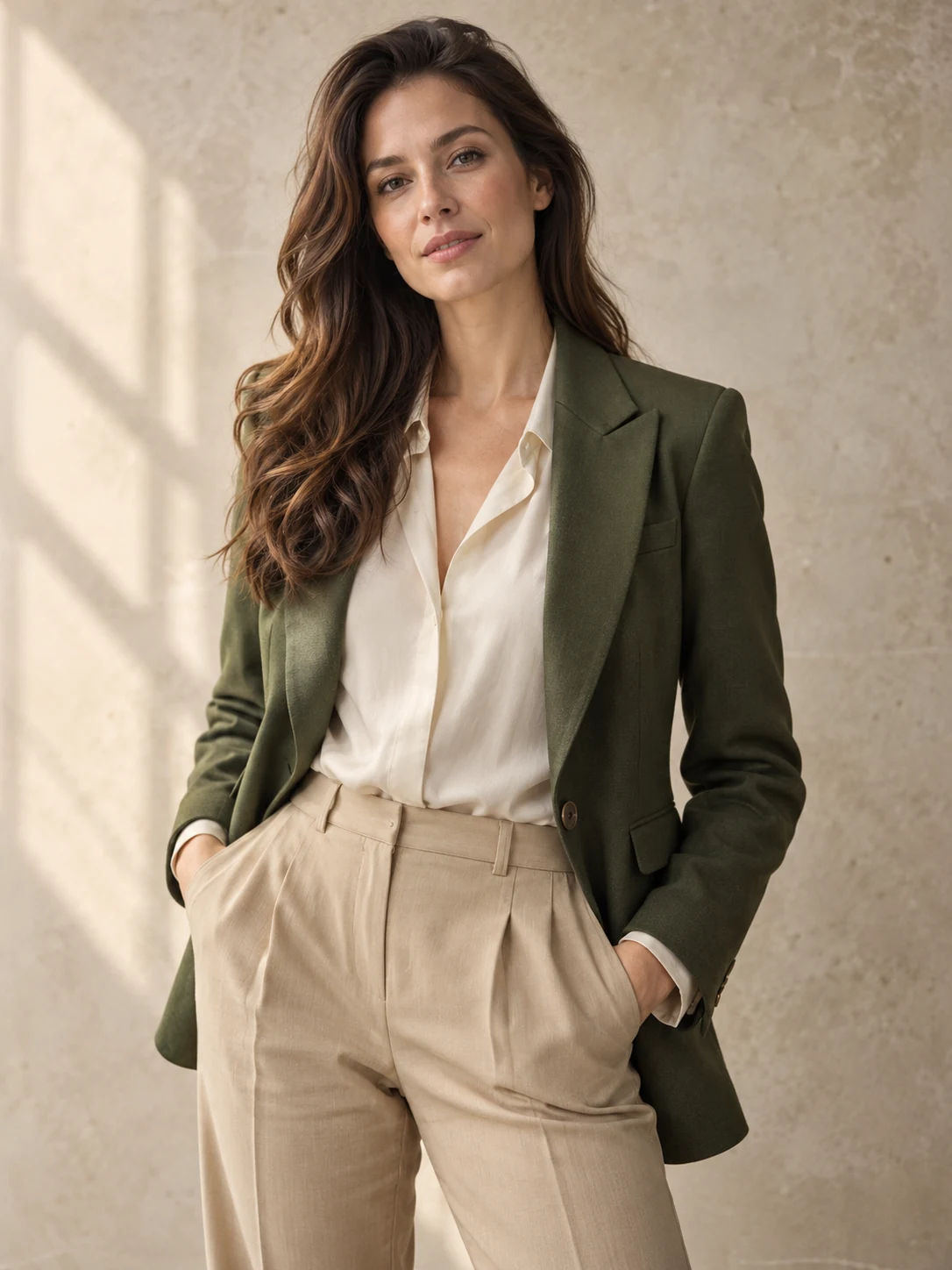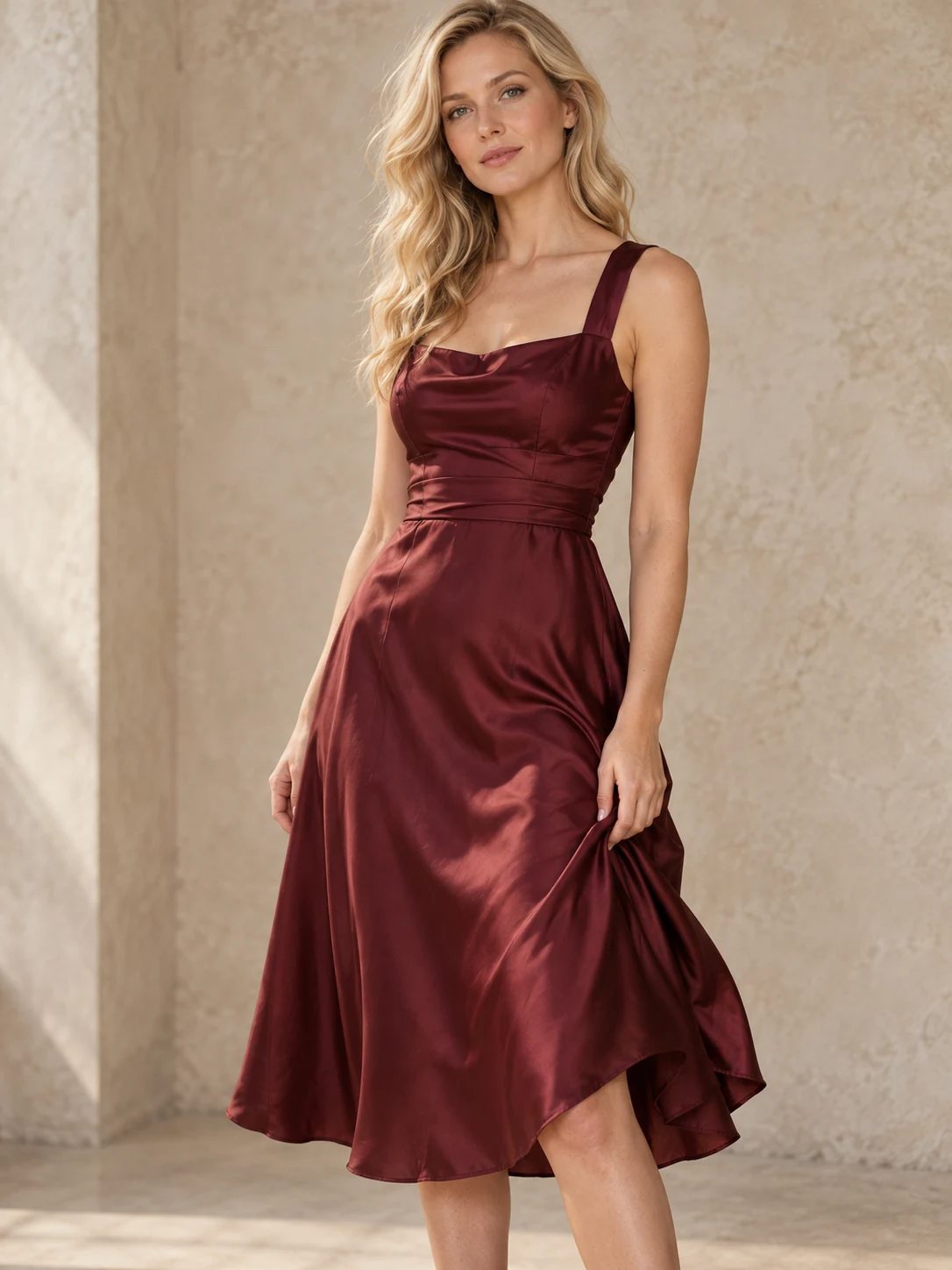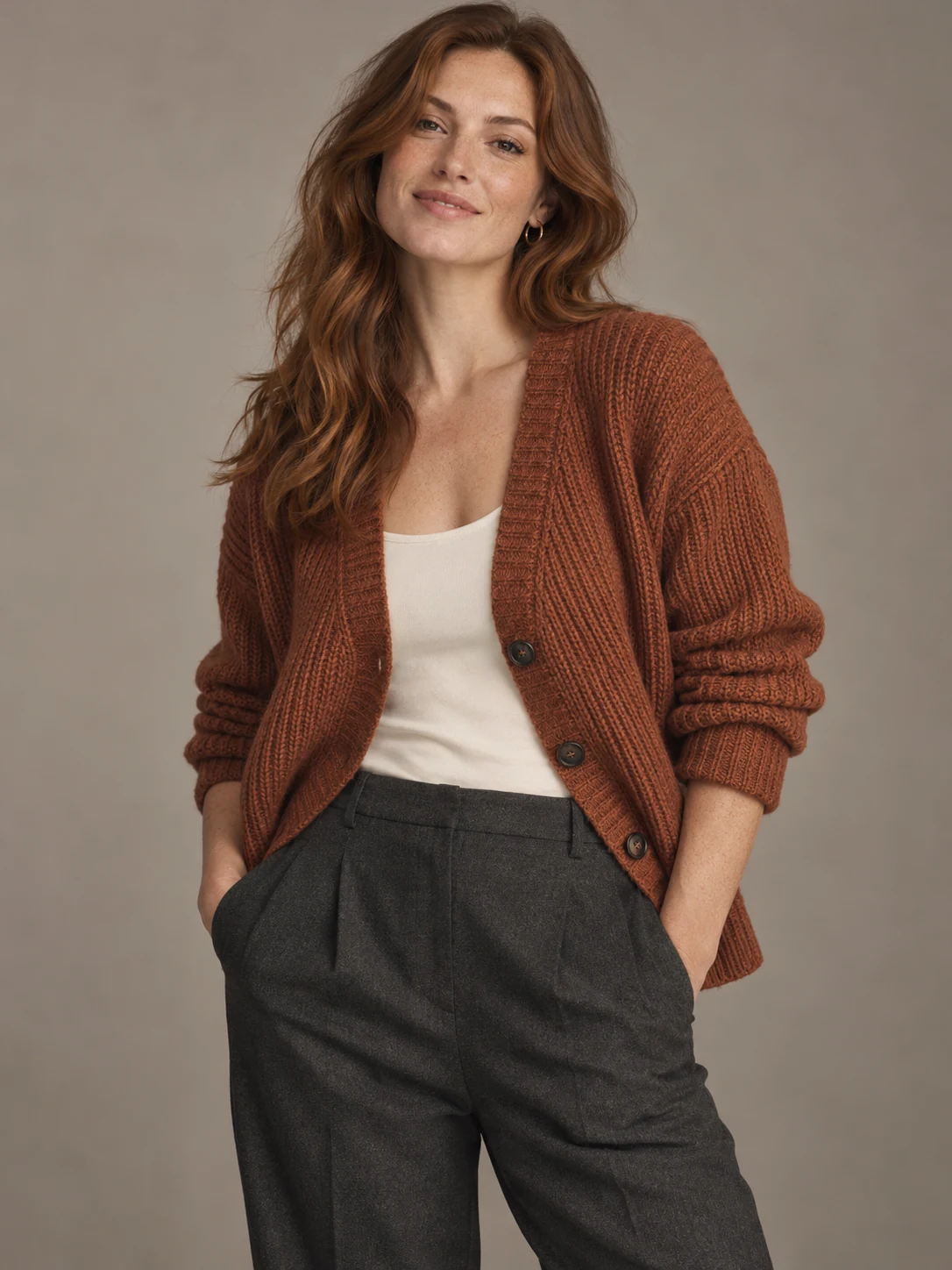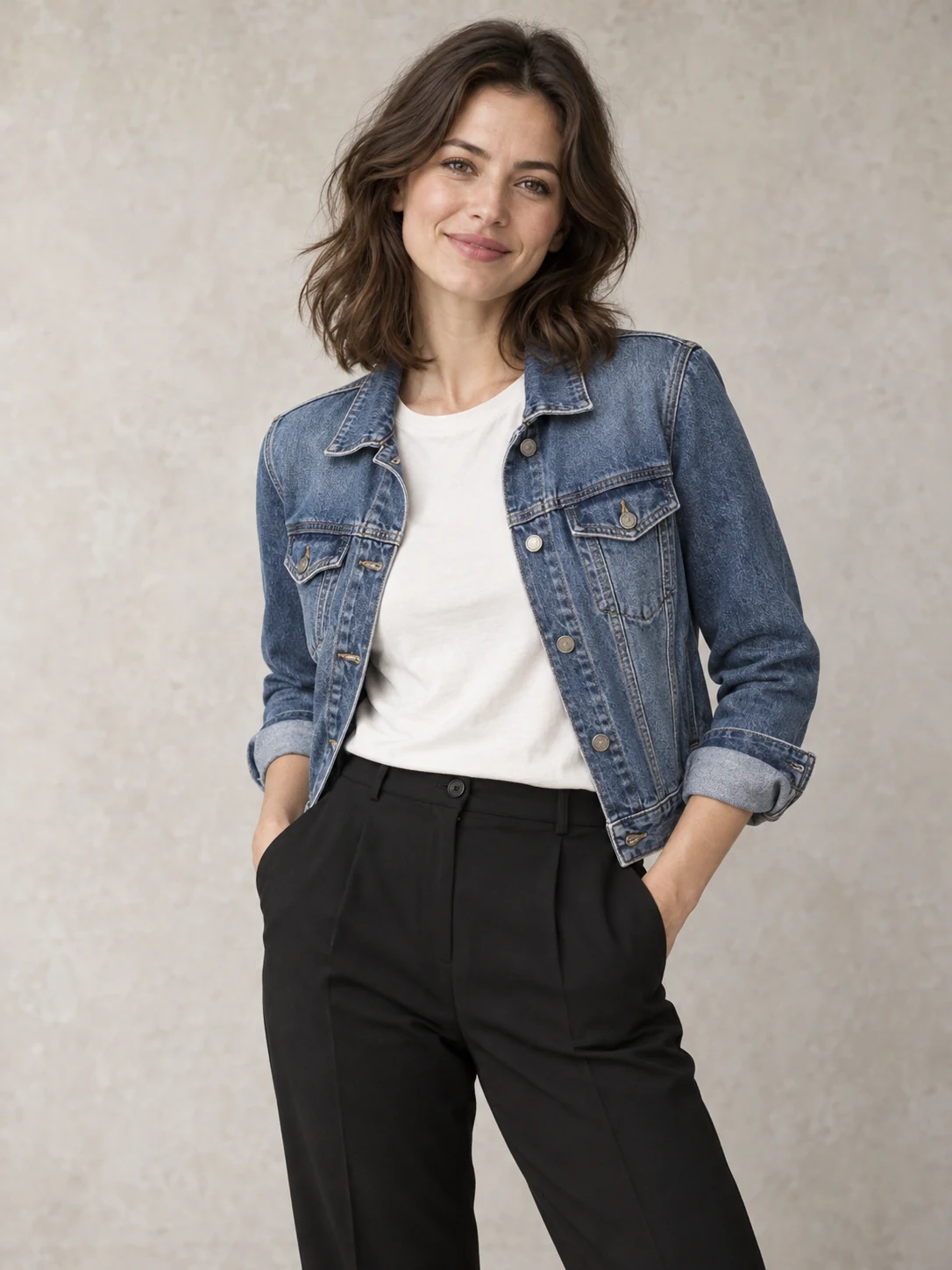
2 photos
Upload one person photo and one clothing reference.
Try on clothes online with your own person and garment photos. Choose tops, bottoms or a full outfit, then create an AI outfit preview with GPT Image 2.5.
Outfit preview
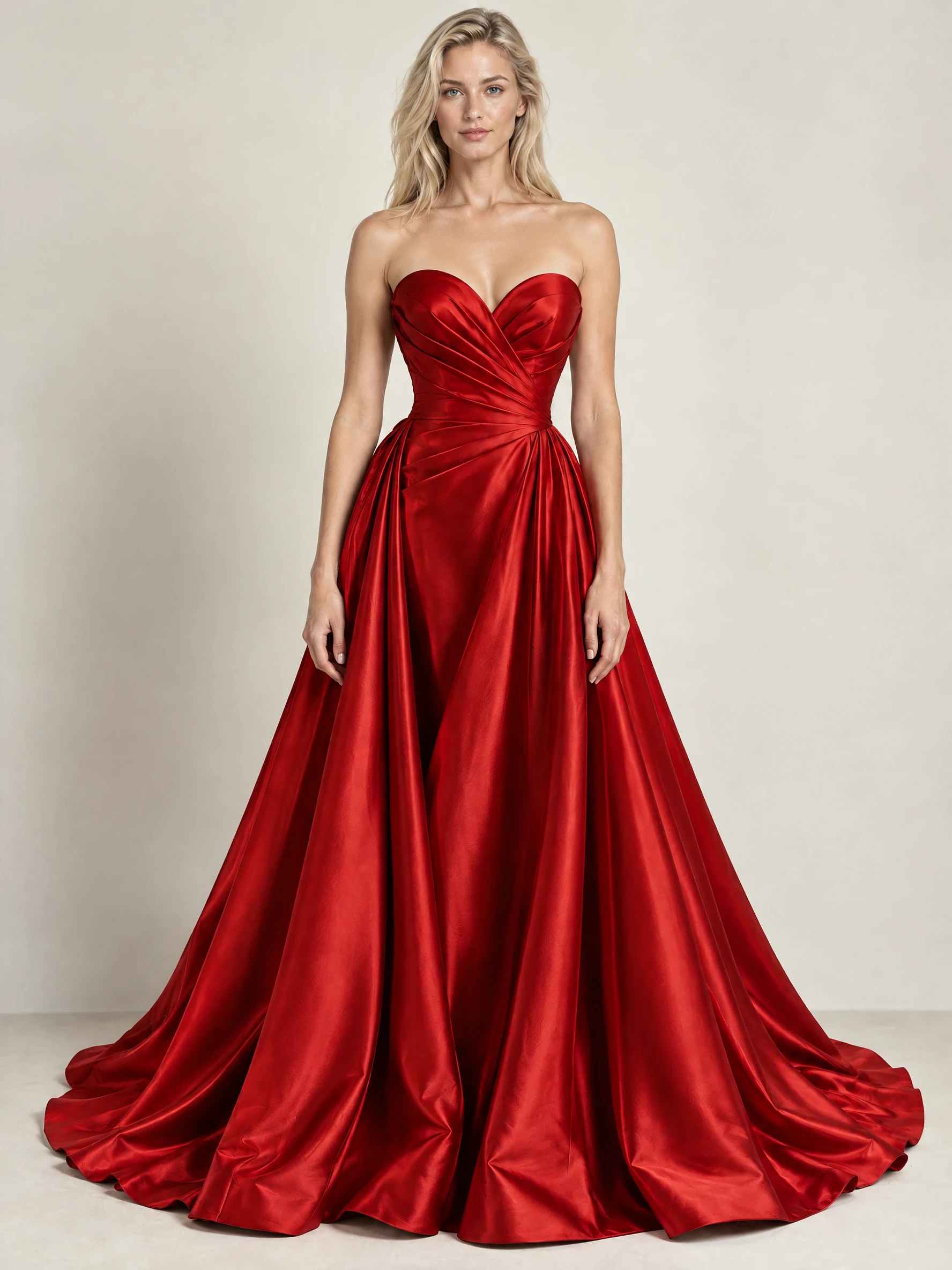
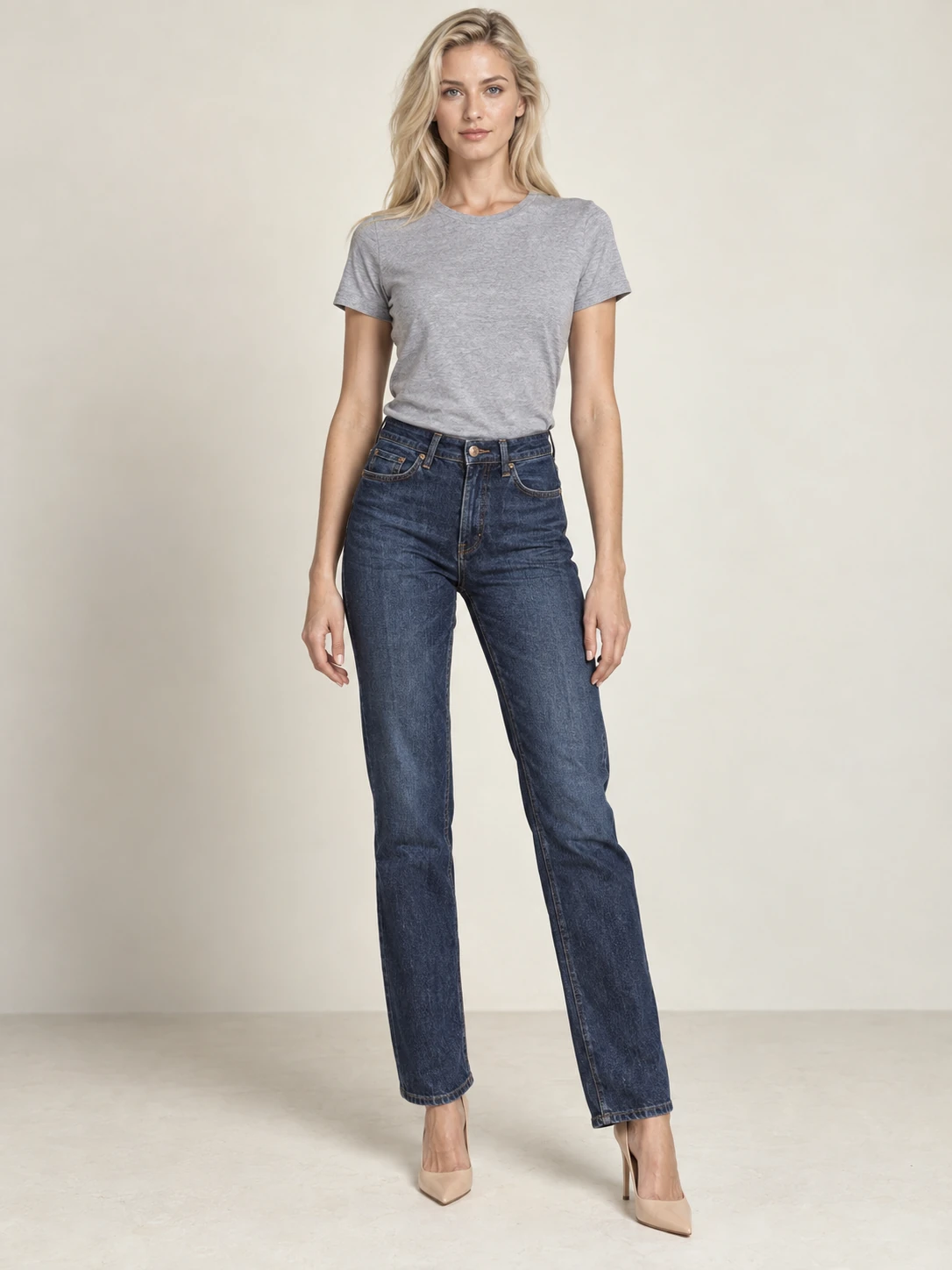
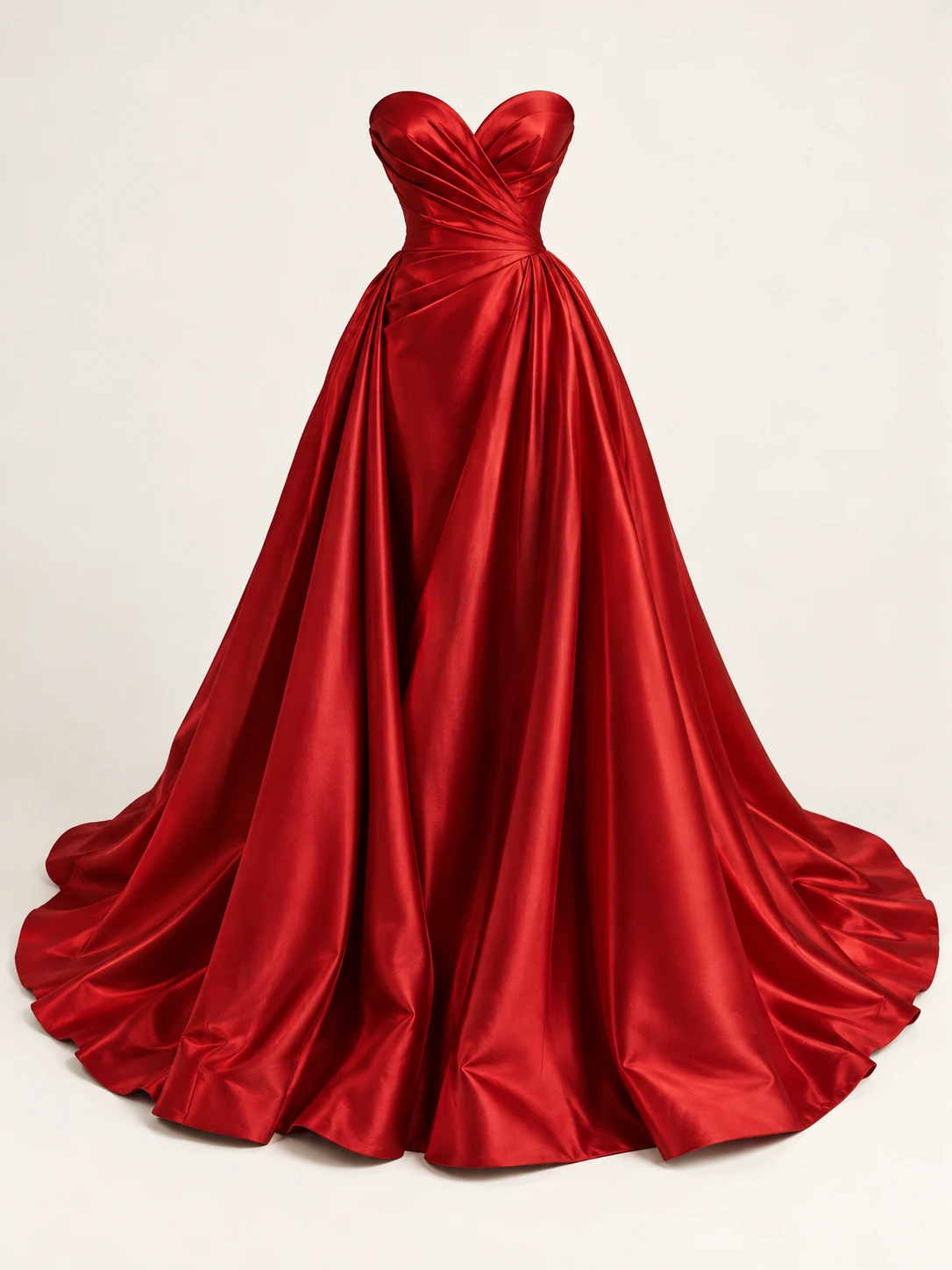
Clothing photo
Explore more ways to create and edit images.
Our AI virtual try-on turns a person photo and a clothing reference into a new outfit image. Preview a shirt, jacket, pair of trousers or dress on your chosen person, without manually cutting out the garment or writing a detailed editing prompt.
Upload one person photo and one clothing reference.
Upper body / Lower body / Entire outfit
Create one portrait image in 3:4 format per generation.
Use your garment photo to guide its color, cut and visible details for an outfit preview.
Swap the top, bottom or entire outfit. We build the editing instructions around your selected area.
We ask the model to keep the person’s face, pose and setting while adapting the clothing to the photo.
See clothing on your own photo, choose what to change and compare the result with the original.
Our AI virtual try-on uses your person photo as the starting point and your clothing image to guide color, cut and visible details. We ask the model to preserve your face, body proportions, pose and background as closely as possible. Seeing the clothing on your chosen person helps you judge whether the overall look suits your style.
We use your person photo to guide the model toward a recognizable appearance.
Your garment image guides the style, color, silhouette and visible details.
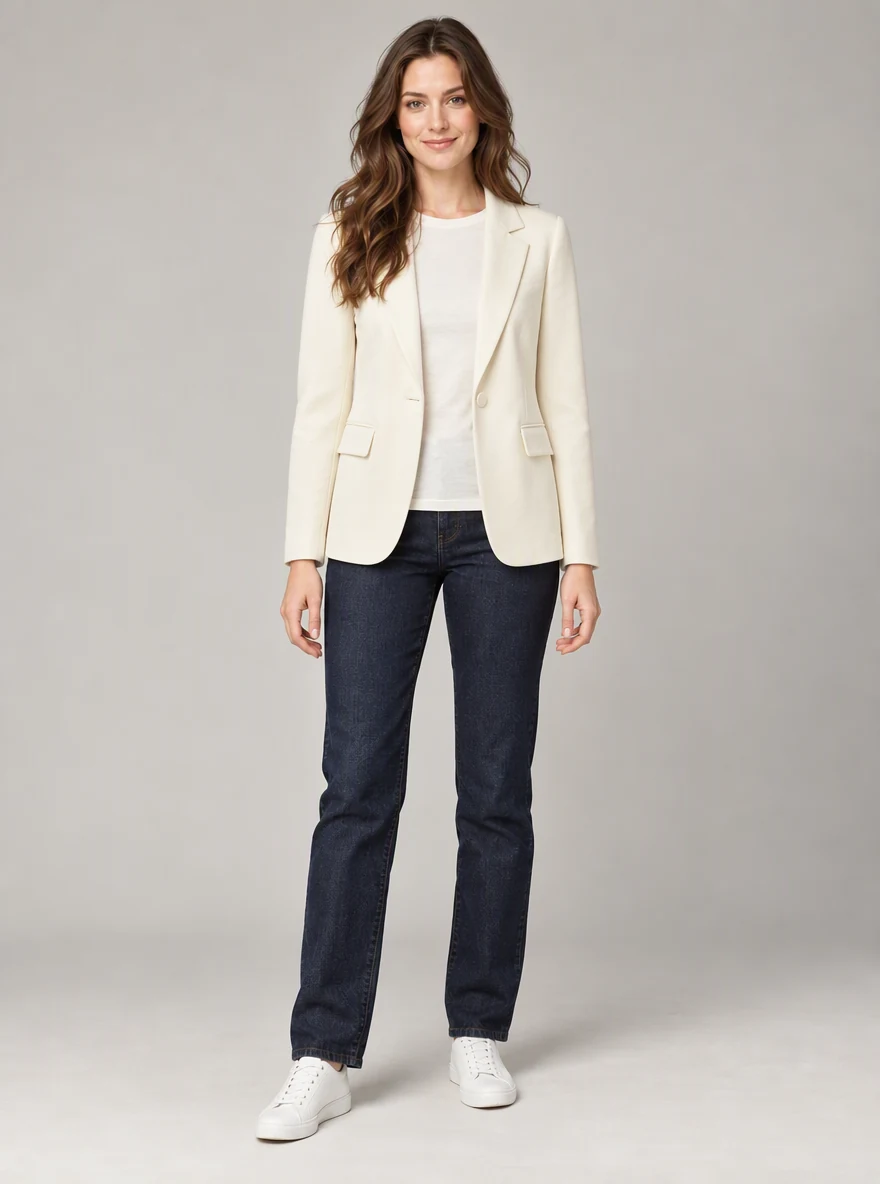
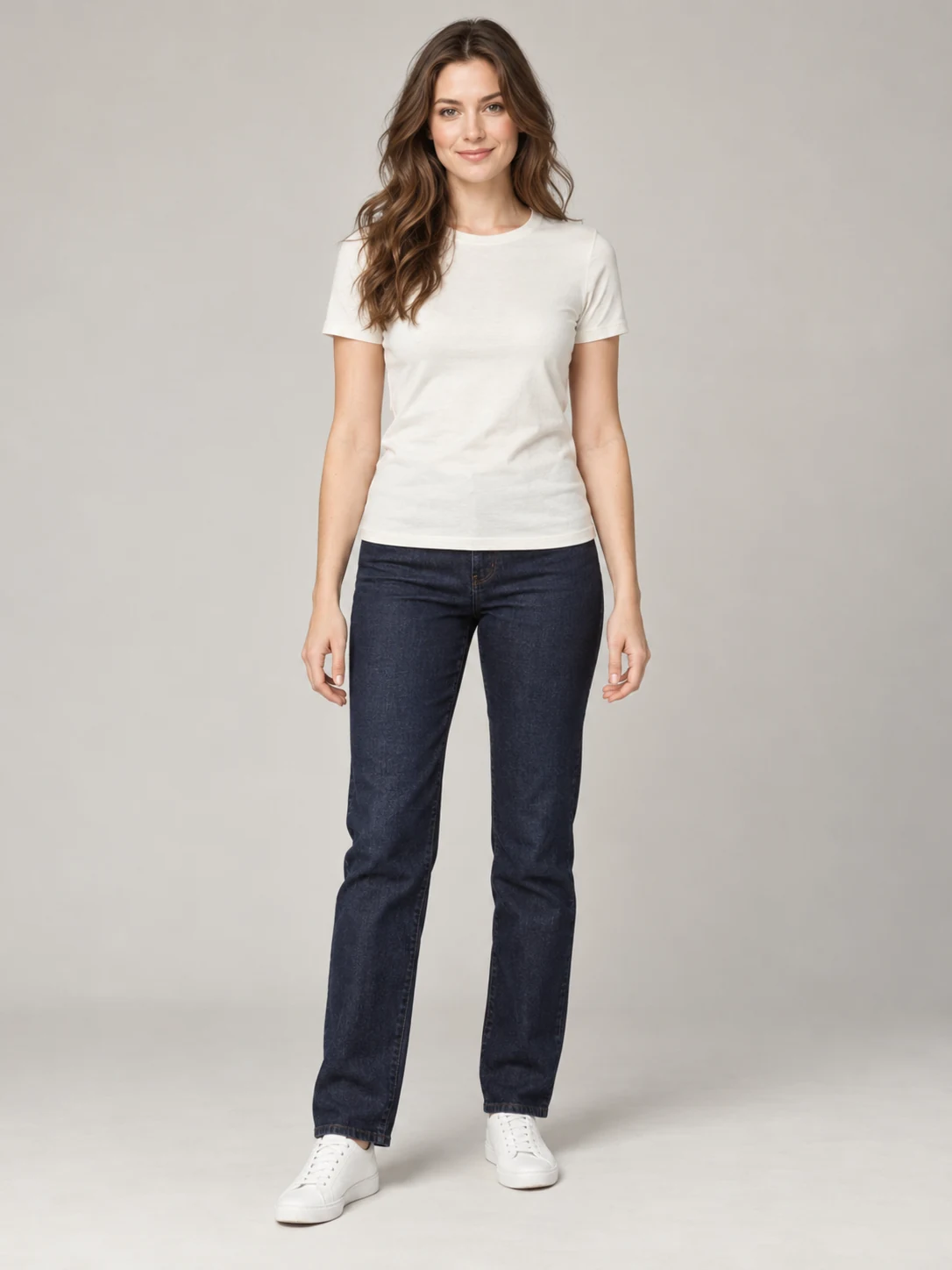
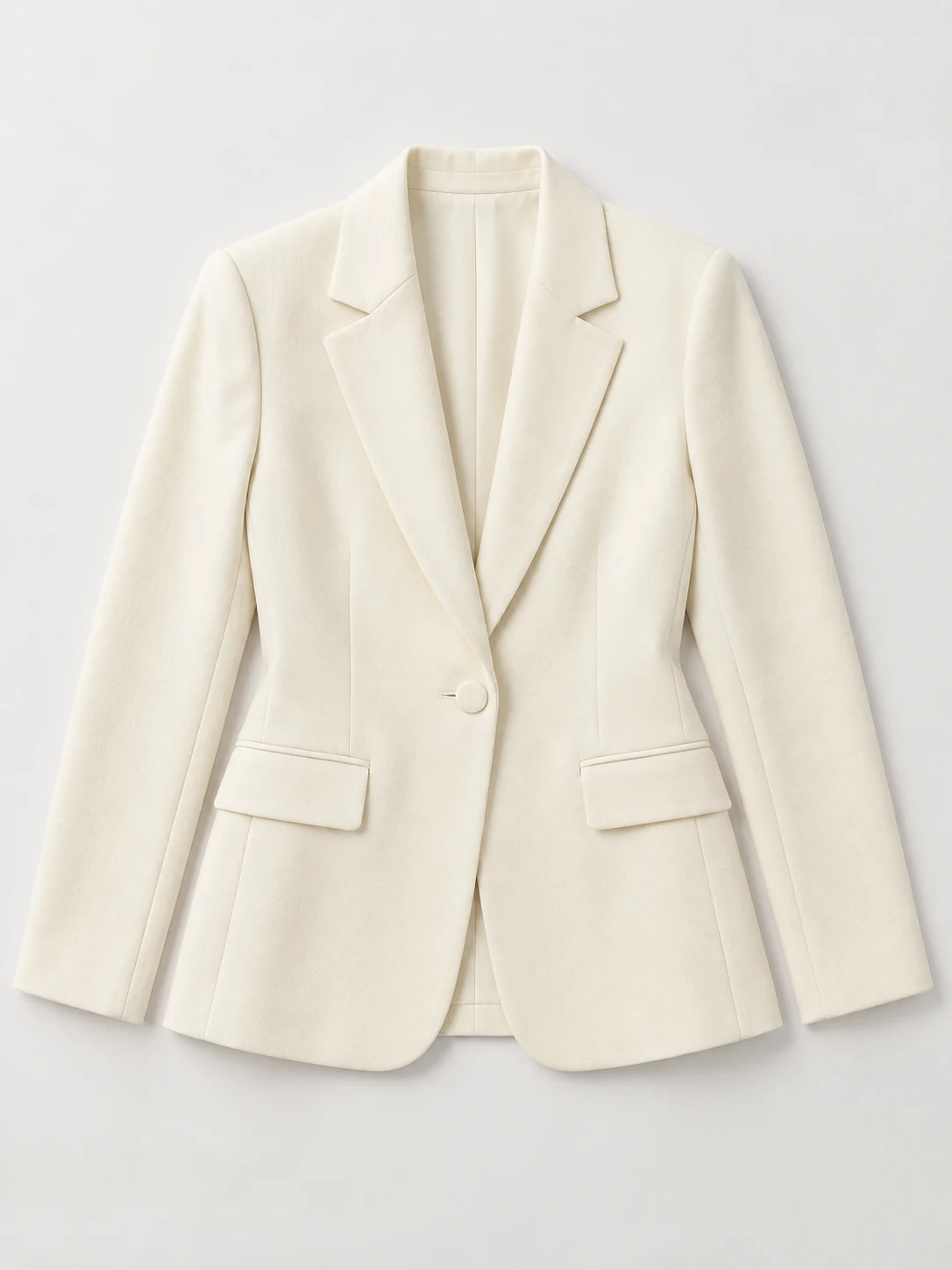
Clothing photo
Explore a small change or a complete new look with a replacement area that matches your goal. Upper body, lower body and entire outfit options make the editing target clear. We ask the model to keep clothing outside that area and use your optional wearing preferences to guide how the new garment is worn.
Choose the replacement area according to how much of the look you want to change.
Add a short note about styling or layering without writing a full editing prompt.
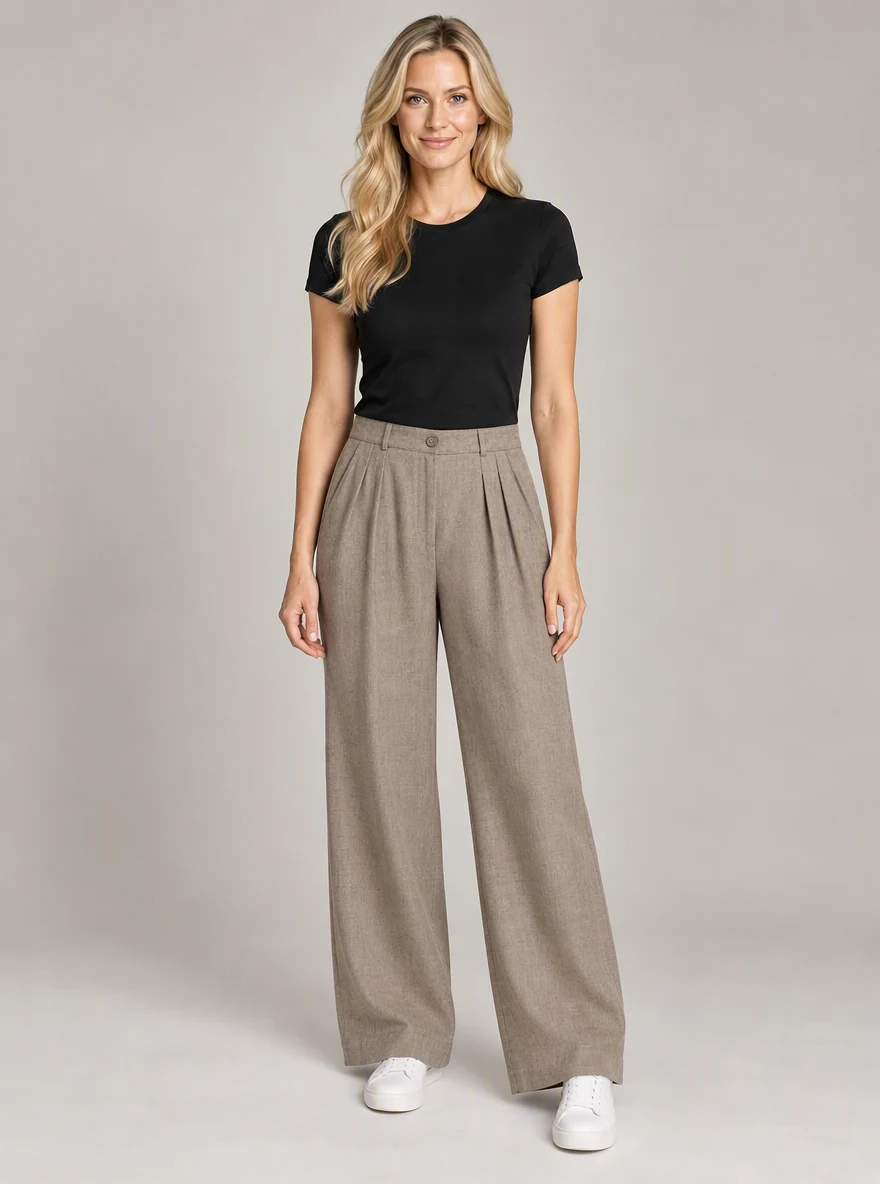
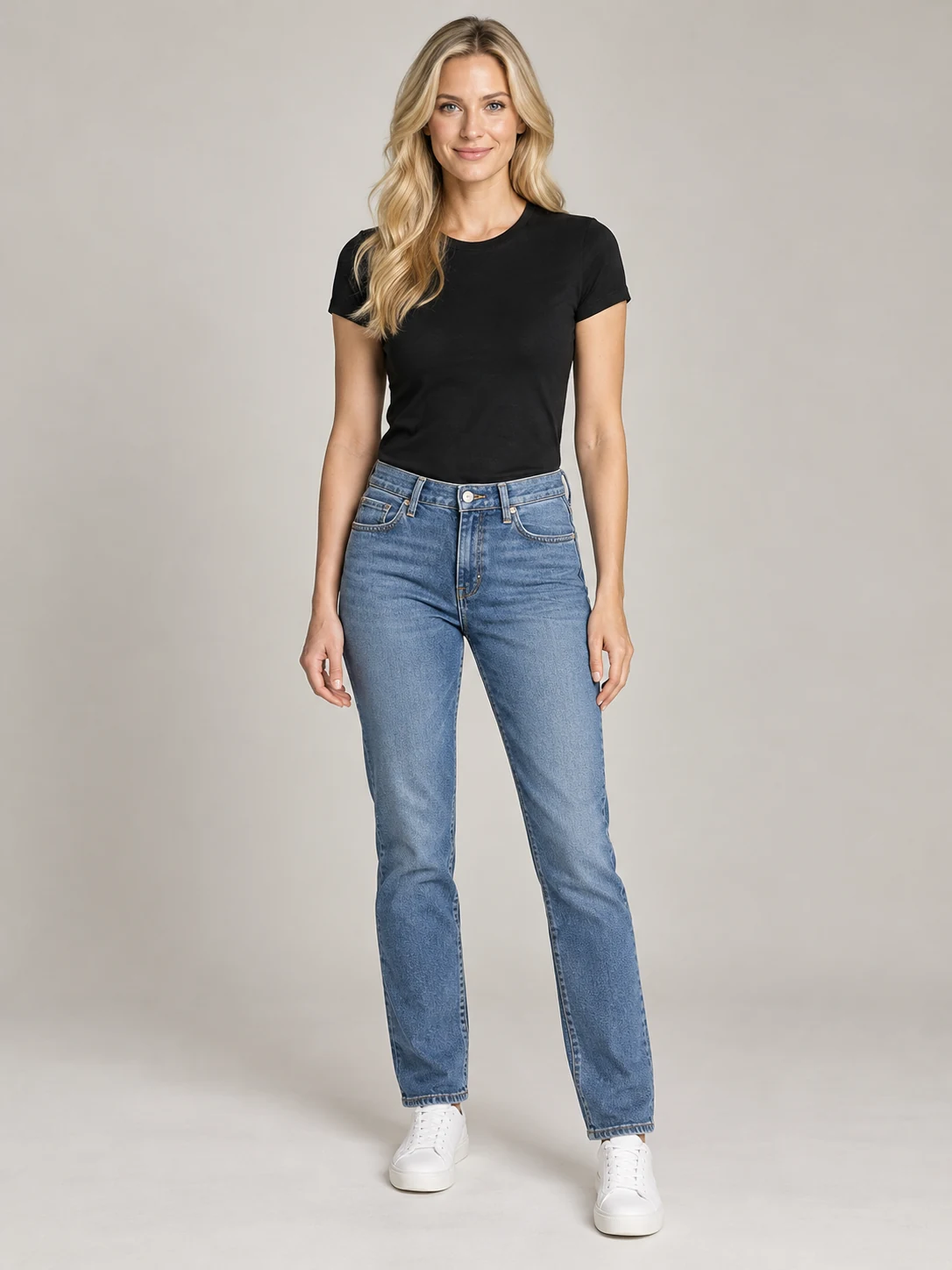
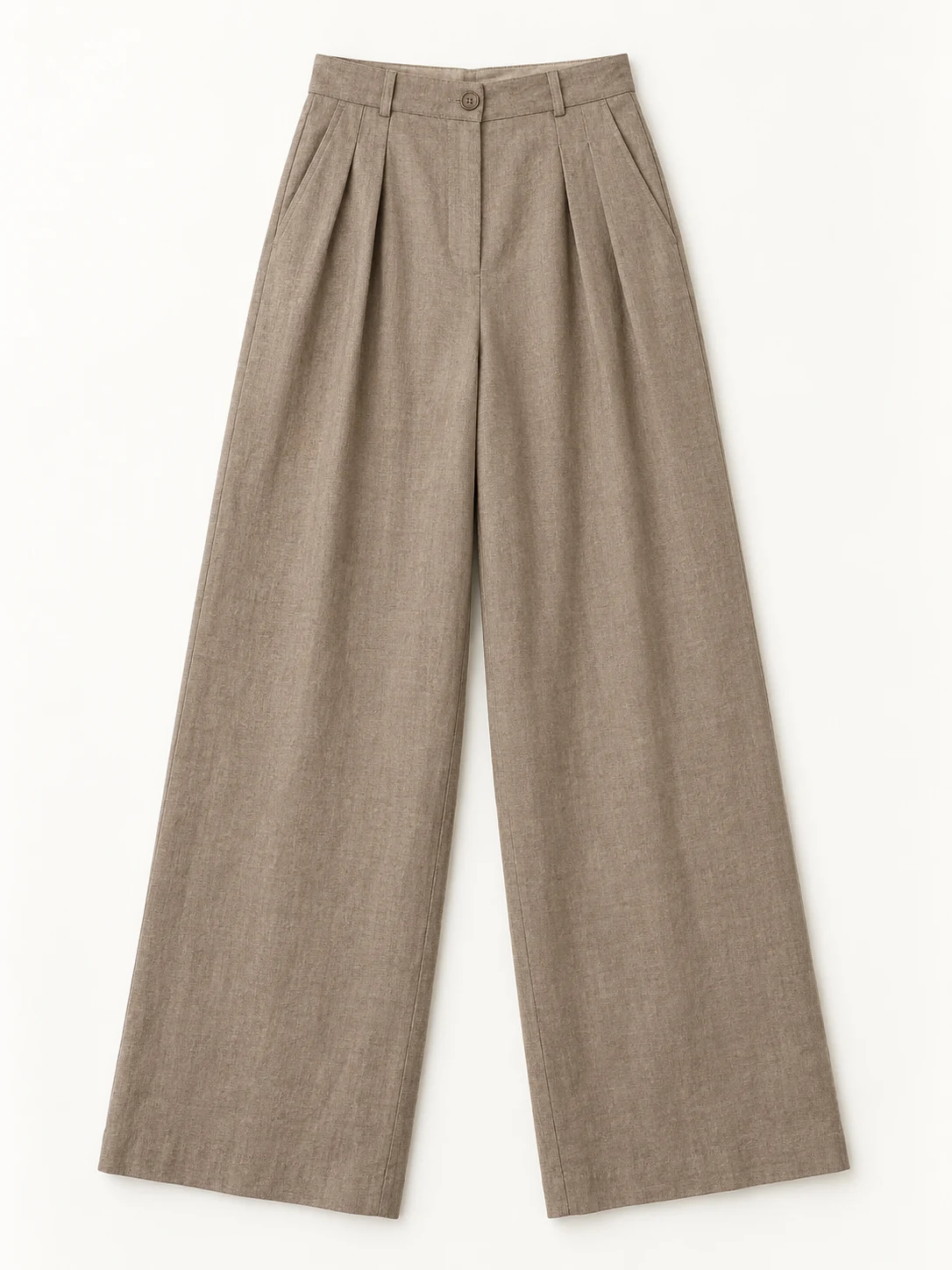
Clothing photo
Start your AI clothes try-on with two photos, without manual cutouts or masks. Choose 1K, 2K or 4K portrait output and check the credit estimate before generating. Then switch to the original photo to review the change, download the result or return to it in your Library. Your preview, comparison and saved image are part of the same workflow.
Start with two photos and a few options. The generate button shows the current credit estimate.
Switch to the original, download your try-on image and open it again in your Library.
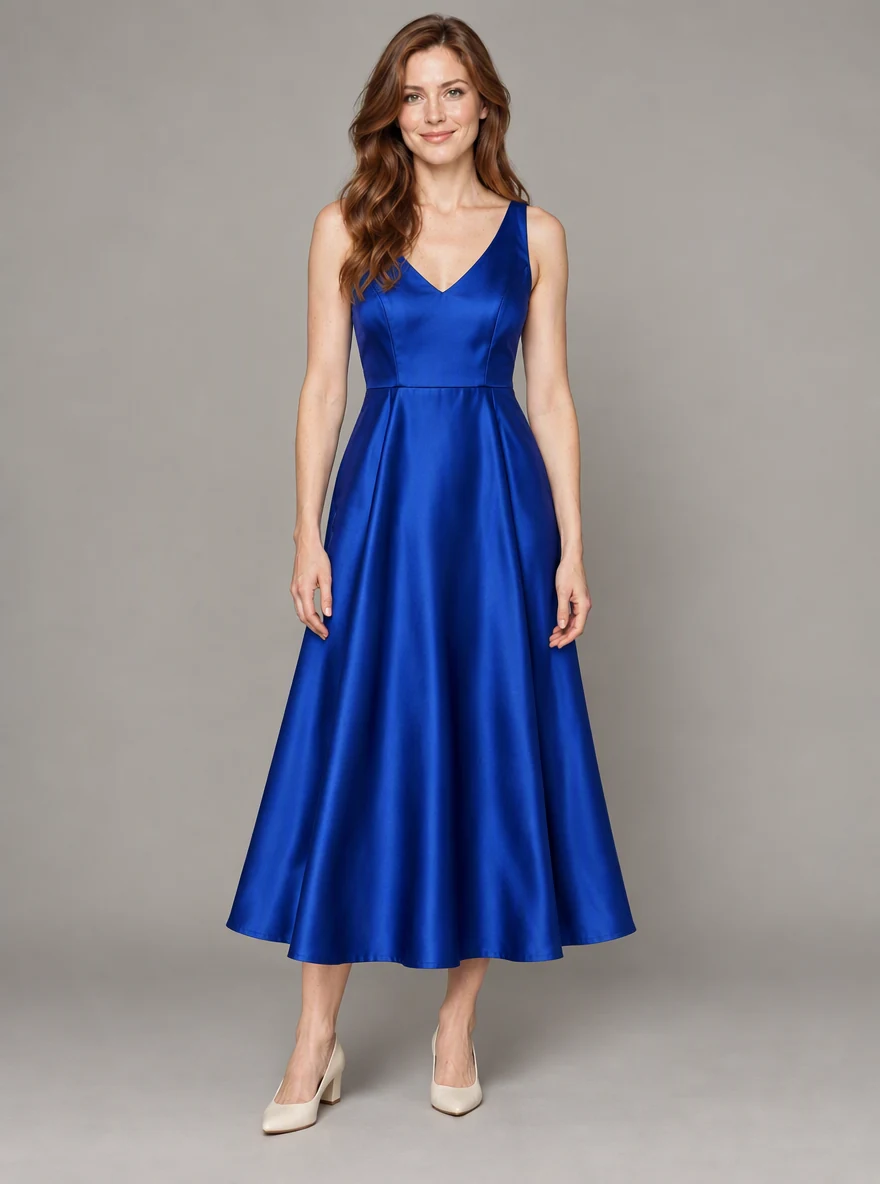
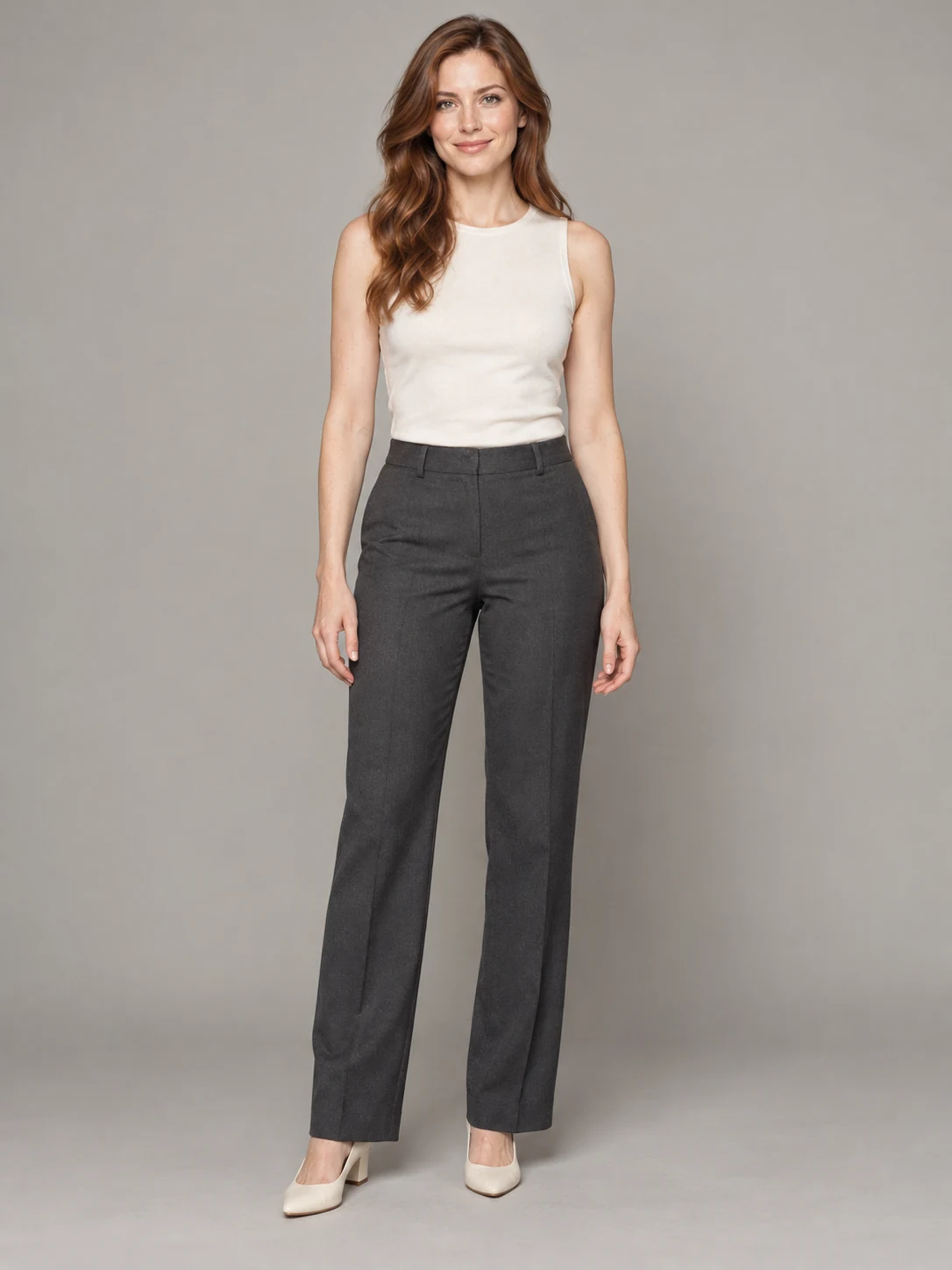
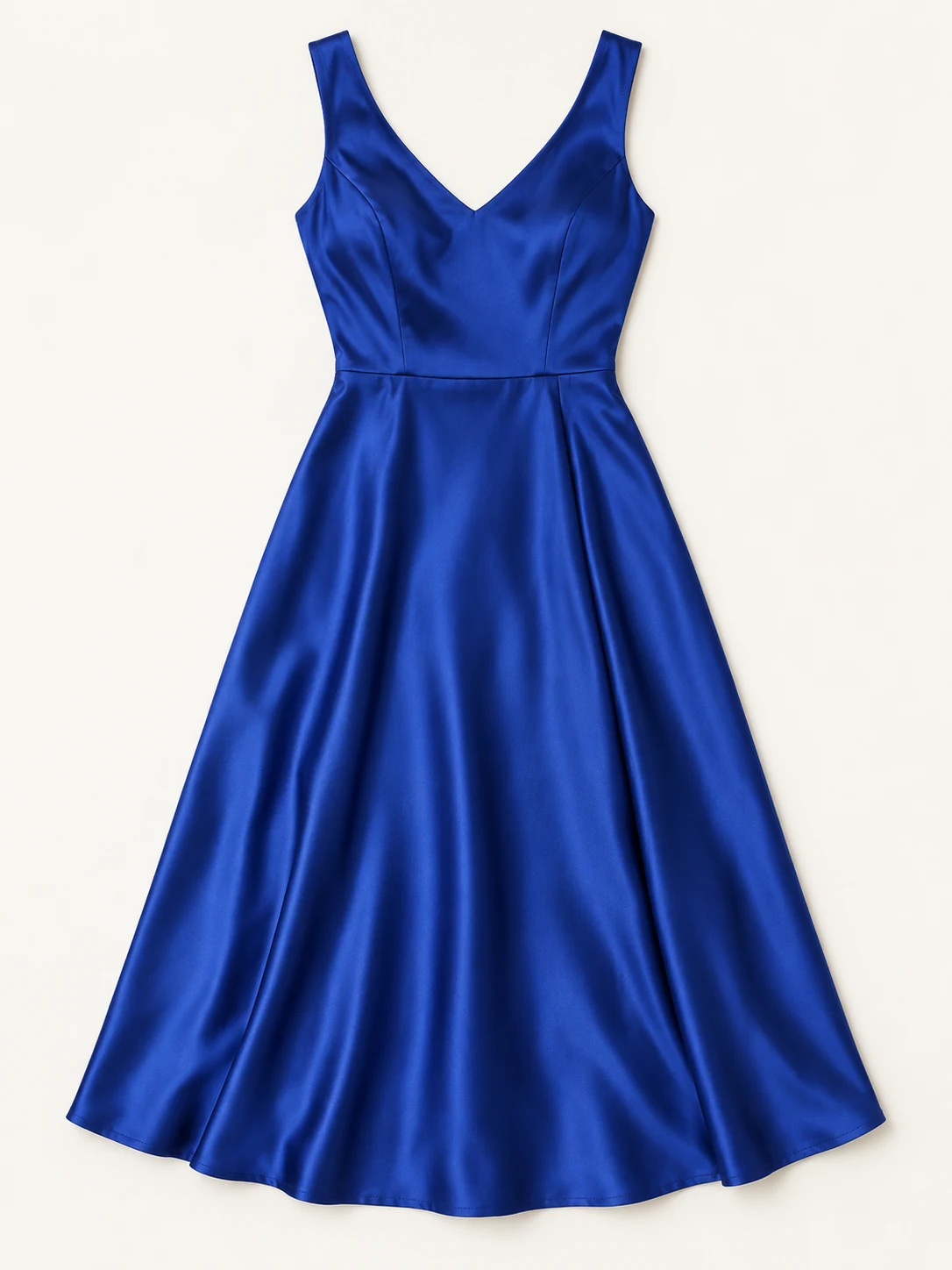
Clothing photo
Add a clear photo of one person and a separate photo of the clothing you want them to wear.
Select upper body, lower body or entire outfit. Add a short wearing preference if needed and choose a resolution.
Sign in, check the credits and generate. Compare the result with your original photo, then download your outfit preview.
Upload a person photo and a clothing photo. We send both references to GPT Image 2.5 with instructions for your selected replacement area. The tool generates one new outfit image; no manual mask or detailed prompt is required.
Use a well-lit photo of one person with the target clothing area visible. For trousers or a full outfit, include the legs. A complete, front-facing flat-lay, hanger or mannequin garment photo is a good starting point. JPEG, PNG and WebP are supported, up to 50 MB per image.
Yes. Choose upper body for tops and jackets, lower body for trousers, shorts and skirts, or entire outfit for dresses, jumpsuits and coordinated sets. This page focuses on clothing and does not provide a dedicated glasses or jewelry try-on mode.
We instruct the model to keep your appearance, pose and background and follow the garment reference closely. AI may still change fine details, logos, patterns or body proportions. Review the result against both source photos, especially for product listings.
Our virtual fitting room creates a visual outfit preview. It does not measure your body, simulate physical fabric fit or determine a suitable size. Use the retailer’s size chart and garment measurements when choosing a size.
Generation requires sign-in and SceneFlare credits. The button shows the estimate for the selected resolution and inputs; each new attempt uses credits. You receive one downloadable 3:4 portrait image at the selected 1K, 2K or 4K tier, and can return to the result in your Library.
Bring a person photo and a clothing reference. Start your virtual try-on in a few steps.