

1
Upload, drop or paste one JPEG, PNG or WebP.
Remove a person from a photo with AI. Describe who should go and who should stay, clear unwanted bystanders and rebuild the background from one uploaded image.
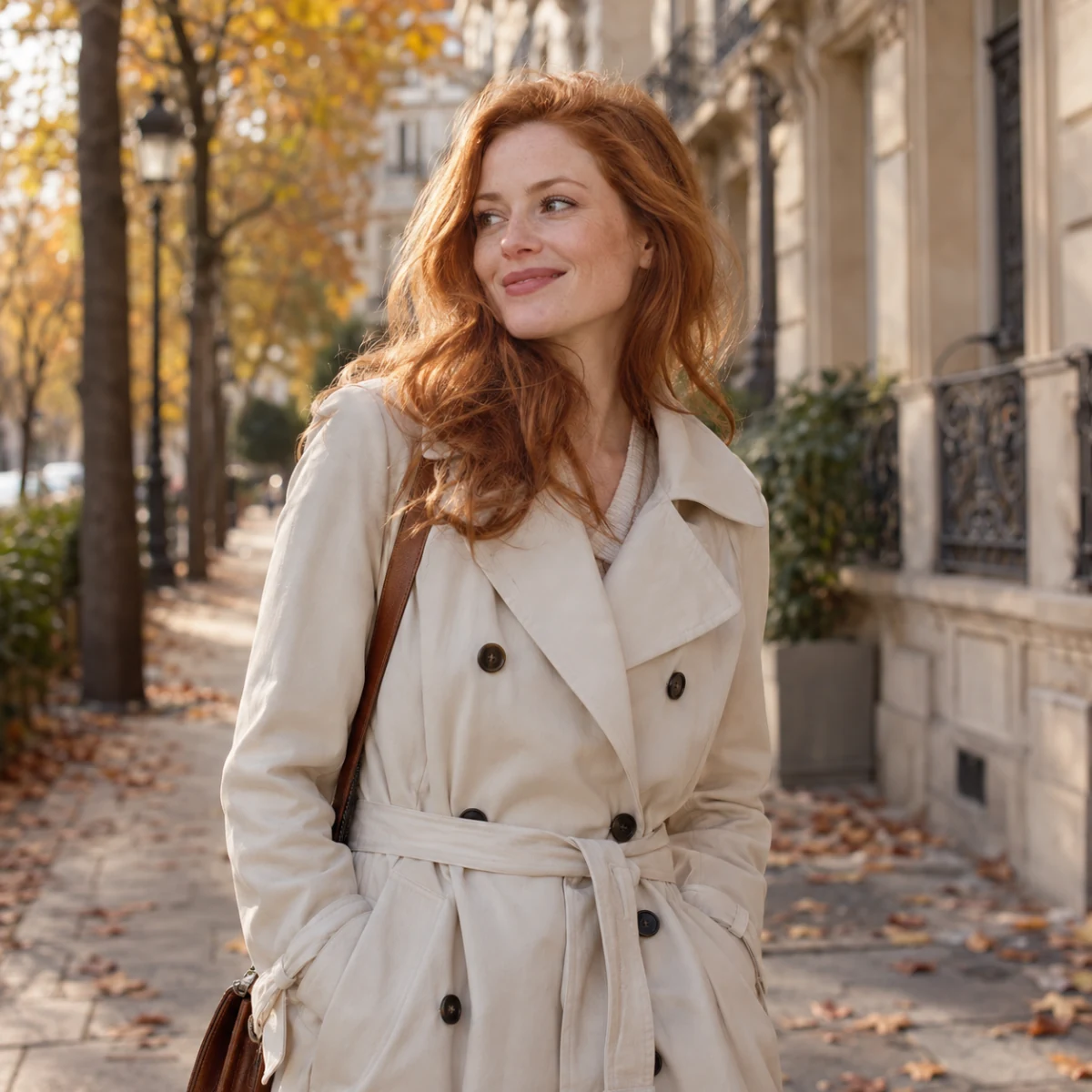
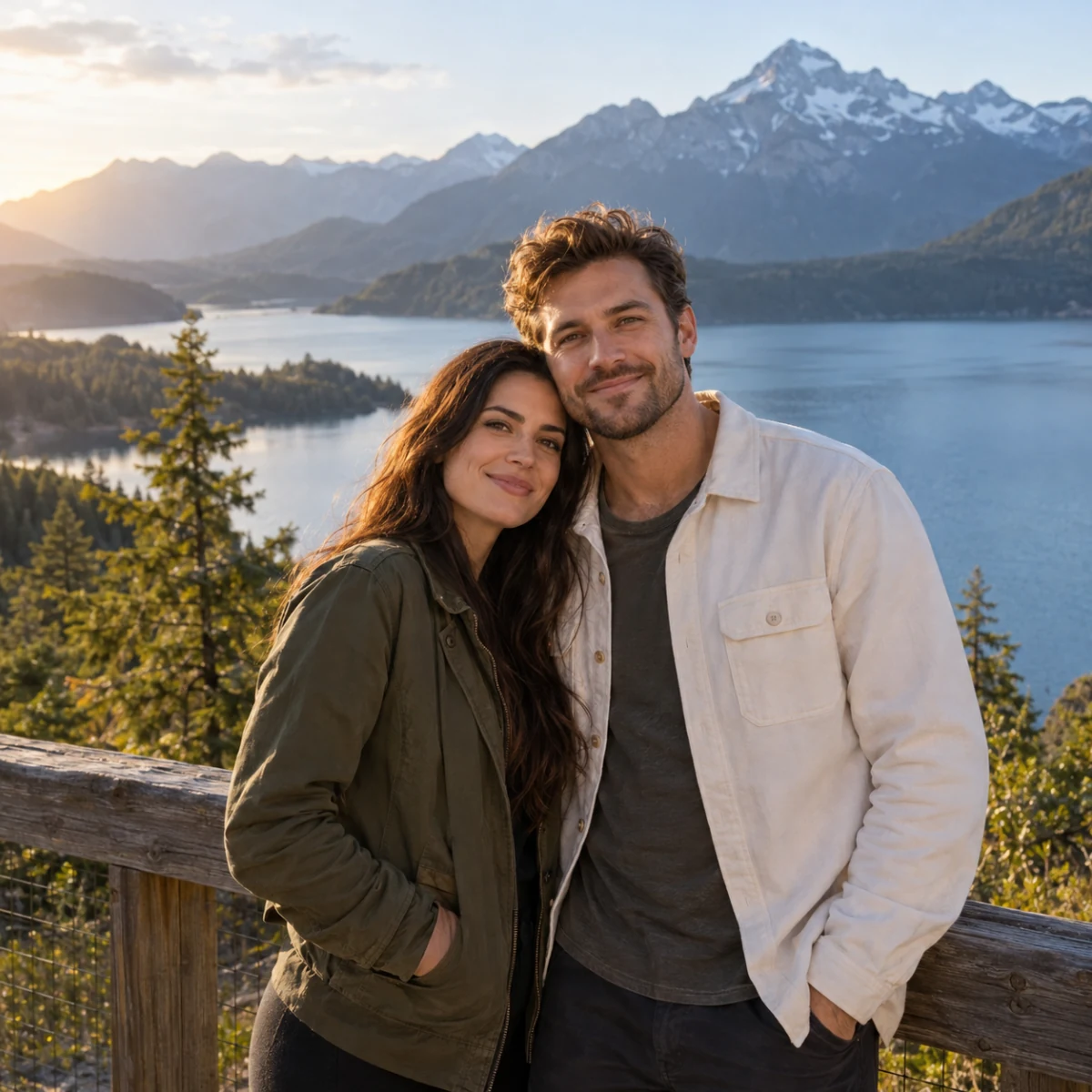
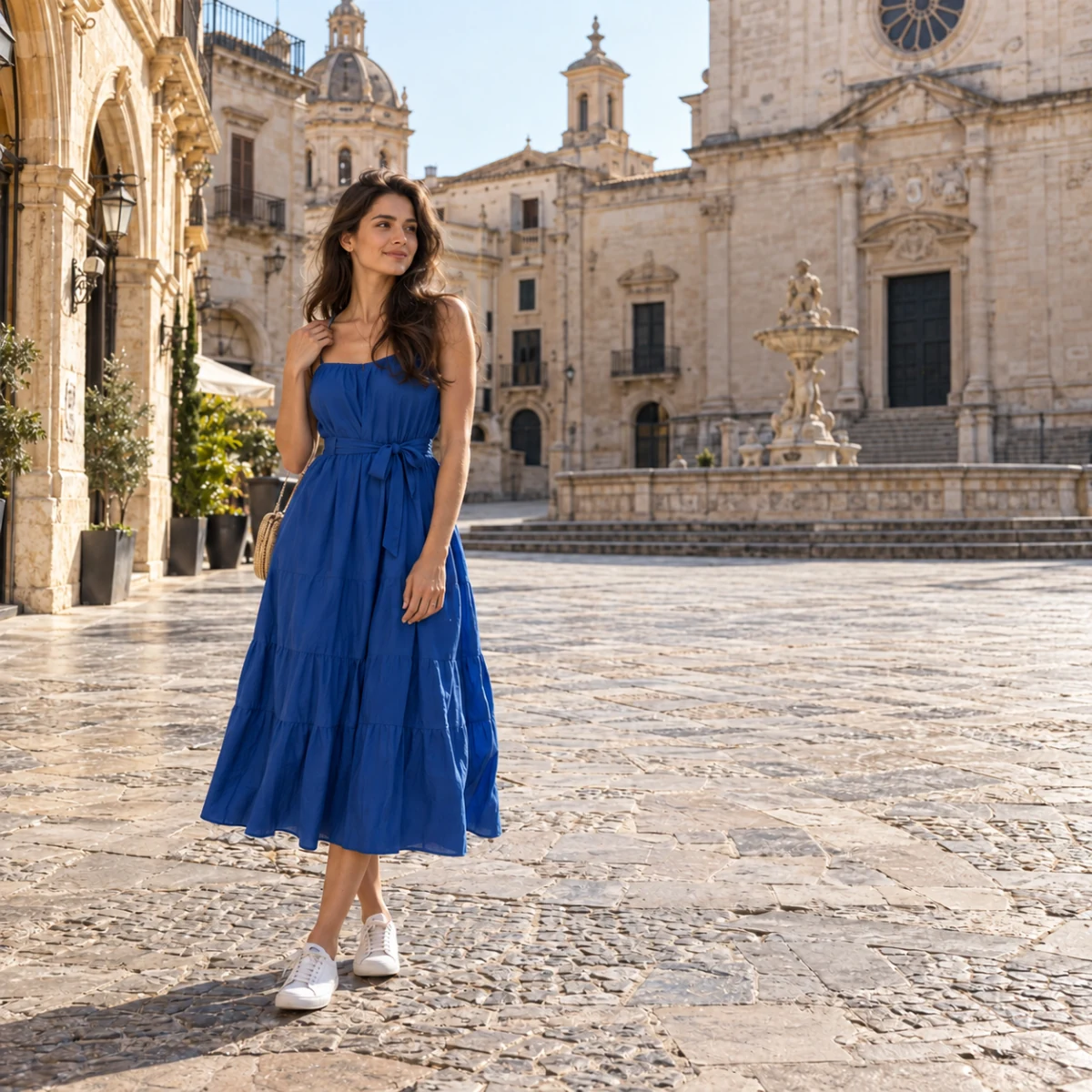
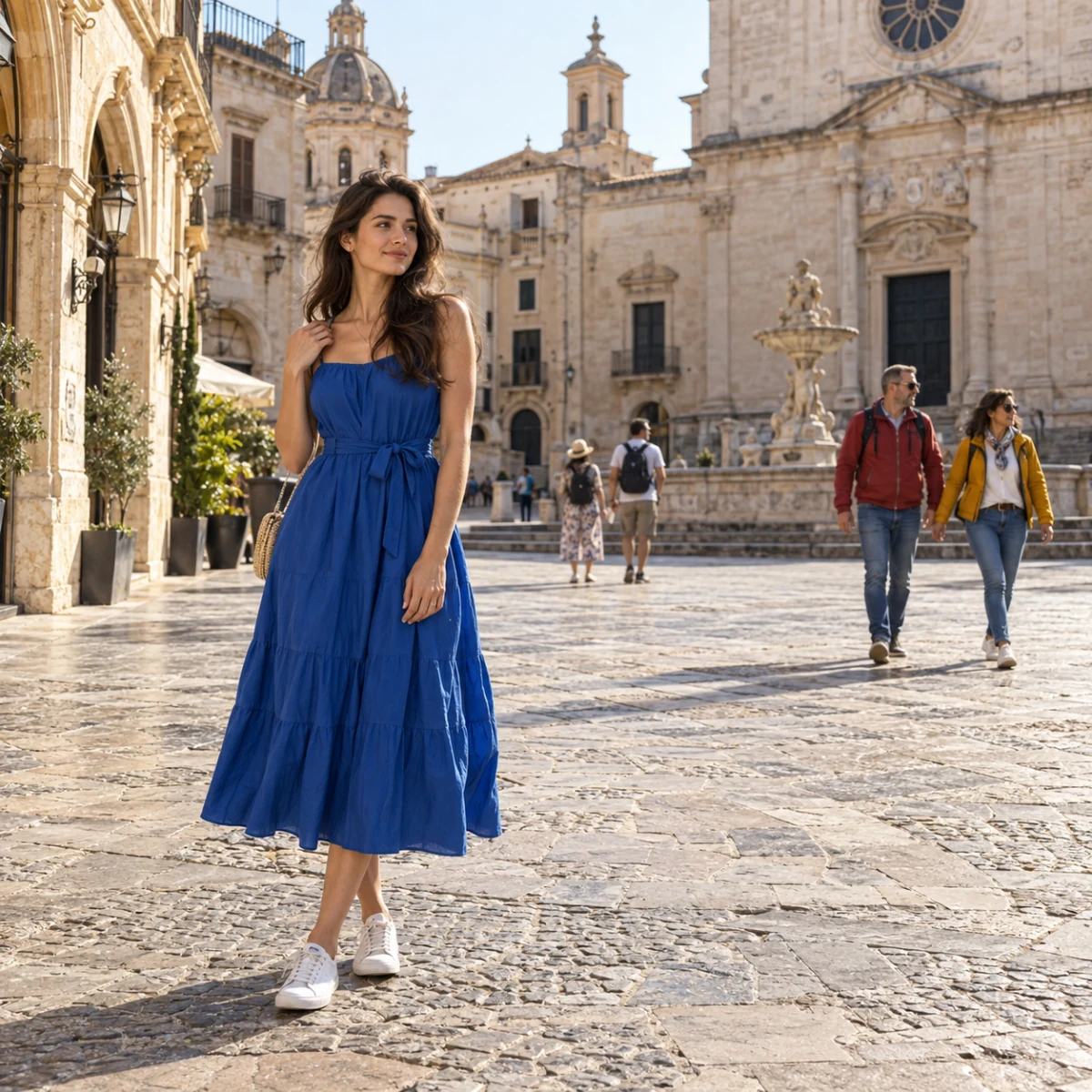
Before and after
Explore more ways to create and edit images.
Clear a photobomber from a portrait, take bystanders out of a travel photo or remove someone from a group shot. Describe the people to remove and add who should stay. AI fills the space using the surrounding scene, without selecting a silhouette by hand.
Upload, drop or paste one JPEG, PNG or WebP.
Use position and clothing to distinguish people.
Choose a fixed ratio for 1K or 2K output. Auto lets AI choose dimensions based on your photo.
Use a person's position, clothing or place in the scene to identify them. You can name one person or several people in the same request.
Add a separate preservation instruction when someone should stay. It guides the edit to protect that person's face, pose and clothing while removing the target.
AI fills the removed area using nearby textures, perspective and light, and works on the person's associated shadows and reflections too. Review these details before downloading.
Compare person-removal results while checking the people and surroundings you want to keep.
When several people share the frame, a precise description makes the request easier to follow. Combine position with clothing rather than writing only “remove someone.” This helps separate your target from nearby people.
Use a description such as the man in the green shirt on the left.
A person separated from the main subject is easier to remove than overlapping bodies.


Use the optional preservation field to identify people who must stay. Clear keep instructions take priority over removal instructions, so a group cleanup can focus on one unwanted person without asking for an empty scene.
Name the target and the people to preserve in their own fields.
Compare the remaining people's expressions, clothing and body details with the source photo.


Removing a person leaves part of the scene to rebuild. Surrounding walls, ground, sky and light guide the new background. Check edges, repeating textures and cast shadows, especially when a person covers architectural lines.
The edit also works on carried items, shadows and reflections associated with the target.
Choose Auto to follow the source framing, or select a fixed ratio when preparing a specific format.


Choose a clear JPEG, PNG or WebP with the person or people you want to remove.
Describe the removal target by position or clothing. If needed, add the people to protect in the optional keep field.
Review the credit estimate, sign in and generate. Check the remaining people and background in the comparison, then download the result.
Yes. Describe that person using position and clothing, then name the people who should remain in the optional keep field. Separate silhouettes work best. Close contact, linked arms or overlapping bodies can require more careful instructions and result checking.
Describe the background people to remove and identify the foreground subject in the keep field. For example, remove the tourists behind the woman and keep the woman in the blue dress. Use details that match your own photo.
No. This tool uses written removal and preservation instructions. You do not need to trace a person or upload a mask.
Yes. Ask to remove all people, or describe the group to clear. If anyone must remain, identify them in the keep field; preservation instructions take priority. Dense crowds that cover large areas are harder to fill convincingly.
The edit is guided to preserve the people and details you want to keep, but AI generates a new image. Fine facial details, hands, textures or text can change. Compare the result with the original; this tool does not provide pixel-exact retouching.
People covering another person's body, complex railings, signs or patterned backgrounds are more difficult. AI reconstructs hidden areas rather than recovering the original unseen scene. Check for leftover limbs, broken lines, shadow fragments and repeated textures.
Generation requires sign-in and SceneFlare credits. The button shows an estimate for your photo and output settings before submission. Each new generation uses credits. Finished images are saved to your library; uploaded files and form instructions reset on refresh.
Upload a photo and describe the people you want to remove.