1–15 s
PixVerse V6 Max
Make 1–15 second videos from text or a starting image with PixVerse V6 Max. Direct the camera and on-screen action, and add sound when the scene calls for it.
More video models
Explore other models for your next shot.
Direct the camera, action and sound in one shot
A cyclist gliding through a puddle reads differently from a camera gliding past a stationary cyclist. Tell V6 Max what the subject does, how the camera follows, and what the viewer hears at the moment of contact.
360p / 540p / 720p / 1080p
Optional
What you can direct with PixVerse V6 Max
Separate subject motion from camera motion
Name the shot size and the camera path. For a runner crossing the frame, compare a fixed wide shot with a side track that keeps the runner the same size.
Show a performance in small beats
Give each action a clear trigger. For an actor hearing a knock, describe the glance toward the door, the brief pause, and then the turn. One continuous shot gives you room to read the reaction.
Cue the sound with the action
With audio enabled, describe when a sound starts, for example a latch clicking as the door shuts. Add background sound at a lower level and keep the main sound easy to pick out.
Two shots to try with V6 Max
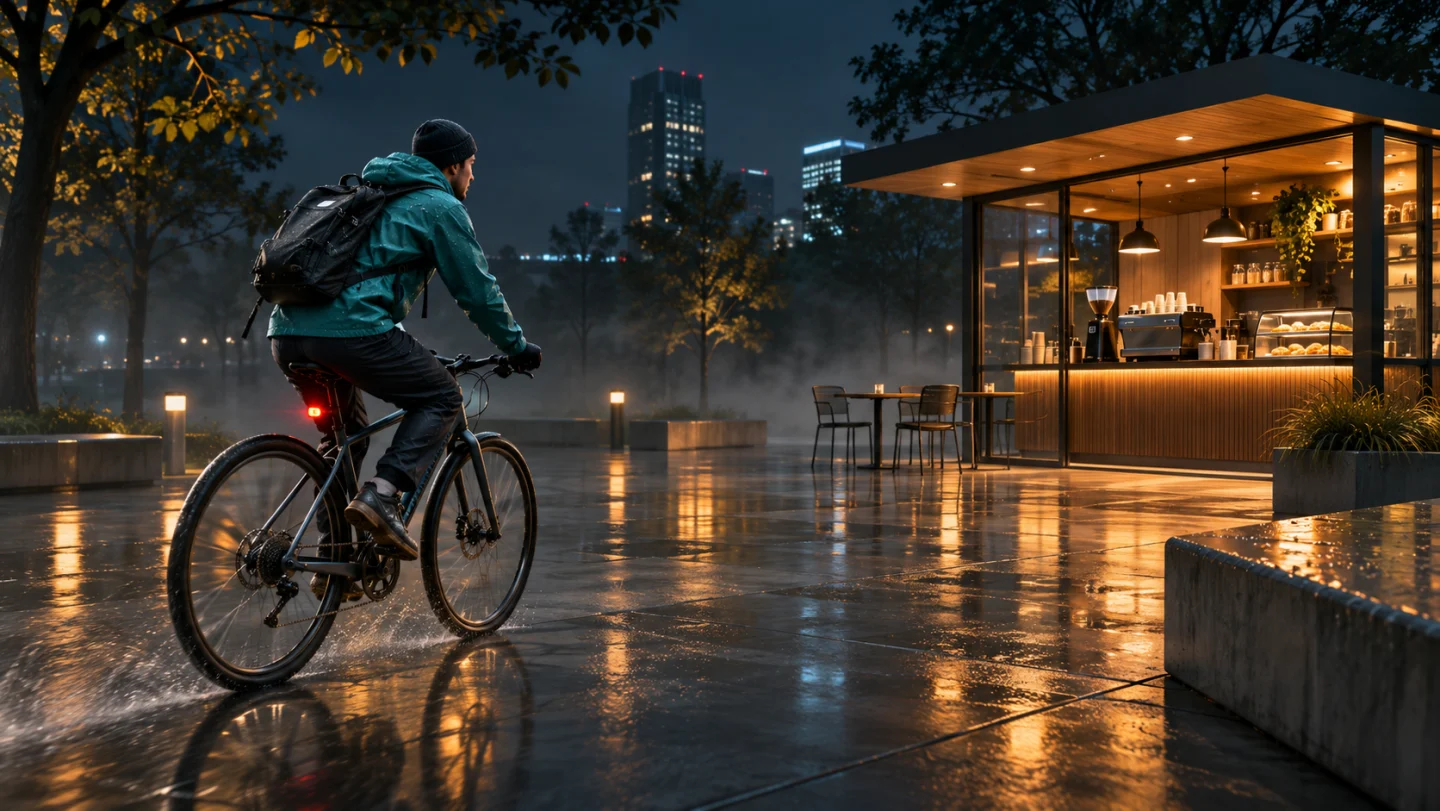
These scene illustrations show how to choose the framing and write cues for movement and sound.
Follow a cyclist across wet pavement
Set the camera at wheel height and track alongside the rider. When the front tire reaches the puddle, ask for a small spray and a brief splash over the quiet rain. Review whether the spray comes from the tire and stays near the ground.
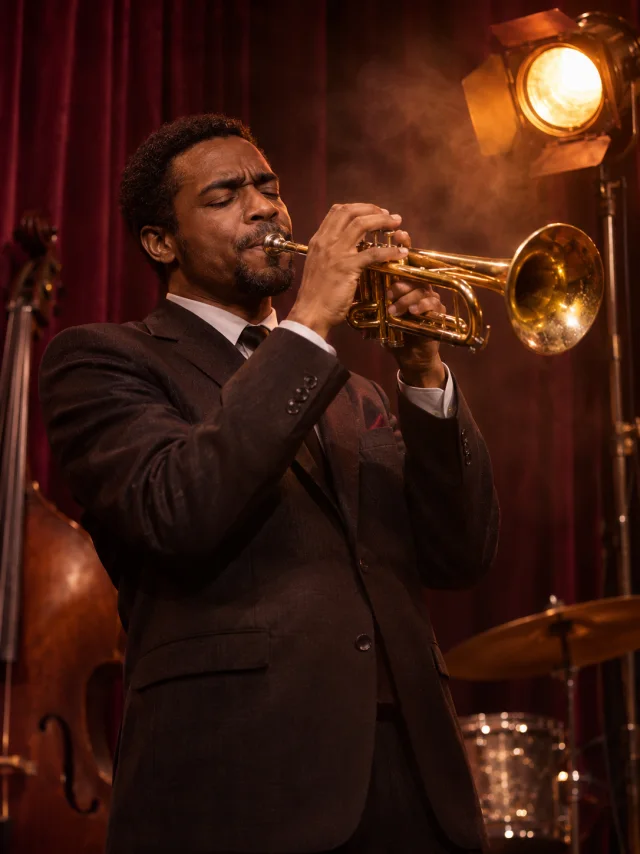
Make room for the first trumpet note
Start with the player in a medium shot. Ask for soft crowd murmur, then bring in the first note as the trumpet reaches the lips. Keep the camera steady long enough to see the breath and the hands.
Build a PixVerse shot
01
Choose text or a starting image
Use text if you want to describe the opening shot. If the opening composition is already set, upload it as the starting frame; the clip follows its aspect ratio.
02
Describe the action in order
Write the initial pose, the main movement and the finish. Give the camera its own instruction, such as “track alongside at wheel height.”
03
Choose sound and review the quote
Enable audio if the shot needs it. Pick the length and resolution, check the credit estimate, and review whether the movement and sound land at the intended moment.
Frequently asked questions
Does PixVerse V6 Max generate sound with the video?
Yes. Turn on audio to request dialogue, ambience or effects in the same generation. Audio changes the credit estimate, and you can turn it off if you plan to add your own track.
Can I upload a reference video or a last frame?
On this page you can generate from text or upload one starting image. There is no video reference or last-frame control.
Which resolution should I start with?
Try 360p or 540p for the timing and camera path, then choose 720p or 1080p when you need to inspect expressions, hands or moving details.