Faster iteration
Timing varies by request
Preview
Compare models for the speed, budget and creative controls your next shot needs.
Open Seedance 2.0 Mini in SceneFlare.
Open MiniMax H3 in SceneFlare.
Open Wan 3.0 in SceneFlare.
Open FLUX 3 Video in SceneFlare.
Open Seedance 2.5 in SceneFlare.
Open Gemini Omni in SceneFlare.
Open HappyHorse in SceneFlare.
Open Seedance 2.0 in SceneFlare.
Wan 3.0 Prime is the faster tier of Alibaba’s Wan 3.0. Sketch a shot in words, guide a transition with first and last frames, or use references to direct appearance, movement and sound. Choose it for shot experiments, ad variations and creative reviews where waiting interrupts the work. SceneFlare is an independent service.
Timing varies by request
Choose how to guide the scene
Three resolutions, optional audio
From a shot idea to a scene guided by your own references.
Prime aligns with the core capabilities of standard Wan 3.0 while prioritizing faster end-to-end generation. Completion time varies with duration, resolution and service load.
Describe a subject, action, setting and camera move to develop a product reveal, character performance or story idea into a video draft.
Upload a first frame to establish the opening, then add an optional last frame to guide the ending. Describe the action and camera movement between them.
Reference mode accepts up to 10 images, 5 videos and 5 audio clips. Use Image1, Video1 and Audio1 in your prompt to describe their roles in upload order.
Enable audio and describe dialogue, ambience, effects or music in the prompt. Switch it off when you want to add sound during editing.
Select 480p, 720p or 1080p, a whole-second duration from 2 to 30, and an adaptive or fixed aspect ratio. Defaults are 720p, 5 seconds and audio on.
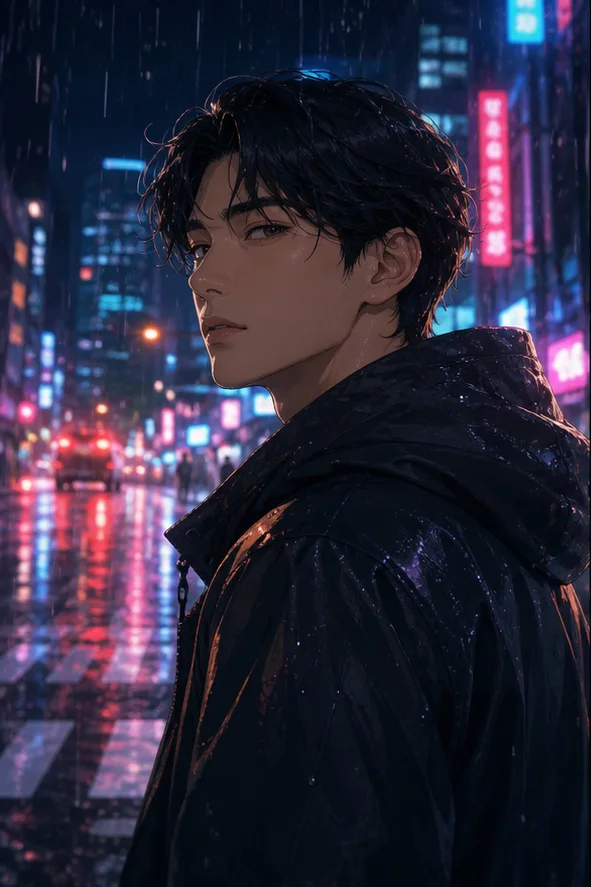
Explore action scenes, urban atmosphere and fantasy characters.
Keep the subject and composition, then change one action, camera move or lighting choice at a time so revisions are easier to compare.
Test the shot idea at a short duration before developing a longer version.
Keep the same references while trying a push-in, an orbit or a fixed camera.
Review hands, product appearance and background changes before choosing a version.
Compose a scene with sky, sea, architecture and light, using weather and environmental changes to shape its mood.
Describe the position of roads, buildings and the shoreline to give the composition clear depth.
Explain how clouds, rain, wind and lighting change as the shot develops.
Try a slow push-in or a move along the road, giving viewers time to take in the scene.
Assign appearance, movement and sound to image, video and audio references, then connect those cues with a scene description.
For example, use Image1 for appearance, Video1 for movement and Audio1 for sound.
Each reference video must be 1–15 seconds, with at most 15 seconds combined. Input and output video must total no more than 30 seconds.
Check dialogue, sound timing and movement before moving into your editing timeline.
Begin with text, keyframes or mixed references. Describe the subject, action, camera and sound.
Choose resolution, whole-second duration, aspect ratio and audio, then upload the assets you need.
Confirm the quote, submit the task and review the result before planning your next revision.
Prime prioritizes speed while aligning with the standard model’s core generation capabilities. Its per-second price is higher. Choose Prime for prompt feedback and revisions, or compare the standard tier when budget matters more.
SceneFlare offers text-to-video, image-to-video and reference-to-video. Image mode takes a first frame and optional last frame. Reference mode takes images, videos and audio. Keyframes and mixed references use separate modes.
Choose any whole-second duration from 2 to 30, at 480p, 720p or 1080p. Reference videos may total up to 15 seconds, and input plus output video must stay within 30 seconds. The current generator uses fixed durations.
Images, videos and audio are numbered separately in upload order. Refer to Image1, Video1 or Audio1 in your prompt and explain whether each asset supplies appearance, composition, movement or sound.
Yes. Audio is on by default and can be disabled. The audio switch does not change the per-second price for the same settings. Reference audio supplies input guidance for generation.
Credits depend on resolution, output duration and reference video duration. Review the quote before submitting. Reference videos add billable seconds; reference images and audio do not carry separate charges.
Prime is intended for faster generation, but tasks still need processing time. Duration, resolution, inputs and service load affect completion. There is no guaranteed turnaround time or fixed speed multiplier.
The current SceneFlare Prime generator accepts image, video and audio references. Document and webpage inputs, video editing and extension modes are not currently offered.
Choose a mode, prepare your inputs and review the credit quote before generating.