Flare / Sunburst
Sunburst focuses on edit fidelity. Use it when preserving the reference matters most.
Generate and edit images with GPT Image 2.5. Choose Flare or Sunburst, add references and masks, set dimensions, and review credits before creating up to 10 images.
Preview
Explore other image models for generation and editing.
Start from a written brief or work from your own photos. GPT Image 2.5 combines image generation and reference editing in one workspace, with Flare for faster iteration and Sunburst for edits where fidelity matters. Choose the version for each task without switching pages.
Sunburst focuses on edit fidelity. Use it when preserving the reference matters most.
Five quality levels let you balance detail, generation time and credits.
Choose 1–10 images per request. After completion, select each thumbnail to preview and download that image. Your results remain accessible from Library after leaving the page.
Generate and edit images with GPT Image 2.5. Choose Flare or Sunburst, add references and masks, set dimensions, and review credits before creating up to 10 images.
Describe the subject, setting, lighting and composition. For a poster or interface concept, put the exact words in quotation marks and specify their placement. Review the result for spelling, anatomy and product accuracy.
Add up to 16 photos, sketches or layout references. Explain what each reference contributes and name what should remain unchanged. A reference guides the result; it does not guarantee an exact match.
Upload a PNG matching the first reference image’s dimensions. Transparent pixels mark the area to change; opaque pixels mark the area to preserve.
Width and height must be multiples of 16, with at most 3,840 px per side, 655,360–8,294,400 total pixels and an aspect ratio no wider than 3:1.
Transparent output is a preview feature. Check the alpha channel and edges before using the image.
Choose 1–10 images per request. After completion, select each thumbnail to preview and download that image. Your results remain accessible from Library after leaving the page.
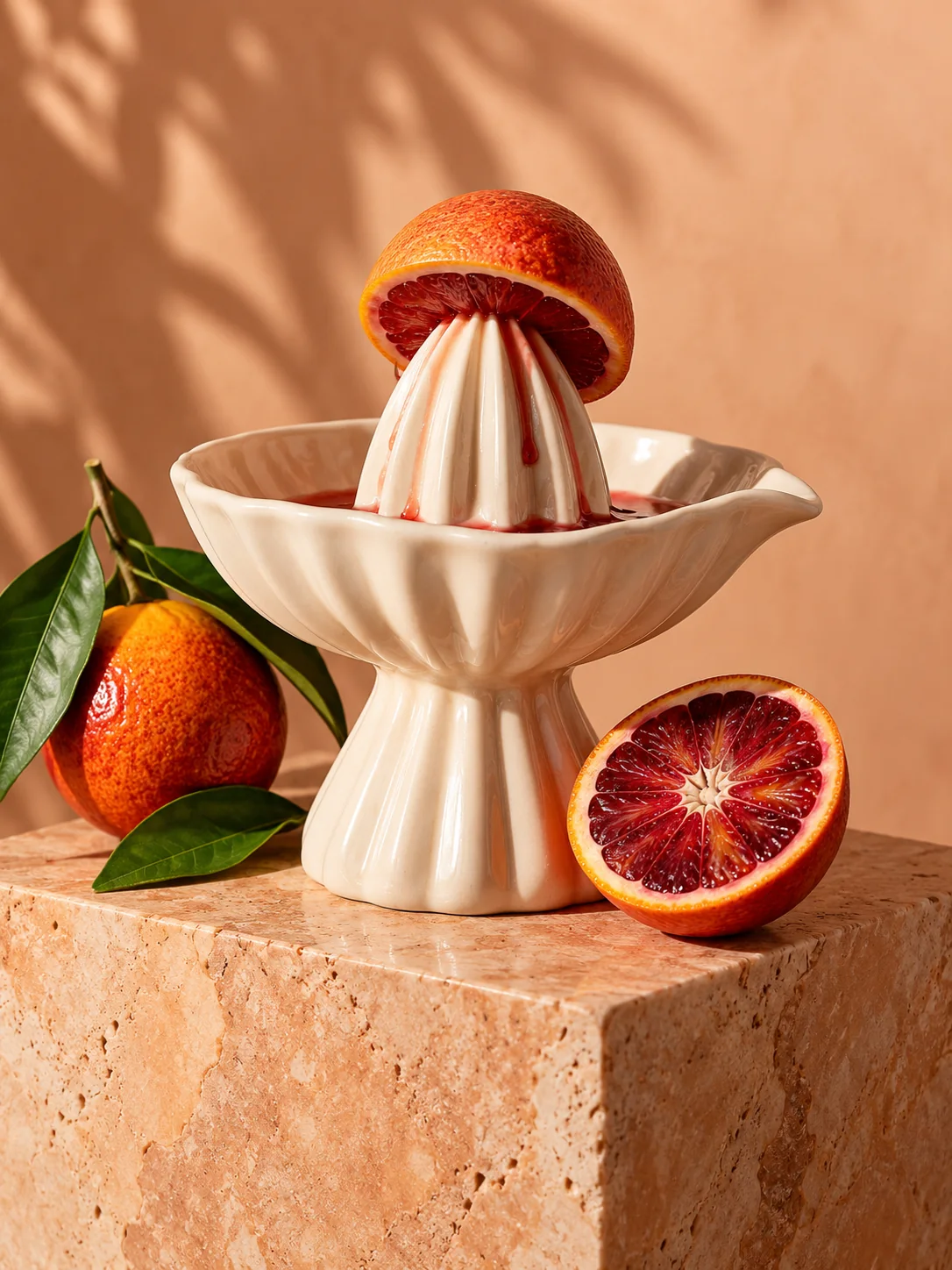
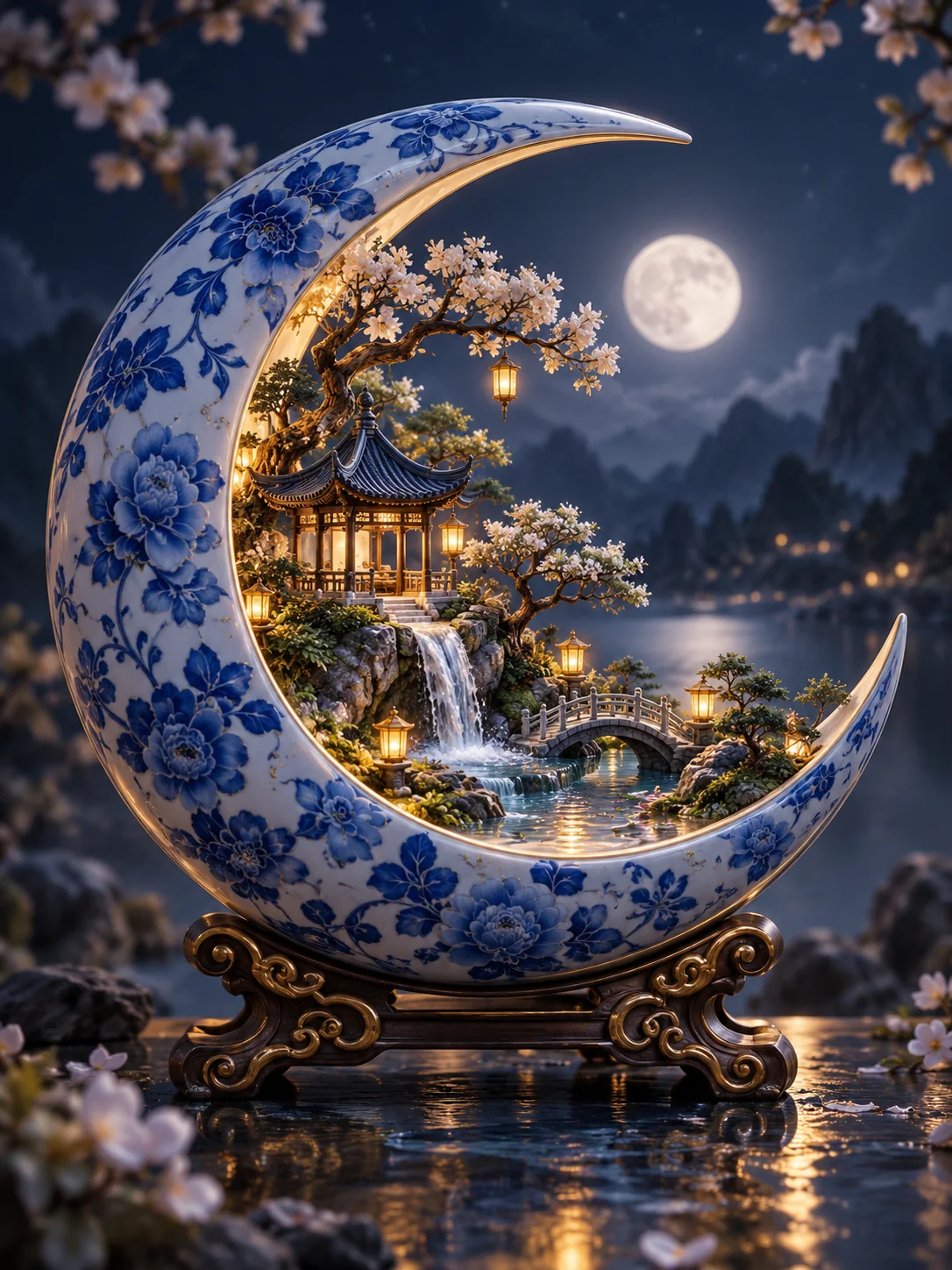
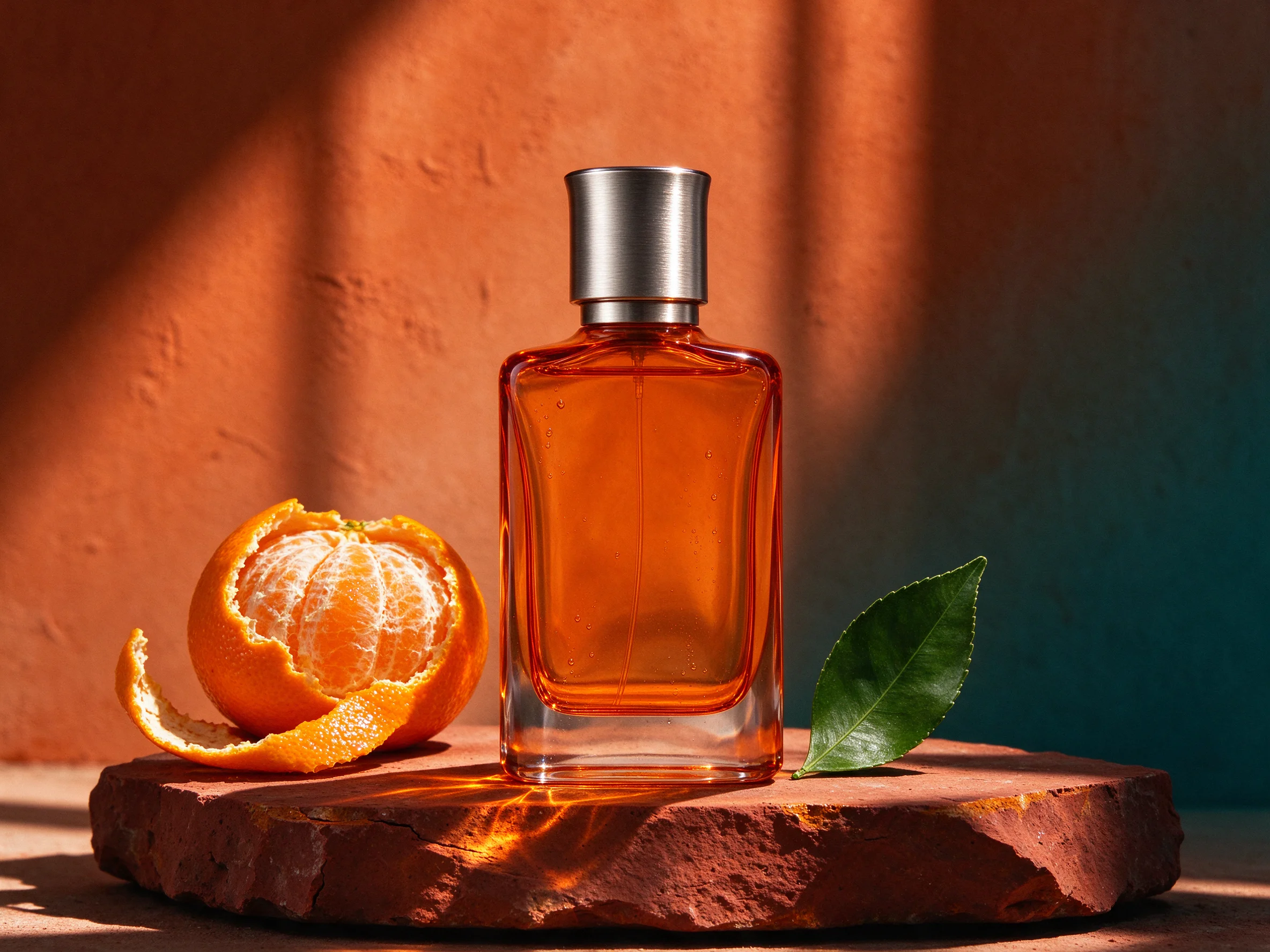
Explore examples of scene generation and reference editing. These examples illustrate possible results; they are not SceneFlare benchmarks.
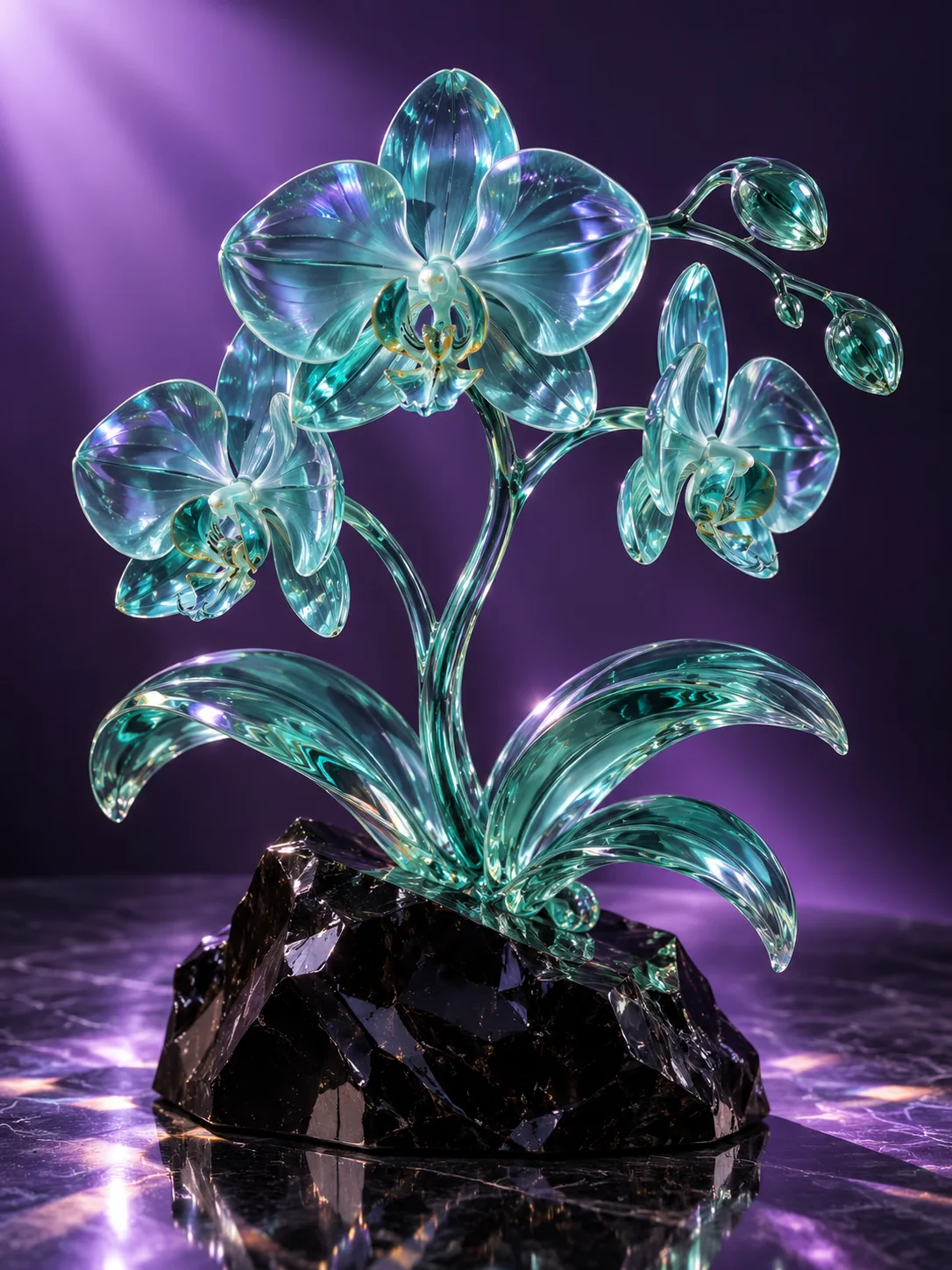
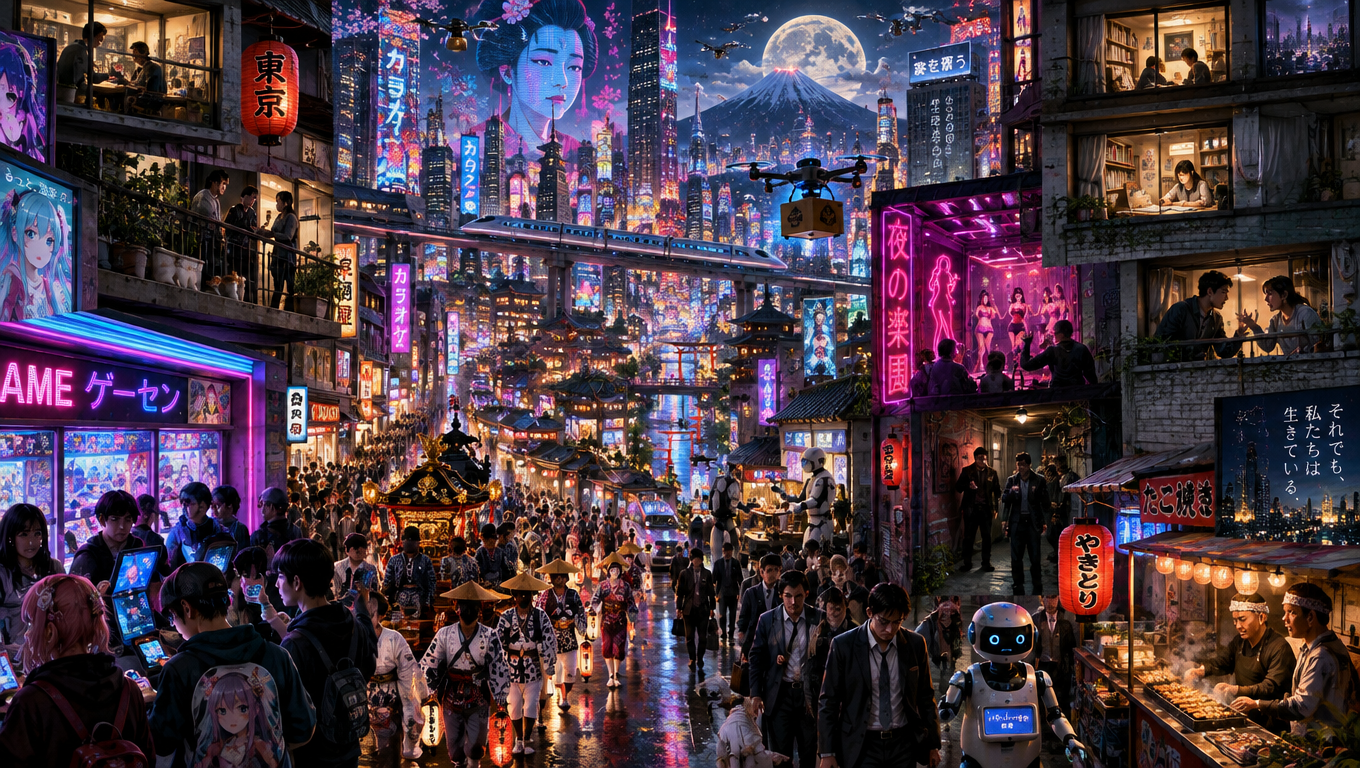
This Flare sample combines a neon city, people, architecture and night lighting. Use a similarly structured brief to establish the scene first, then refine individual details.
Flare is the faster choice for everyday generation and editing.
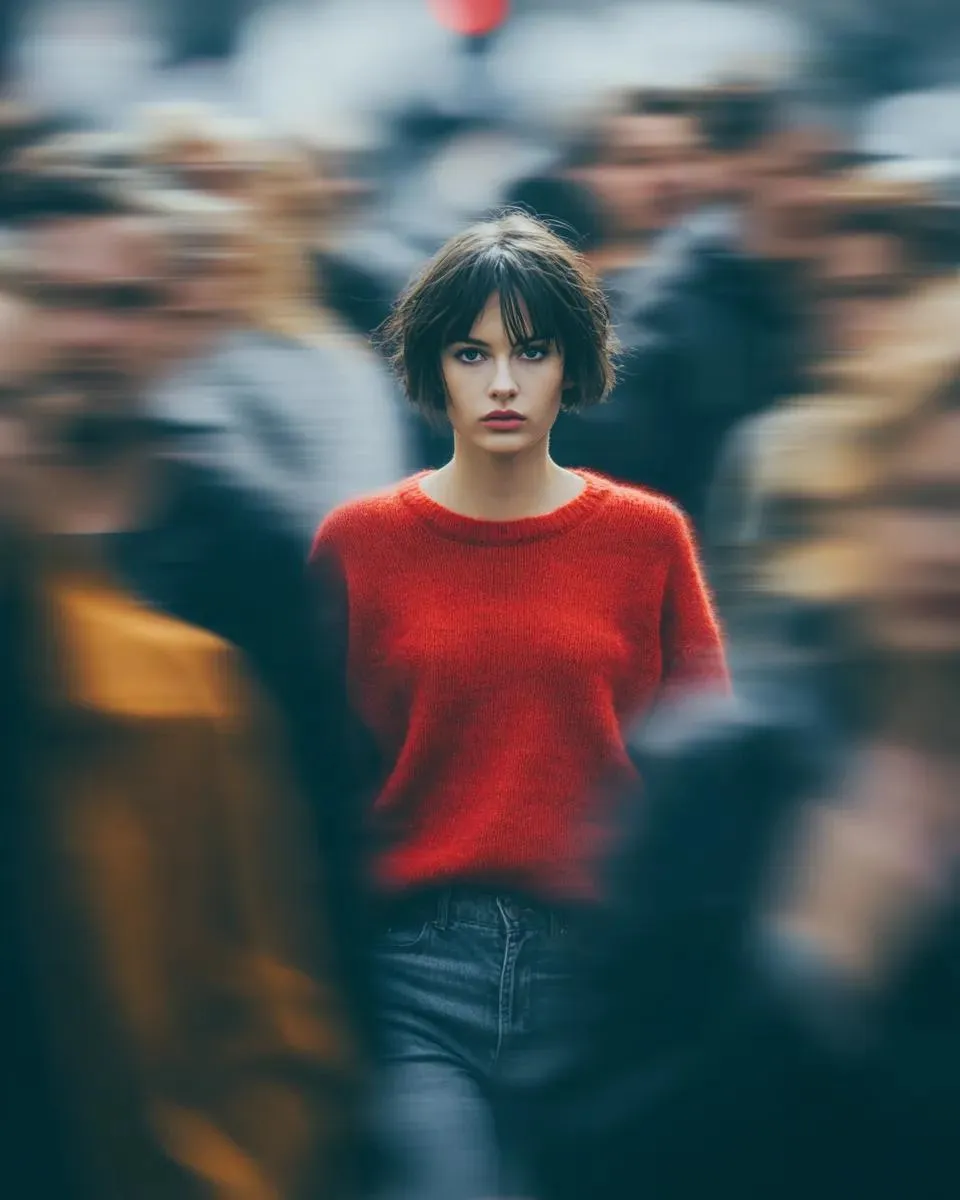
OpenAI’s published comparison changes a red shirt into formalwear. Move the divider to compare the source and edited portrait. This demonstrates Images 2.5; the example does not identify a specific API subversion.
Add up to 16 photos, sketches or layout references. Explain what each reference contributes and name what should remain unchanged. A reference guides the result; it does not guarantee an exact match.
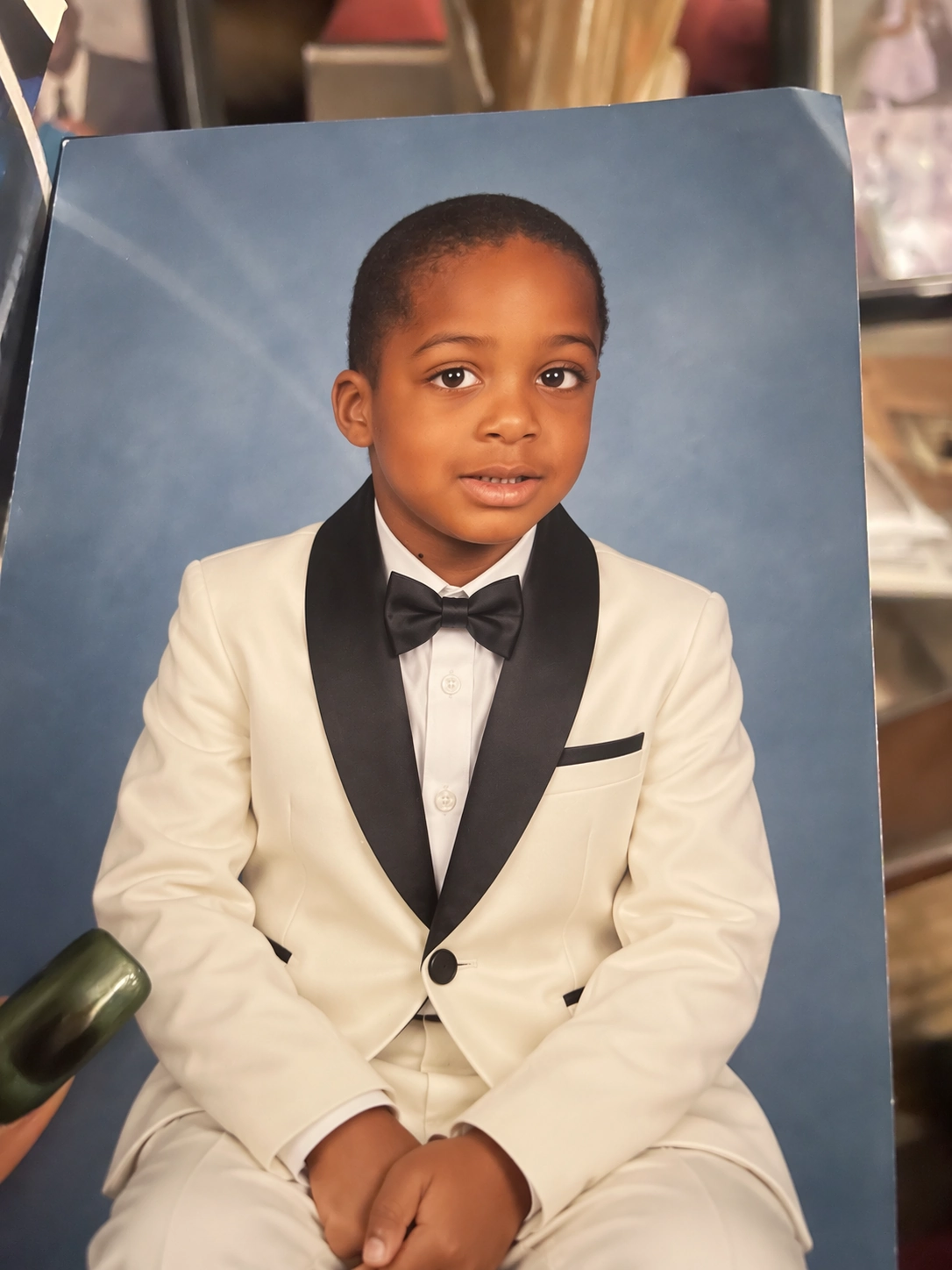
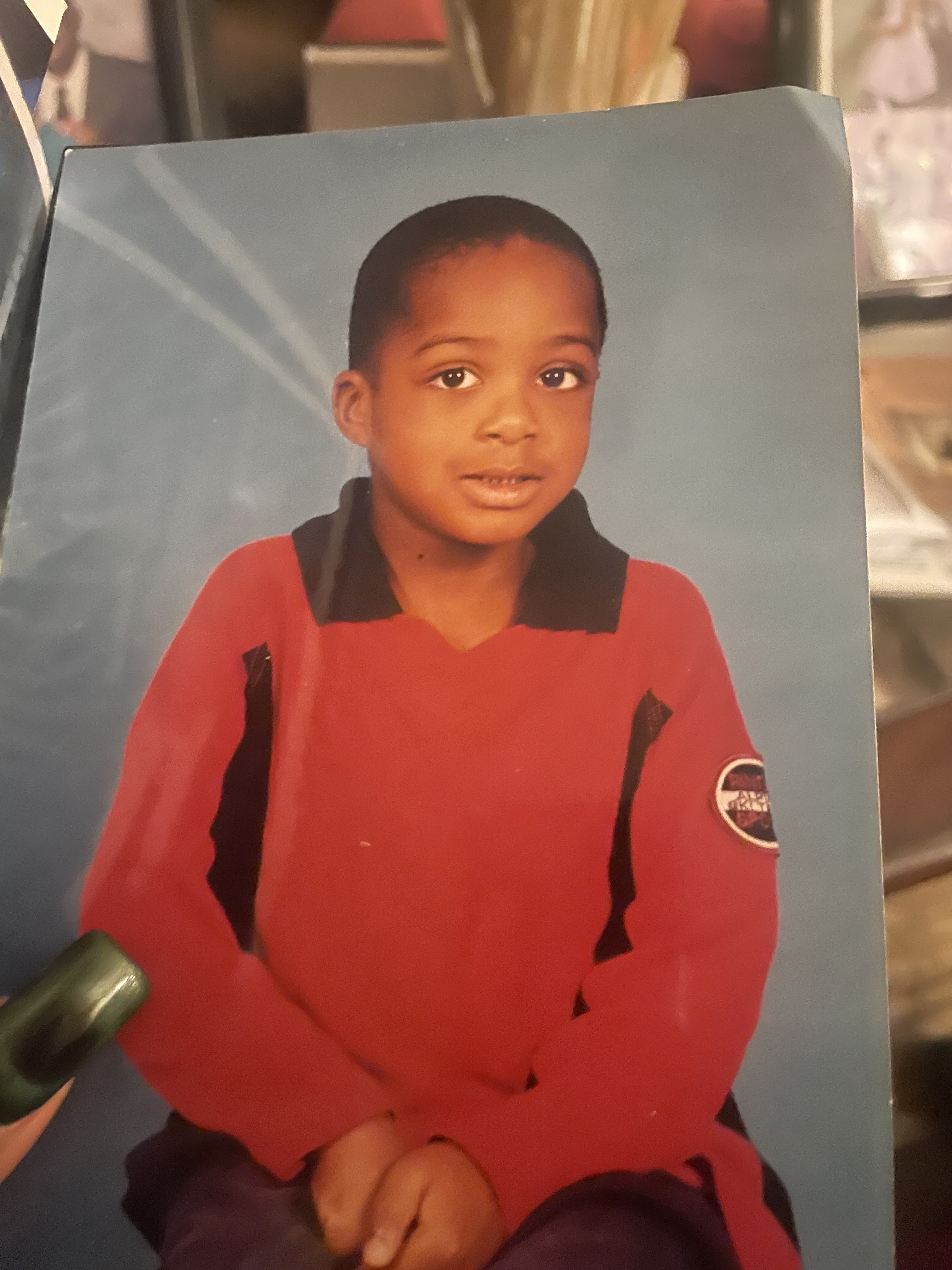
Start with Flare for iteration or Sunburst for precise edits. Select text-to-image for a new scene, or image-to-image to upload references.
Choose quality, size, background and image count. For local edits, add an alpha mask matching the first reference. The button shows the total credits before submission.
Wait for completion, inspect every result and download the ones you need. To refine a result, upload it as the reference for a new request.
Flare is the faster choice for everyday generation and editing. Sunburst focuses on edit fidelity. Use it when preserving the reference matters most.
Upload a PNG matching the first reference image’s dimensions. Transparent pixels mark the area to change; opaque pixels mark the area to preserve.
Output above 3,686,400 pixels is experimental. The 4K label is a pixel budget: 16:9 reaches 3840×2160; square output is 2880×2880.
Choose 1–10 images per request. After completion, select each thumbnail to preview and download that image. Your results remain accessible from Library after leaving the page.
Credits depend on quality, output dimensions, prompt length, reference images, masks and image count. The generation button shows the quote for your current settings before submission. Review it after changing the inputs; each new generation uses credits.
This page provides image generation and editing in SceneFlare. ChatGPT-specific Sketch, image comments and conversational history are not part of this API workflow. You can supply your own sketch as a reference or upload a downloaded result for another edit.
Start with a prompt, choose your version and review the credits before generating.