
16:9
Choose 1280 × 720, 2560 × 1440 or 3840 × 2160 for a landscape video cover.
Create a 16:9 YouTube thumbnail from your video idea and optional photo. Add a headline, choose a style, and generate a cover up to 3840 × 2160.
Thumbnail concept
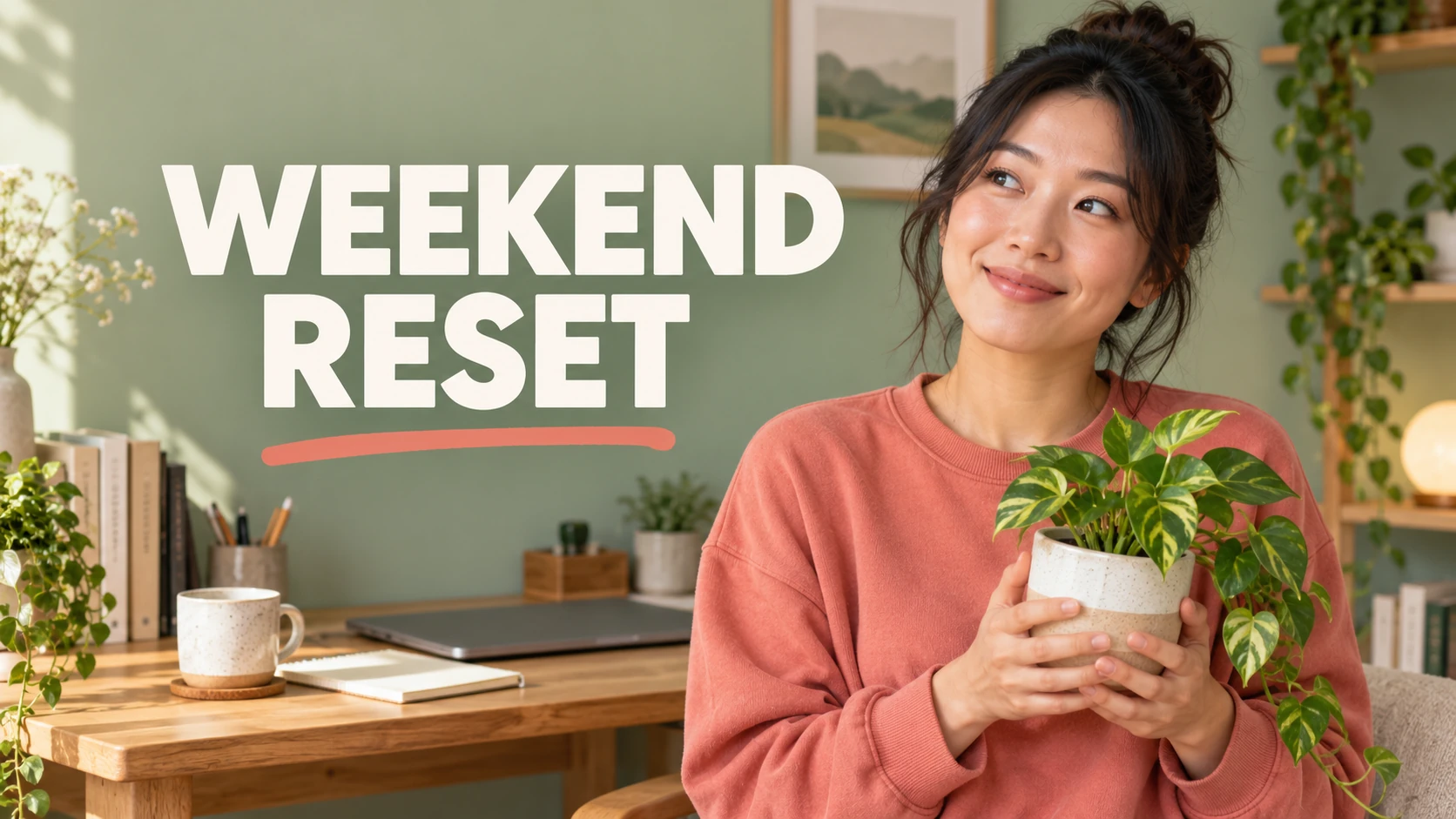
AI-generated concept illustration, not an output from this tool or a measured performance result.
Cards use AI-generated concept artwork. Open a model to start creating.
A good cover explains the video before someone presses play. Build around one subject, a short headline and a clear visual promise. Use SceneFlare to explore the composition, then review it at the size viewers will actually see.
Choose 1280 × 720, 2560 × 1440 or 3840 × 2160 for a landscape video cover.
Start from a description, or add one portrait, product photo or video still.
Bold / Clean / Cinematic
Describe the main subject and what the video actually delivers. A specific brief gives the composition a clear purpose.
Supply the exact words, or leave the headline blank. AI-generated lettering needs a word-by-word check before publishing.
Try bold contrast, a clean editorial layout or cinematic lighting. Generate another option when the first composition needs work.
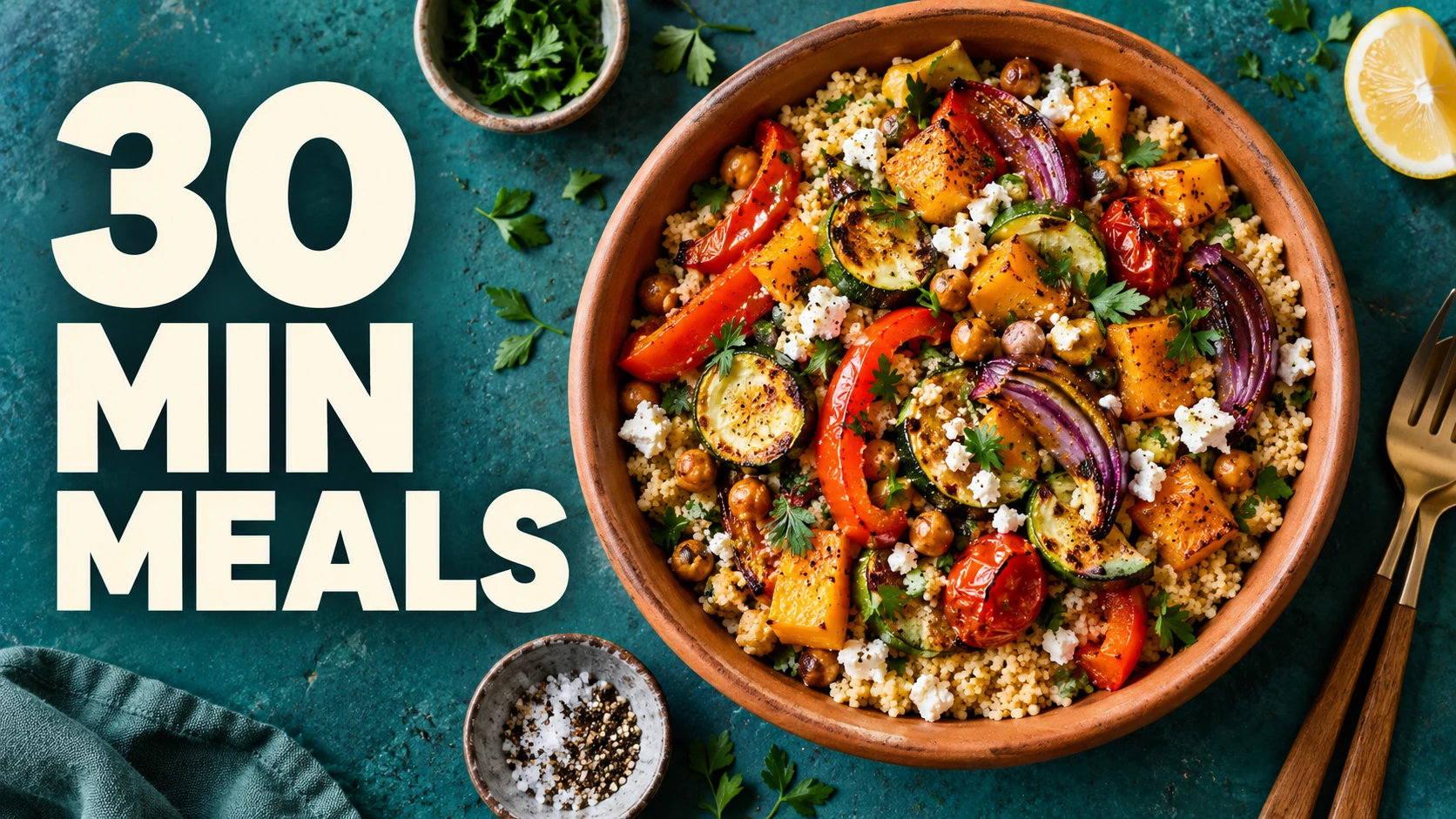
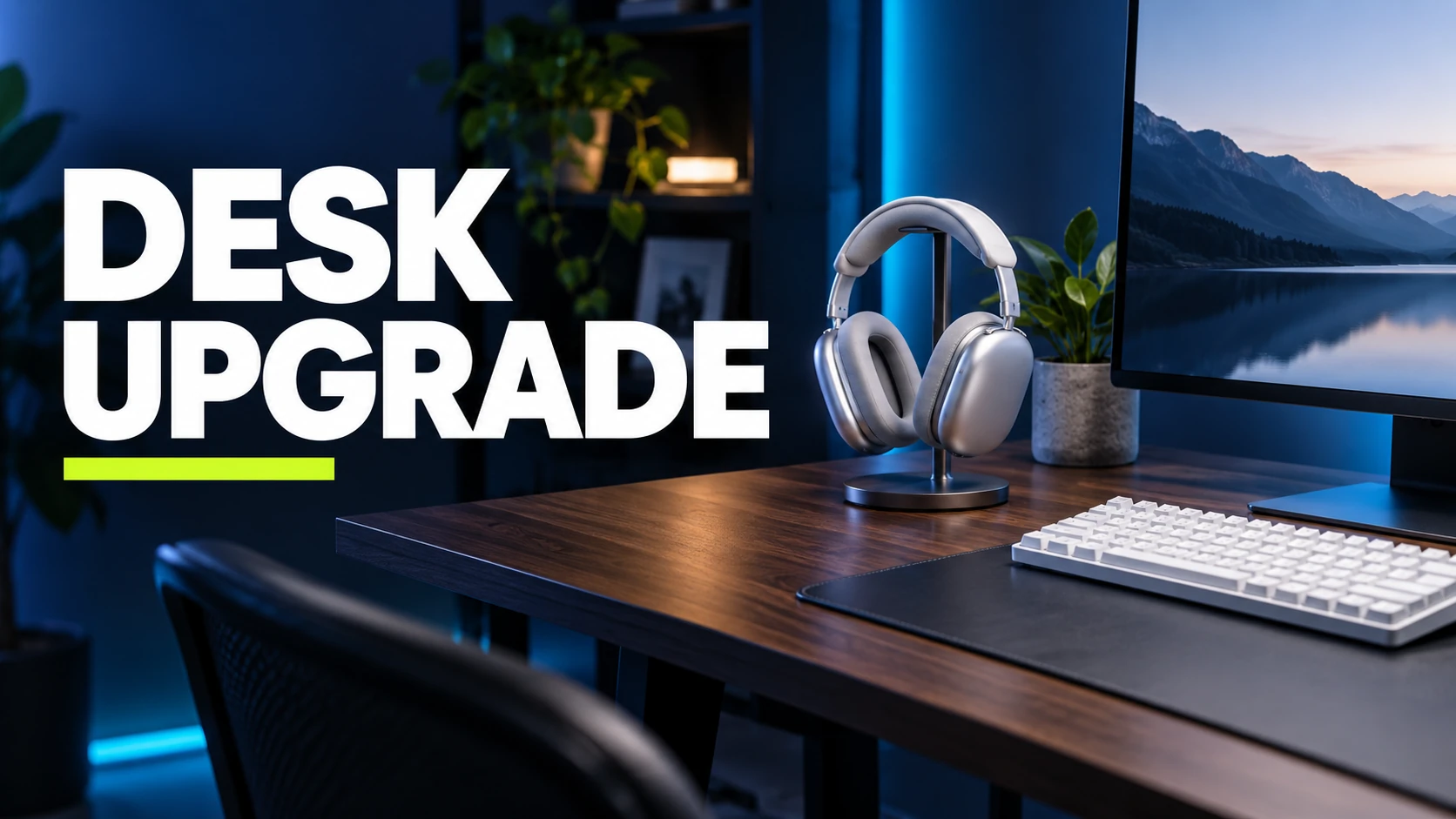
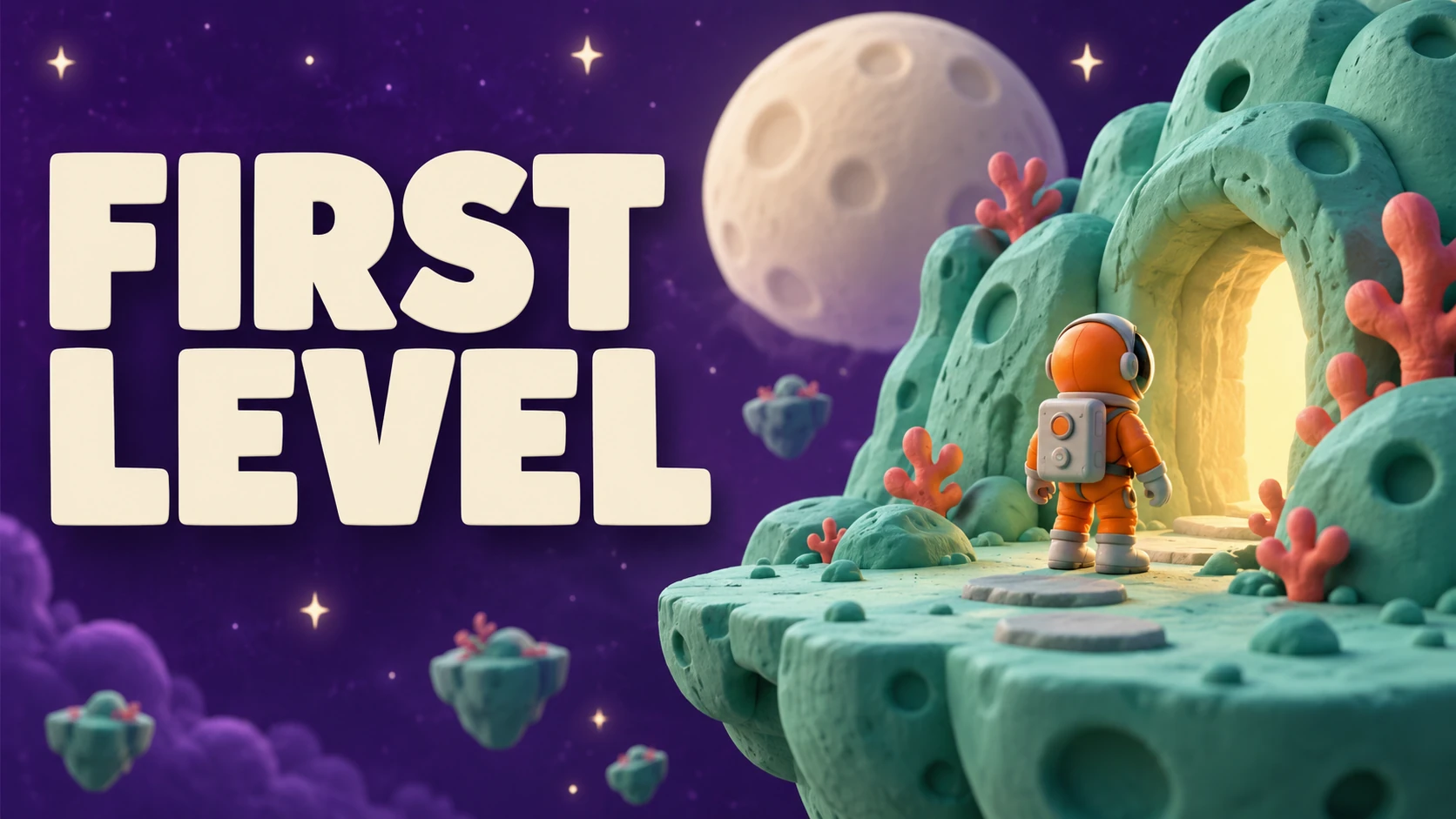
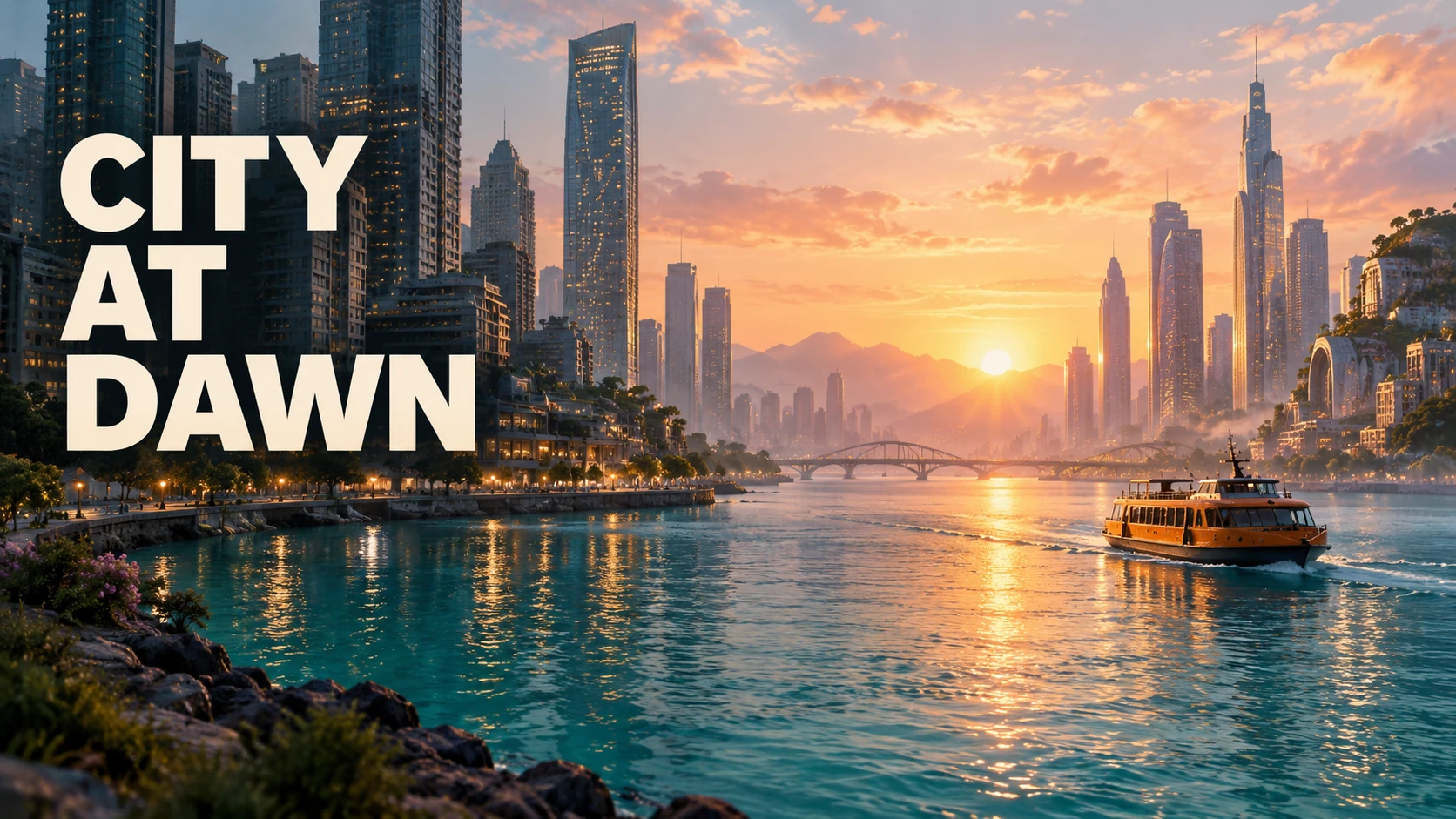
Choose the subject that best explains your video. The images below are newly generated concept illustrations, not outputs from this thumbnail tool.
For a review, lead with the product; for a tutorial, show the result; for a vlog, choose the person or place that carries the story. Write the video brief first, then optionally upload one clear image to guide the subject. SceneFlare creates a new composition around that reference. Faces, logos and product details can change, so inspect the result before using it to represent your video.
Ask for a simple background and a distinct focal point. Avoid squeezing a face, several products and a long headline into one cover.
Show something the viewer will find in the video. A striking concept still needs to match the subject and outcome of the actual content.
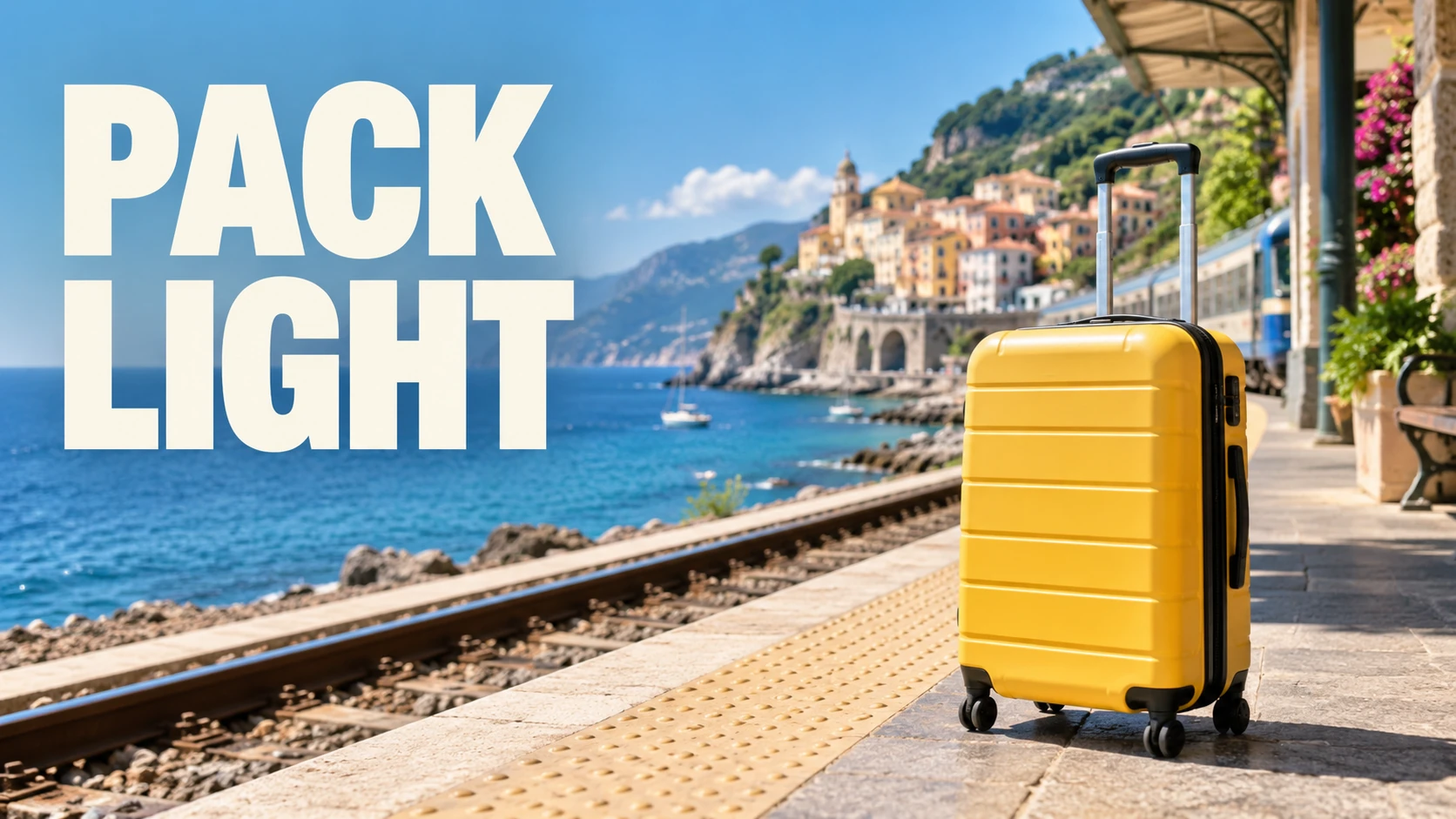
Shrink the thumbnail on screen: can you still recognize the subject and read the headline? Check the full-size version for spelling, faces and object details, then review the small version for contrast. Keep essential words away from the edges and bottom-right duration overlay. The tool generates a flattened image; for exact font placement, final text corrections or file compression, finish in an image editor.
Use similar colors and framing across a series. The style options guide each generation; this form does not save a channel brand kit.
Change the subject placement, headline length or style for another attempt. A visual comparison is useful, but this tool does not predict clicks or run an A/B test.
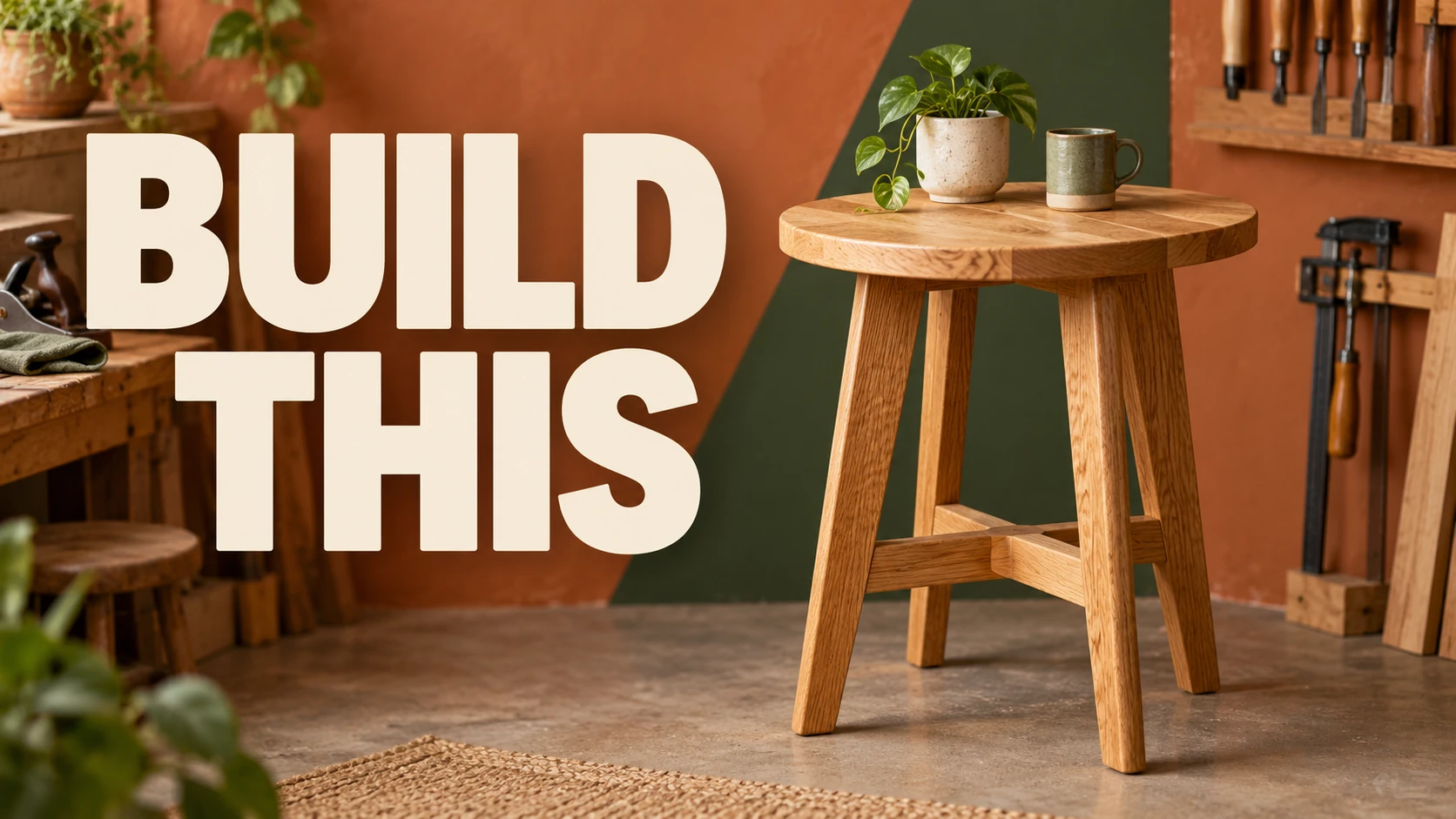
Write the topic, main subject and setting. Optionally add one clear image to guide a person, product or scene.
Use a short headline or leave it blank. Choose a visual style and a 16:9 output size, then review the credit estimate.
Sign in and generate. Check the image at full and small sizes, download it, and confirm the file meets YouTube's upload requirements.
Yes. Describe your video and choose a style to start from text. You can optionally upload one JPEG, PNG or WebP as a visual reference. This form does not analyze a video or import a YouTube URL.
Yes, as a reference. Use a clear photo with an easily recognizable subject. AI can change faces, logos and fine details, so check the result carefully; exact identity or product reproduction is not guaranteed.
Enter the exact words in the optional headline field. Leave it blank to request no text. Spelling and placement can still vary. The output is a flattened image, without editable text layers or a font picker.
This tool offers 16:9 covers at 1280 × 720, 2560 × 1440 and 3840 × 2160. YouTube currently recommends 3840 × 2160 for standard videos, with a minimum width of 640 pixels. Upload JPG or PNG and check the actual file dimensions and size. The current limit is 2 MB on mobile and 50 MB on desktop; compress or convert the downloaded file if needed.
This page is designed for standard landscape videos. YouTube recommends 9:16 for Shorts and 1:1 for podcast playlists; use a different image workflow for those formats. Custom-thumbnail eligibility also depends on your YouTube account.
Generation requires sign-in and SceneFlare credits. The button shows the estimate, and another attempt uses credits again. A generated thumbnail does not guarantee more clicks or views. This form has no built-in performance testing; use your channel's actual results to evaluate a published cover.
Start with the topic, add a headline if needed, and create your thumbnail.
AI-generated creative concepts, not tested outputs from the featured model or tool.