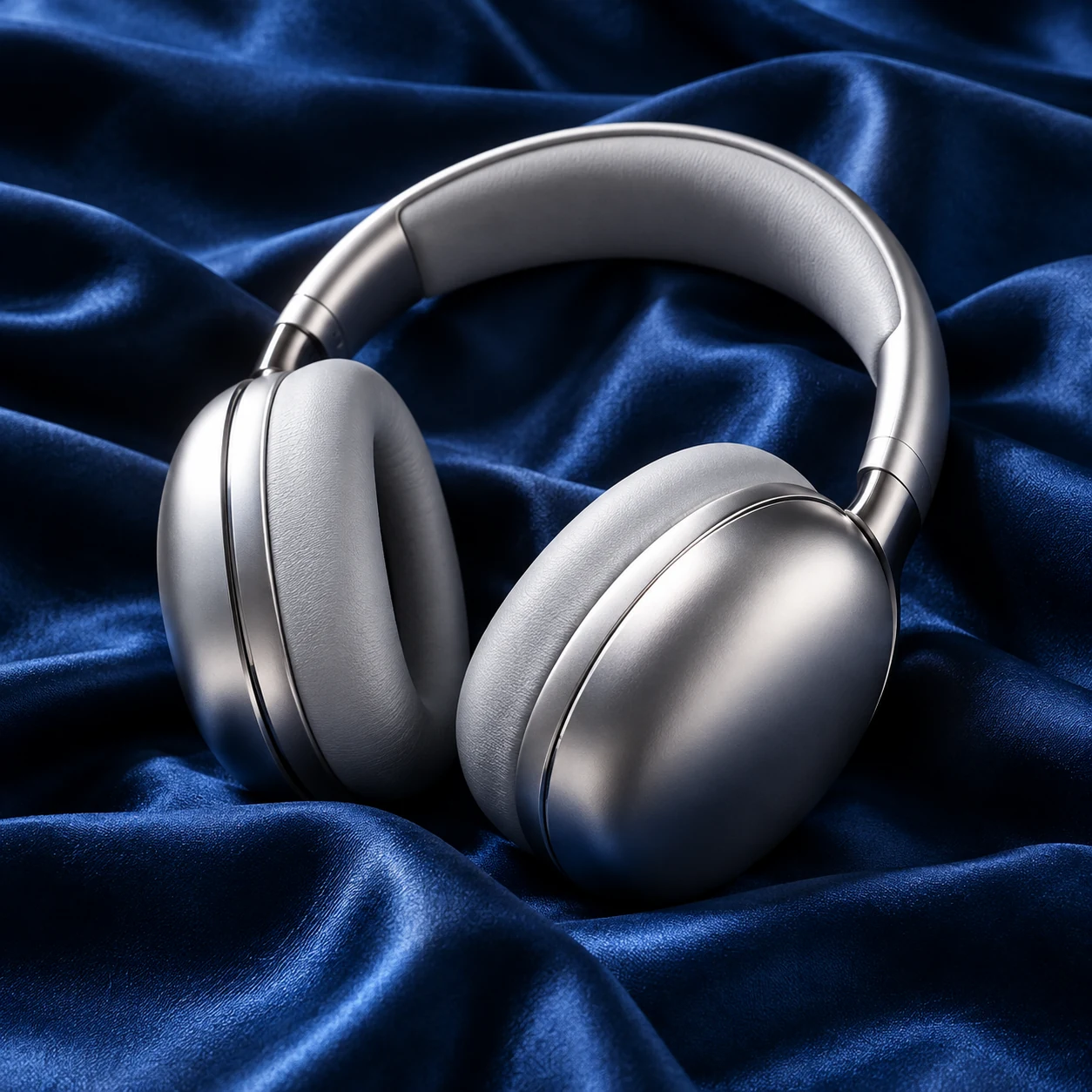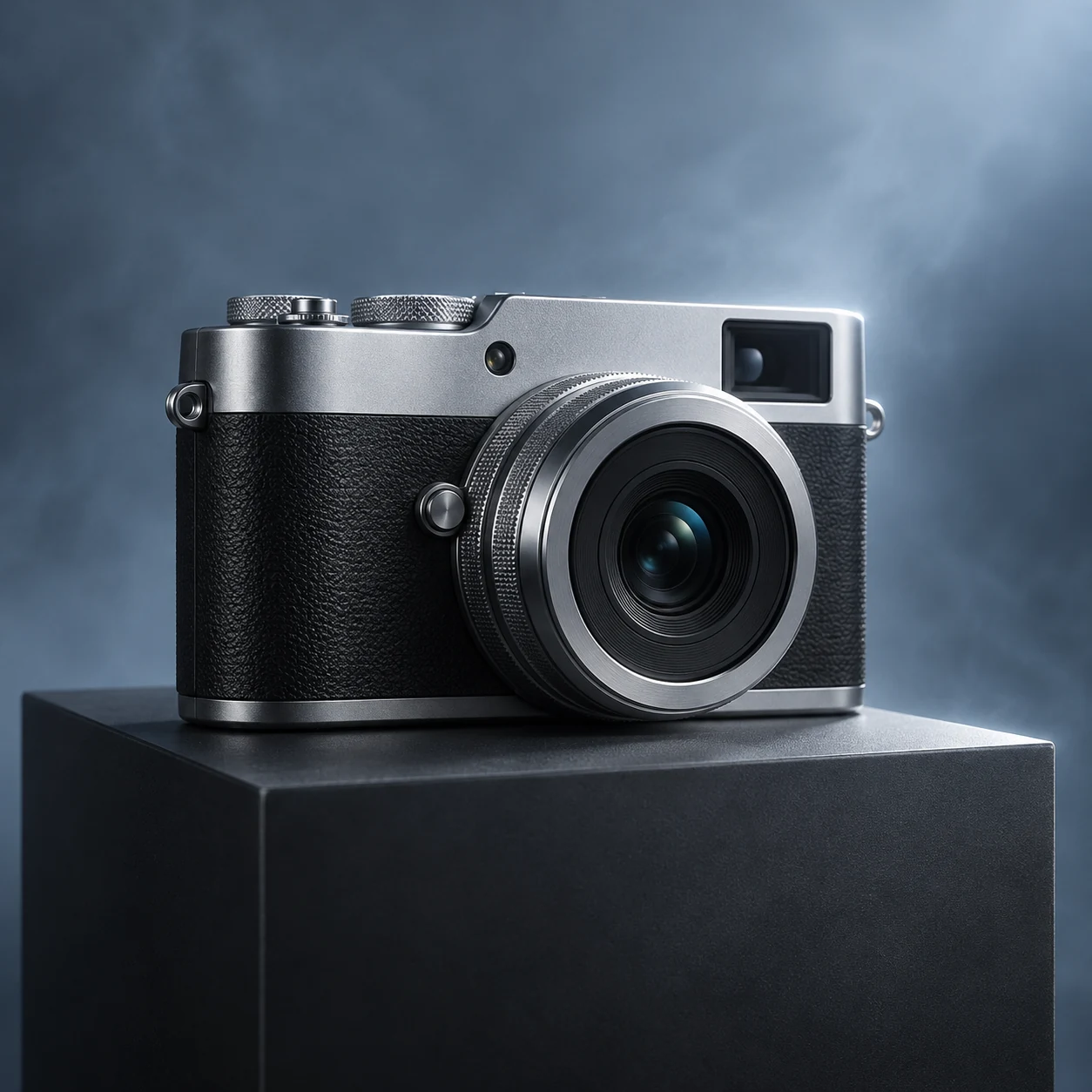
1 photo
Start with one clear JPEG, PNG or WebP product image.
Turn a product photo into an AI product video. Choose a camera movement, a 4–15 second duration and 768P or 2K quality to create a short showcase with MiniMax H3.
Video preview
Explore more ways to create videos.
Create a short product showcase from a still photo. Choose a restrained camera movement, set the duration and quality, and add a scene preference if needed. Our AI product video tool uses MiniMax H3 to turn your reference image into a video you can review and download.
Start with one clear JPEG, PNG or WebP product image.
Choose the length before generating.
Review the credit estimate for your selected settings.
Use a visible product reference to guide shape, materials and packaging.
Start with a slow push-in, gentle arc or detail close-up.
Adjust duration and quality to fit your intended clip and credit budget.
Make deliberate choices about product detail, motion and output before you generate.
Your uploaded photo is the first frame and the product reference. We ask the model to preserve the visible shape, color, material, label and packaging throughout the shot. Clear lighting and an unobstructed view give the generation a stronger starting point. Review fine details before publishing.
One clearly visible product helps define the subject.
Review logos, labels and proportions for unwanted changes.
Choose a slow push-in to bring the product closer, a gentle arc to add depth or a close-up to highlight a visible detail. We build a continuous-shot brief around your choice so you can focus on the product and scene instead of writing a long video prompt.
Use a restrained movement suited to the product.
Add a short note about lighting or atmosphere.
Choose 4–15 seconds and 768P or 2K quality, then check the credits before generating. The output ratio follows your source photo: prepare a horizontal image for a wide clip or a vertical image for a tall one. Download the video and use your editor for final captions, cuts and audio adjustments.
Prepare the image composition for your intended screen.
Compare the credit estimate when changing either setting.
Add one clear JPEG, PNG or WebP image. Prepare its ratio for your intended video.
Select a camera movement, 4–15 seconds and 768P or 2K. Add optional scene notes.
Sign in, check the credits and generate. Review product details, then download your video.
We use MiniMax H3 in image-to-video mode. Your photo becomes the first frame, and your selected camera movement guides one continuous product showcase shot.
Use a well-lit JPEG, PNG or WebP photo with one product clearly visible. Keep labels readable and avoid cropped edges, heavy blur and distracting objects.
The video ratio follows your source image. Prepare a vertical, square or horizontal photo before uploading. This tool does not provide a separate video-ratio switch.
We use restrained motion and ask the model to preserve visible details. AI can still alter text, geometry or materials. A single photo does not establish an accurate unseen back side or a complete 360-degree view.
MiniMax H3 generates audio with the video; this page has no audio-off switch. Our prompt requests subtle ambience without dialogue. Add or adjust voice-over, subtitles, music and final cuts in your video editor.
Generation requires sign-in and SceneFlare credits. Duration and quality determine the estimate shown on the button. Each attempt creates one downloadable video, with completed results available in your Library.
Upload a clear product image and choose how the camera moves.