1 product photo
Use a clear image showing the whole item and its label.
Create studio and lifestyle product photos from your own image. Choose a scene preset, edit the prompt, and select an AI image model.
Explore other image models for generation and editing.
Turn an existing product image into a new studio or lifestyle composition. SceneFlare’s AI product photo generator uses your photo and prompt to guide the result. Explore backgrounds for product pages, social posts and ads, with a choice of image models in one workspace.
Use a clear image showing the whole item and its label.
Choose studio, tabletop, window light or a dark setting.
The estimate updates for your model and settings.
Use a preset for a starting point, or describe the product photo you need. You can edit the prompt before every generation.
Select Use effect on an example to fill the prompt with its scene instructions. Change the surface, light or composition to suit your product. Applying another preset replaces the prompt, so keep any custom wording you want to reuse.
Switch compatible models while keeping your uploaded photo and prompt. Available controls vary by model, including quality, aspect ratio, resolution and image count. Check the updated credit estimate before generating.
Request space beside or above the product for text you will add later. For example: “Place the product on the right, with an uncluttered cream background on the left.” Select an aspect ratio that suits the placement when available.
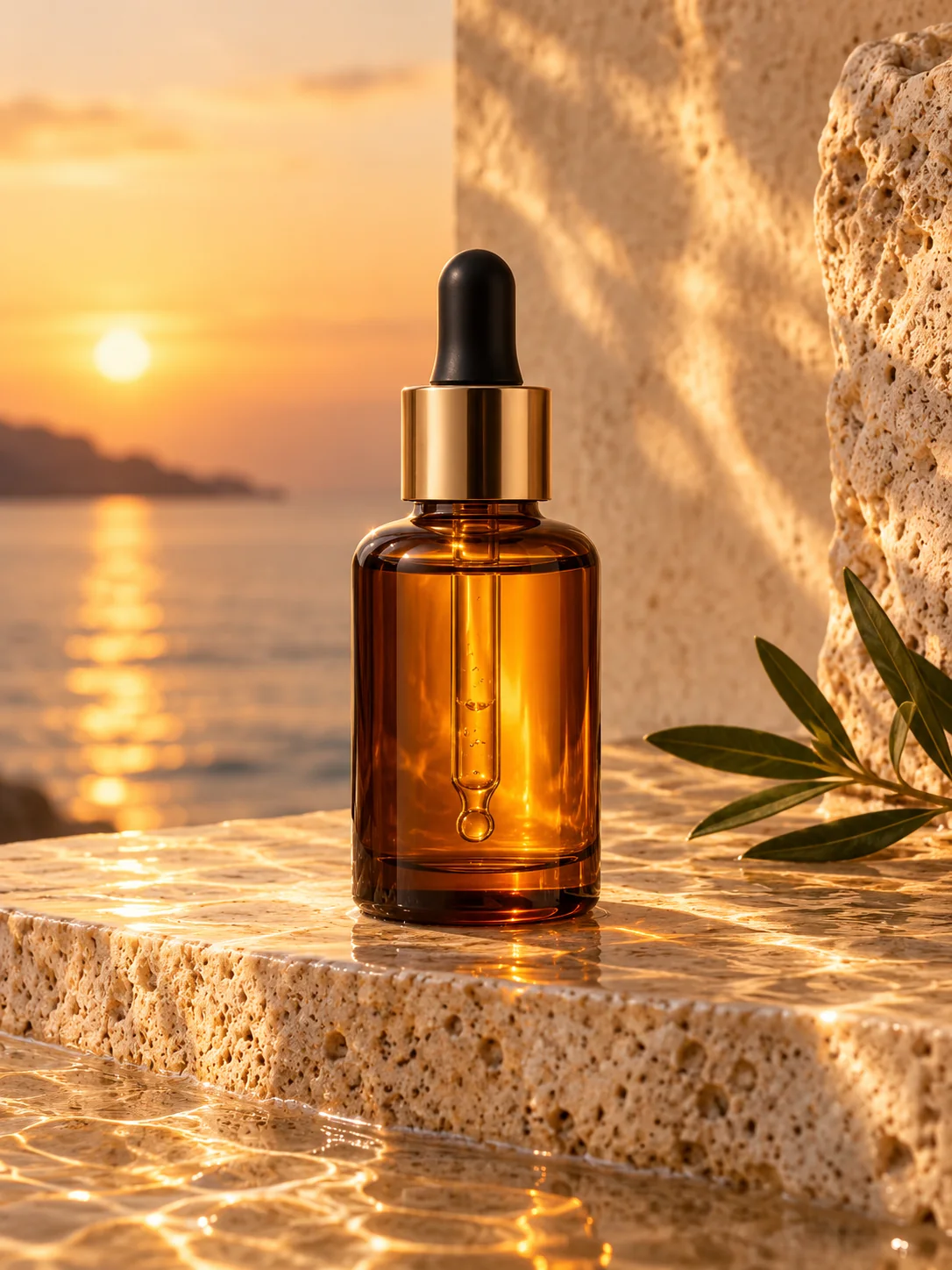
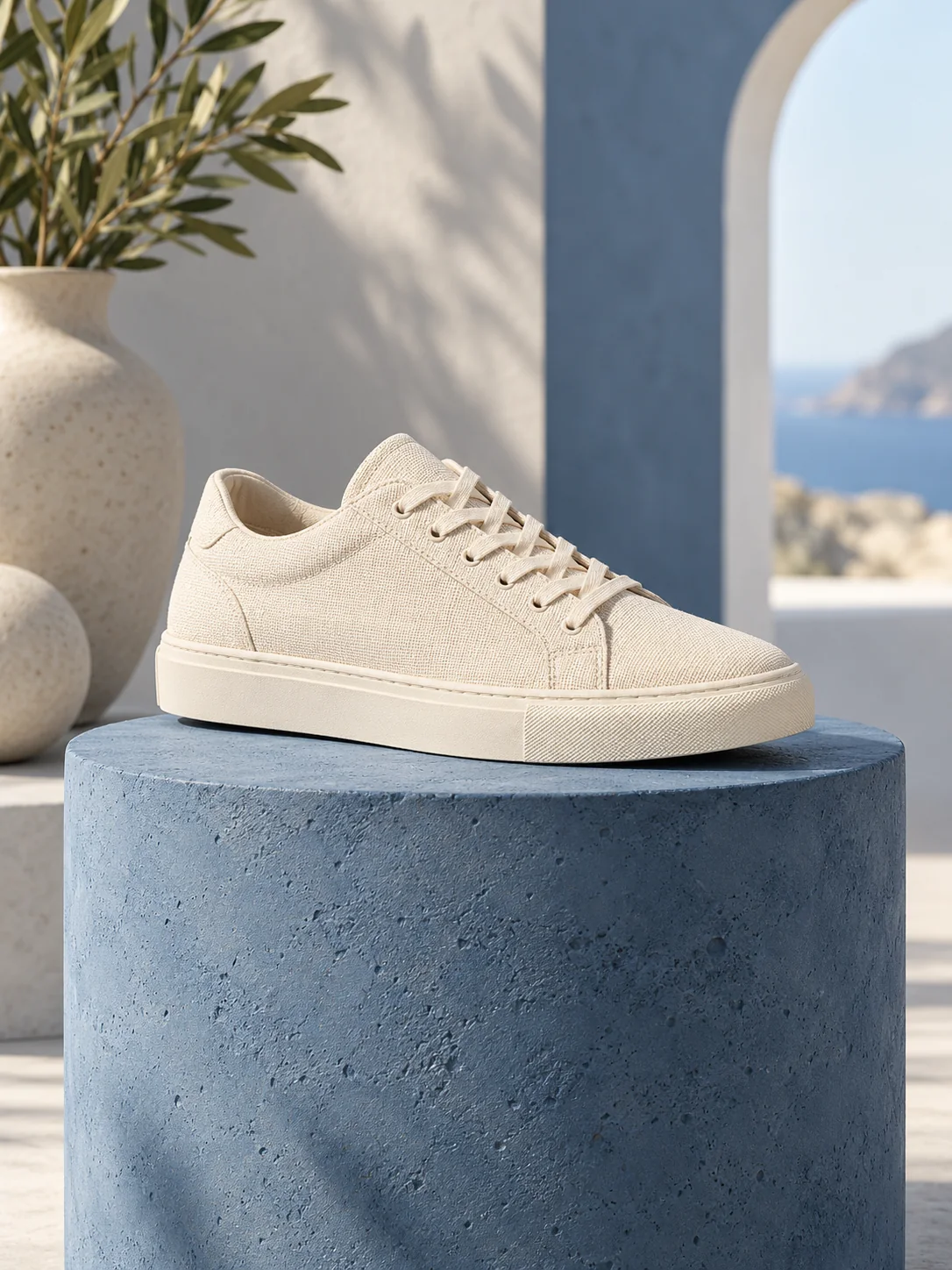
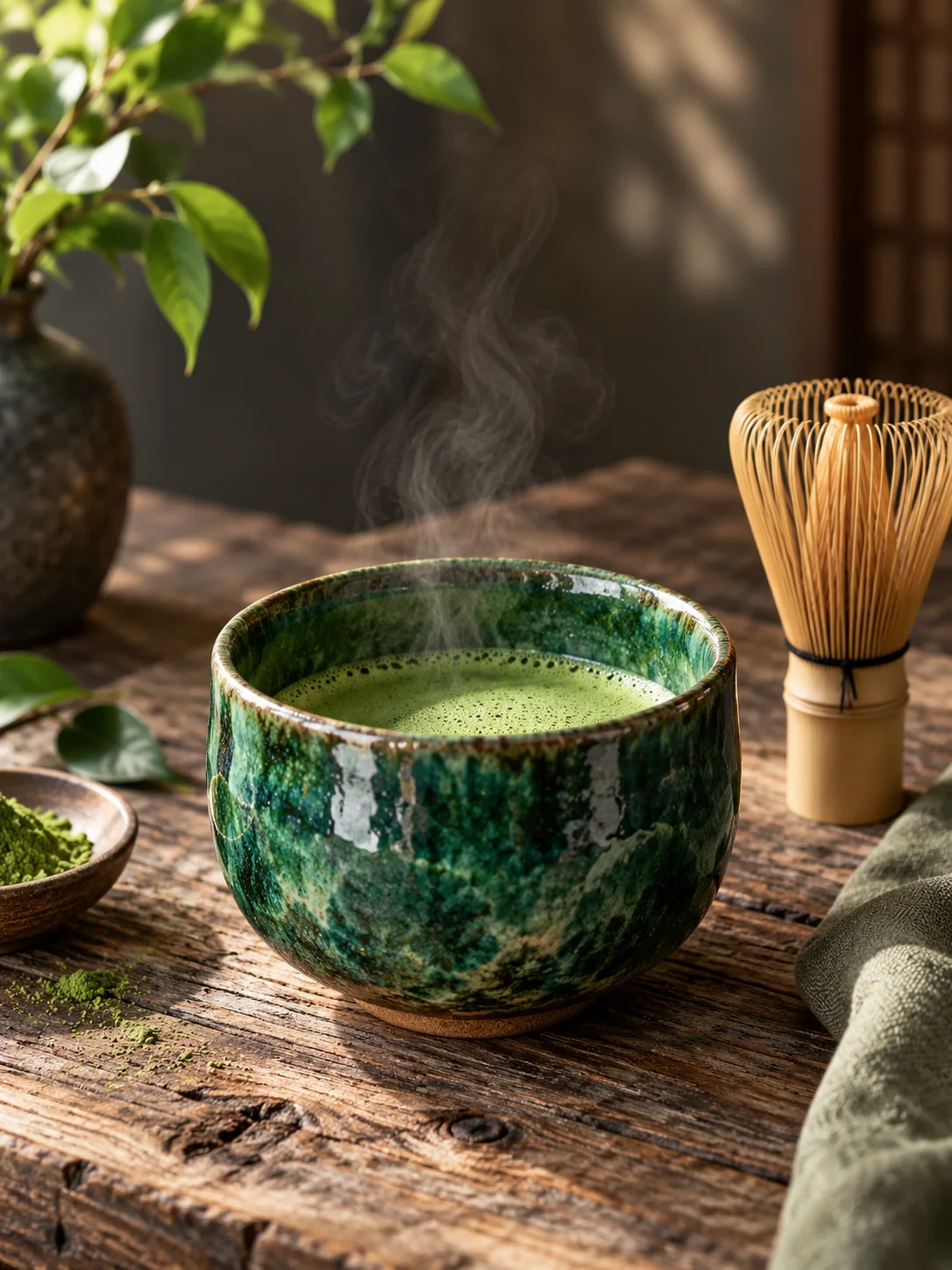
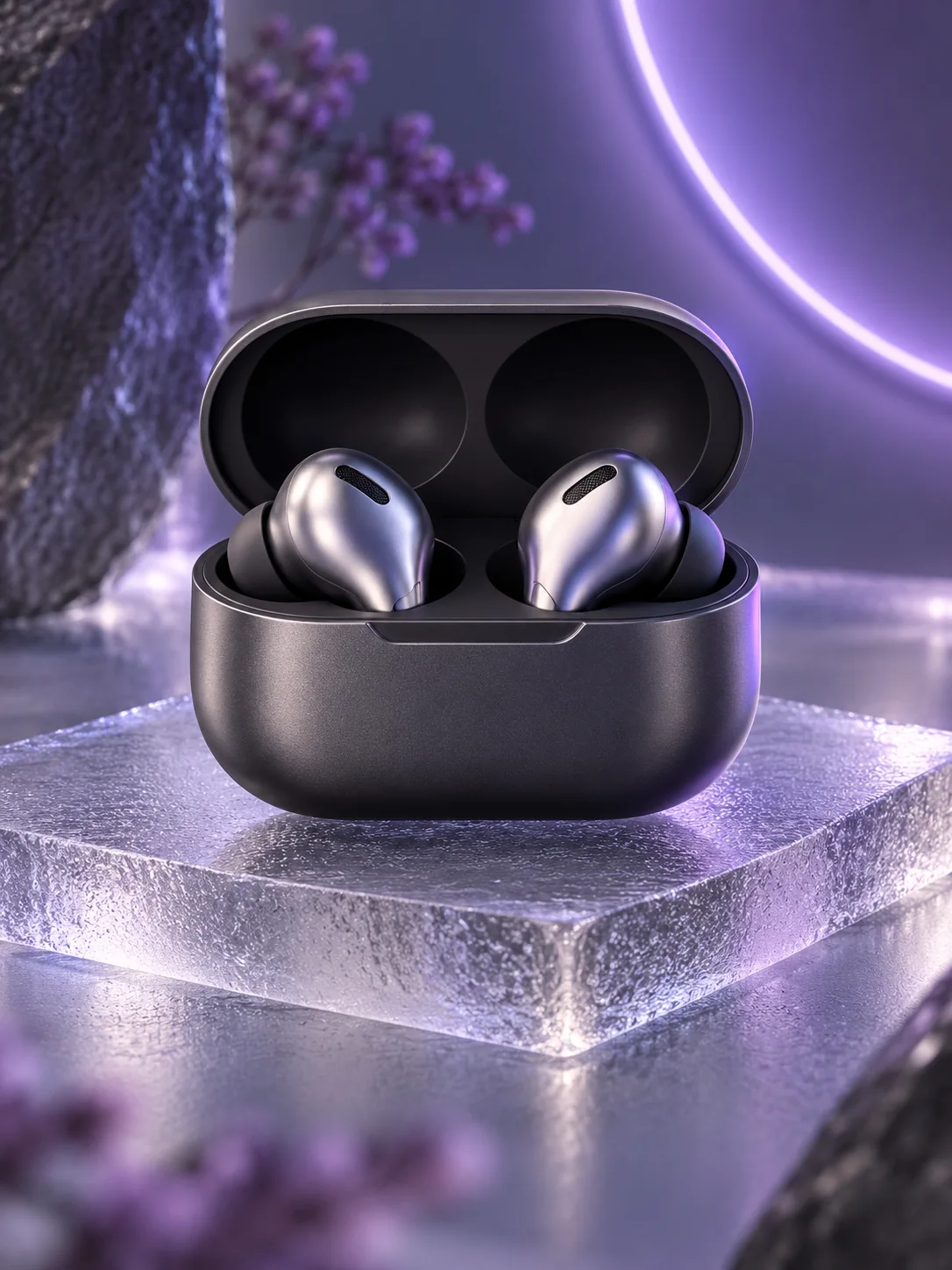
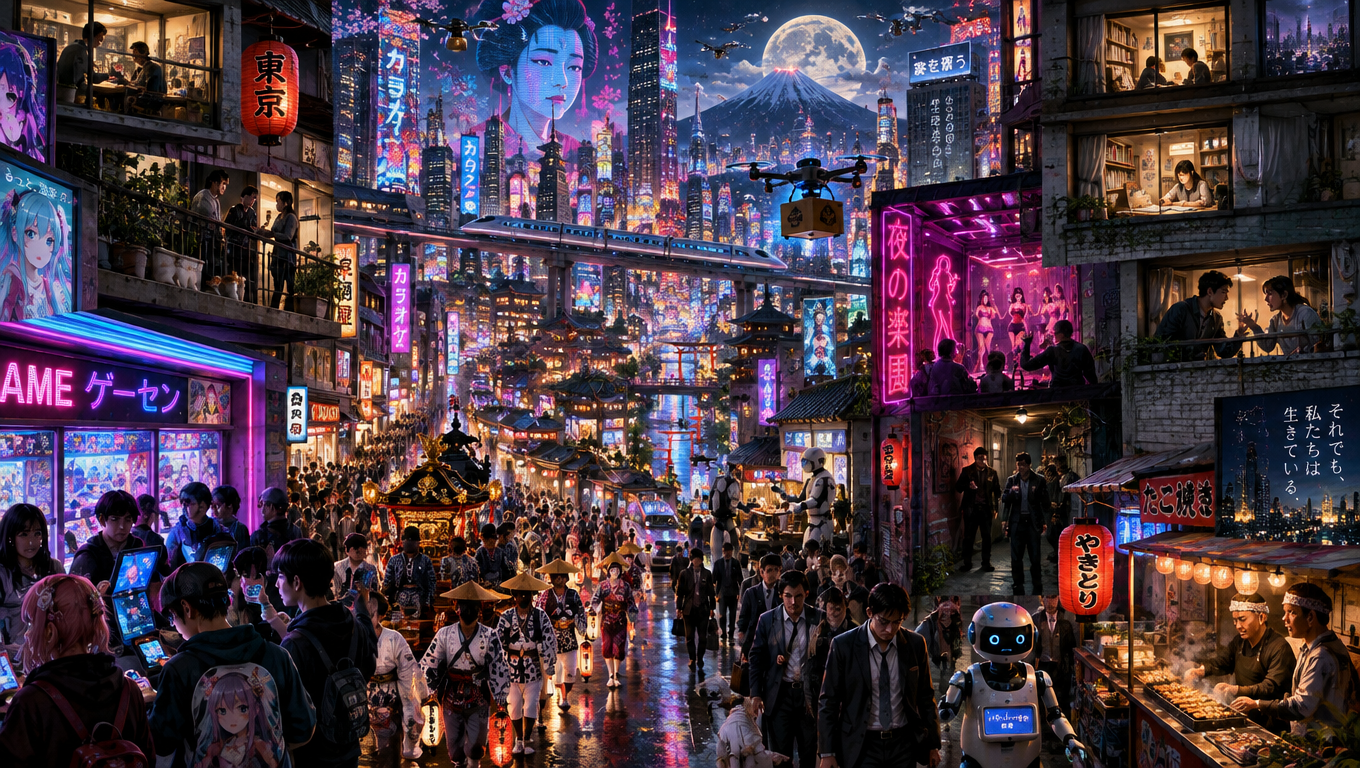
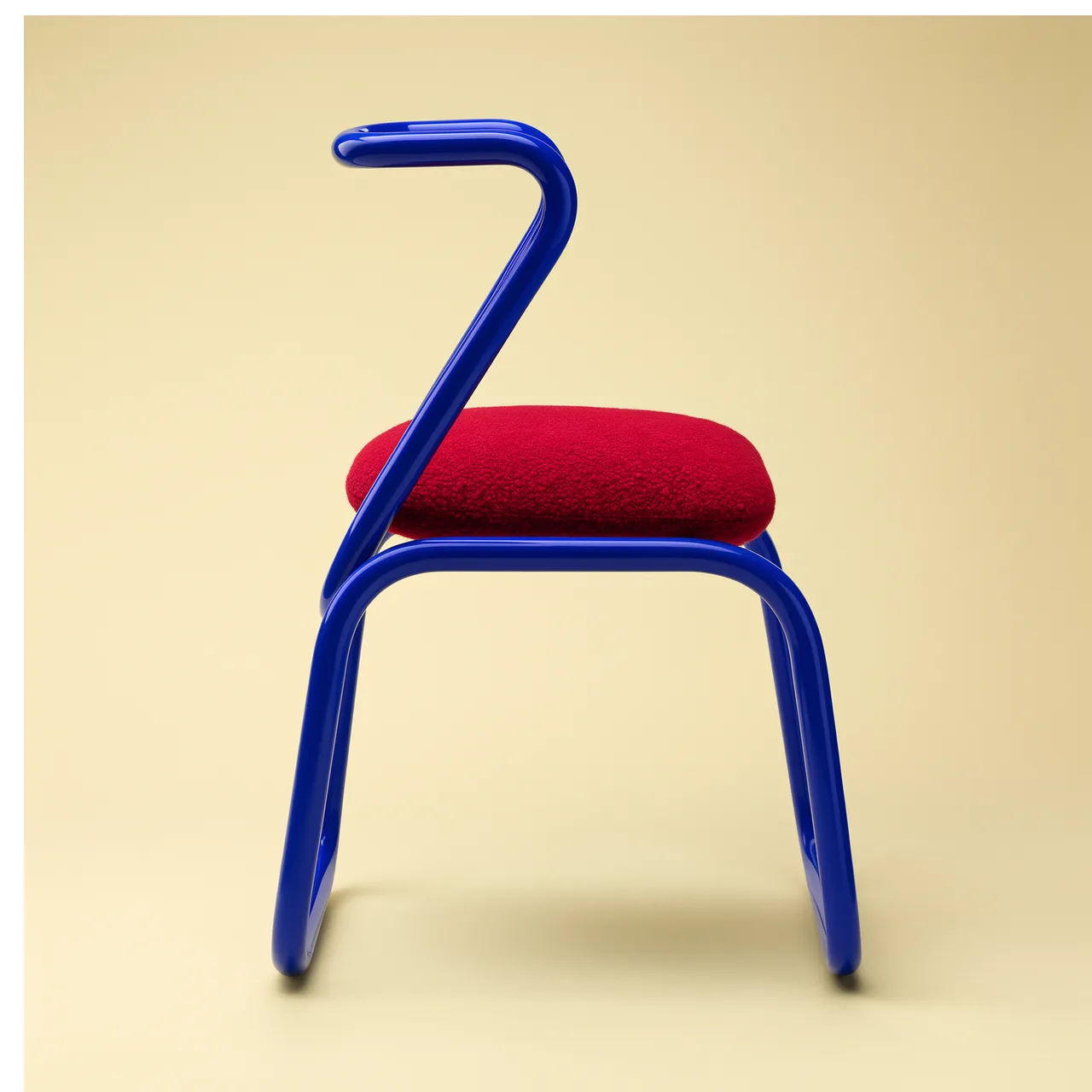
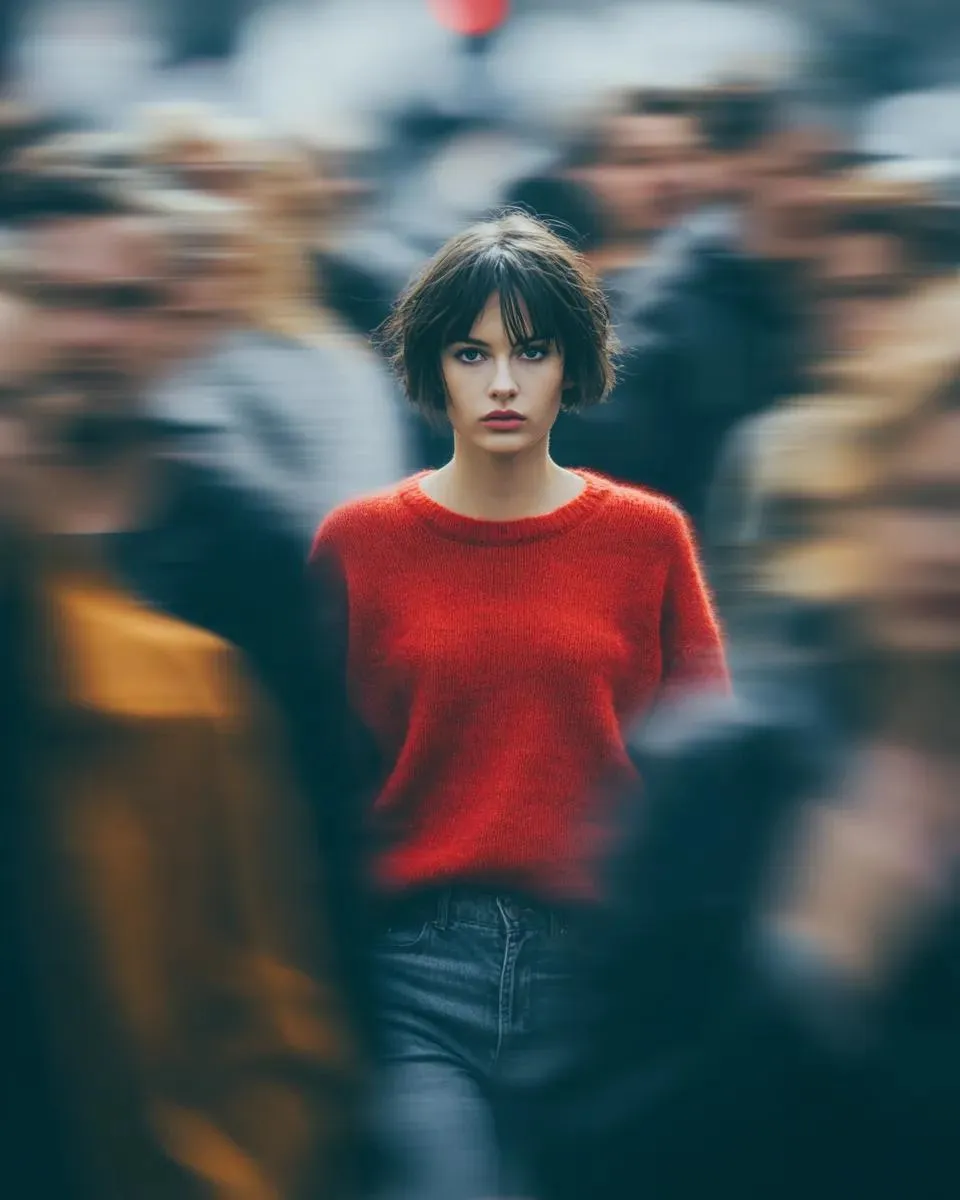
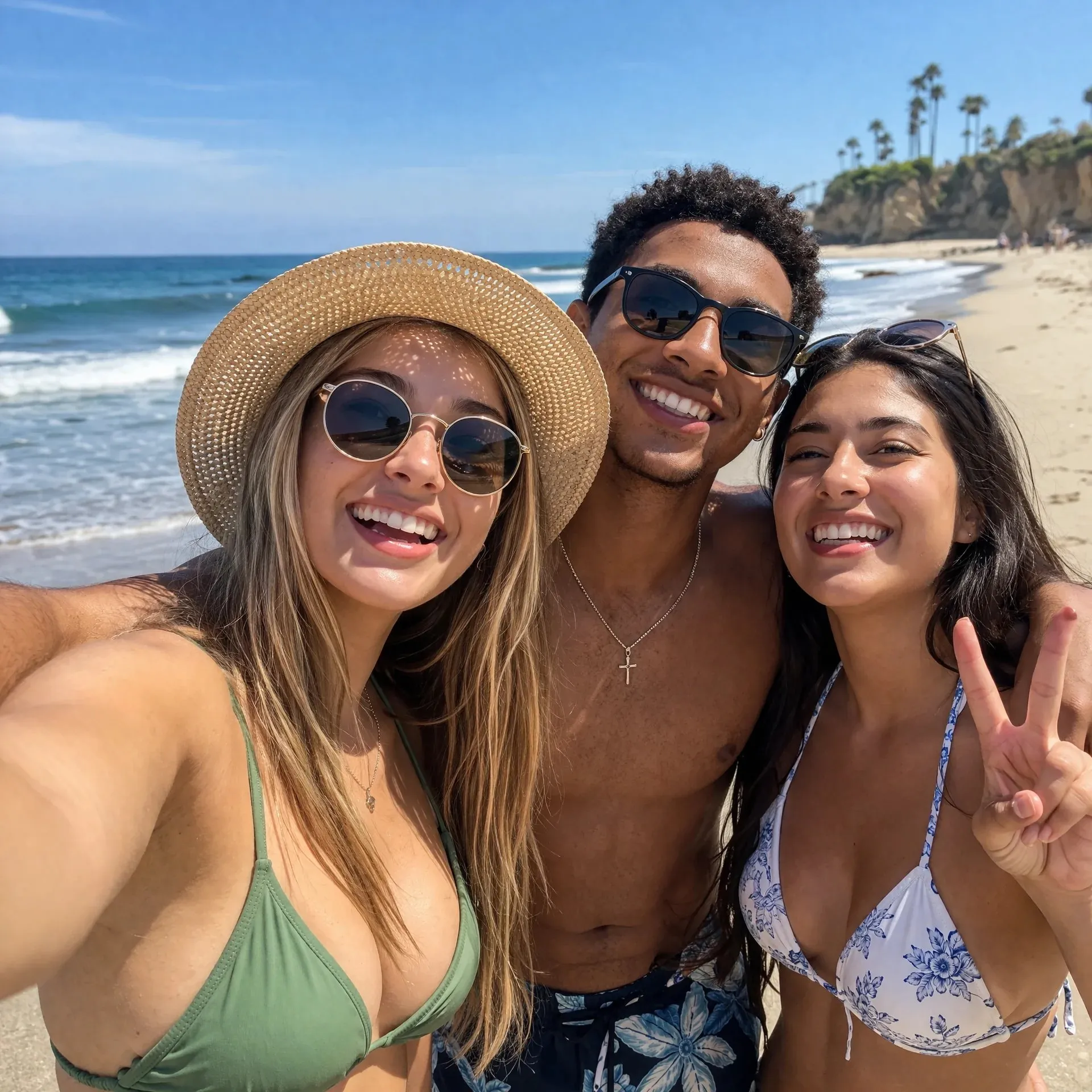
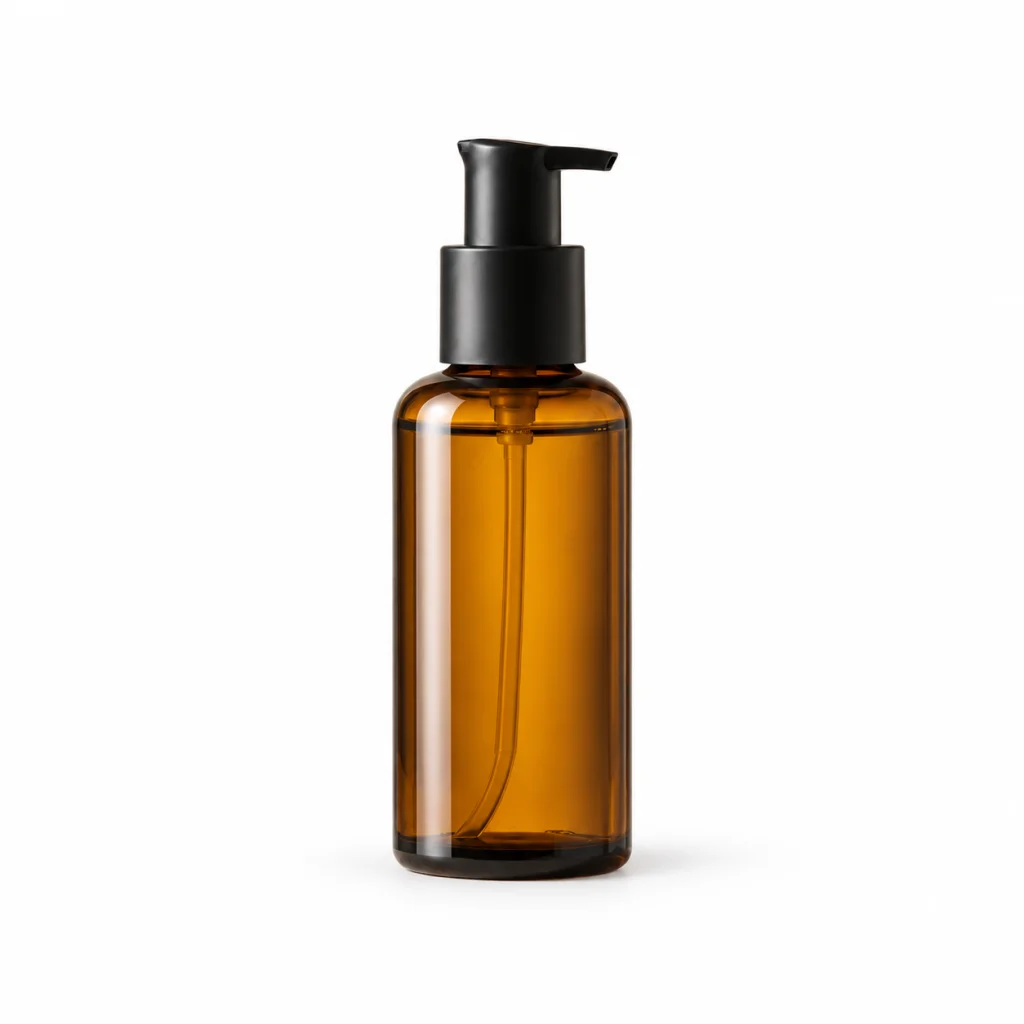
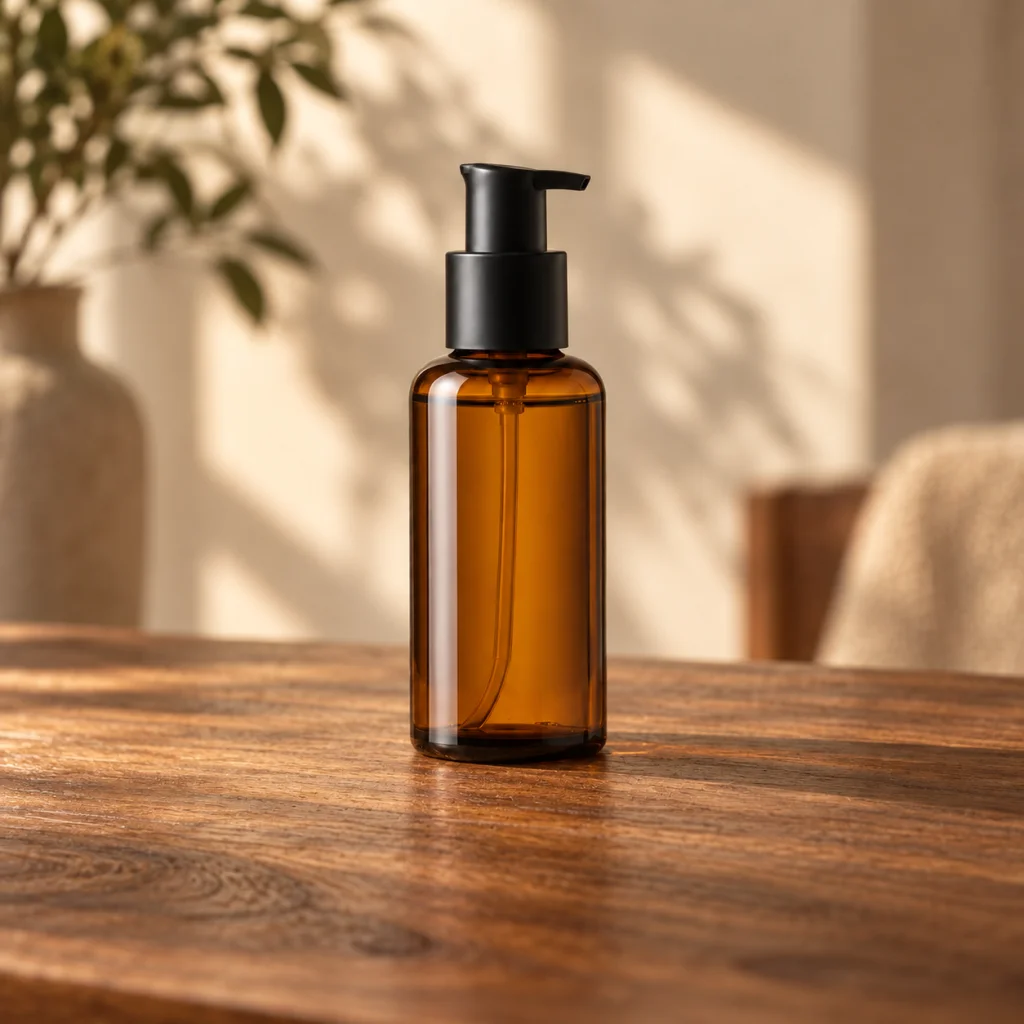
These AI-generated illustrations show scene ideas. They were created for this page, not generated with the tool shown above, and do not demonstrate the output of any selectable model.
Start with White studio or Minimal studio when the product should be the focus. A plain setting makes it easier to inspect the item before using an image on your store. Check your marketplace’s image rules separately.
Show the full product with sharp edges and a readable label. Crop away distractions without cutting off the item.
“Use a white studio background, soft even light and a subtle contact shadow. Keep the original angle and the entire product visible.”
Compare the result with your source photo: label text, logo, color, proportions and materials can change during generation.
Try Window light or Wooden table to place the product in a warmer setting. Stone podium and Luxury dark offer other starting points. Describe a specific surface and light source rather than only asking for a “professional” photo.
“Place the product on a light wooden table beside a window, with warm side light and a softly blurred neutral background.”
Add a direction such as “Leave space above the product for a headline.” Keep lettering out of the generated scene and add it in your design editor.
Adjust the light, surface or framing, then generate again. Keep the same reference and prompt when trying another model. Each generation uses credits.
Start with one well-lit photo showing the complete item. A clear phone photo can work as a reference. Avoid blur, glare over the label and objects covering the product.
Select Use effect on an example, or write your own required prompt. On desktop, hover over an example to reveal the button; on mobile, tap the visible button. Choose a model, adjust its settings and review the credit estimate.
Sign in with enough credits and select Create product photo. Completed images appear in Results. Compare the product details with your original photo, then download a result or edit the prompt for another attempt.
AI product photography uses an image model to create product images from a reference photo and written instructions. In SceneFlare, you upload one product photo and describe the scene. The model generates a new image guided by both inputs; it can change product details as well as the background.
Choose from the compatible models in the selector and compare results using the same photo and prompt. Look at label accuracy, product shape, material texture and lighting, along with the credit cost. Different models interpret the brief differently; SceneFlare does not claim that one model is best for every product.
That is not guaranteed. Scene presets ask the model to preserve the product, but lettering, logos, proportions and colors can still change. Zoom in and compare each result with the reference. If the product must remain unchanged, use background removal and controlled compositing instead of regenerating the whole image.
Use a sharp, well-lit image of one complete product, with the important details visible. A phone photo is a possible starting point. Avoid cropped edges, heavy blur and reflections hiding the label. Transparent, reflective or intricately patterned items need especially careful inspection after generation.
Generation uses SceneFlare credits and requires sign-in. The create button shows the estimated credits for the selected model and settings. Changing quality, resolution or image count may change the cost. Review that estimate before submitting; there is no single fixed cost for all models.
When the model offers an image-count control, you can request multiple images from the same photo and prompt. This page takes one reference image at a time; it is not a batch upload workflow. Variations do not guarantee accurate views of unseen sides of your product.
No. The examples are AI-generated illustrations created for this page to show scene ideas. They are not outputs from this tool or a quality comparison of the selectable models. Your generated photos appear in the Results tab.
Review the result for an accurate representation of the item you sell. Check the image requirements of your store, marketplace or ad platform, and the usage terms that apply to your content. A generated background does not make an image automatically suitable for every placement; keep an original product photo for comparison.
Upload a clear product photo, apply a scene or write a prompt, and check the credits before generating.
AI-generated creative concepts, not tested outputs from the featured model or tool.