4–15 s
Starts at 5 seconds; select the duration in the generator.
Create short Thanksgiving scenes for a gathering invitation, dinner recap, restaurant promotion or classroom activity preview. Start with text or one photo.
Explore the available models for other video projects.
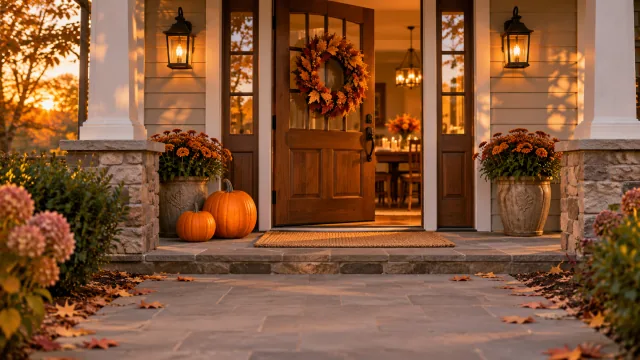
Begin with one action: opening the door, serving dinner or looking toward the camera. A single readable shot is easier to plan than a crowded sequence. Describe the movement, then leave time at the end for an invitation or message added in editing.
Starts at 5 seconds; select the duration in the generator.
Starts in landscape; choose portrait for vertical sharing.
Text needs no upload. Image-to-video uses one photo as the first frame.
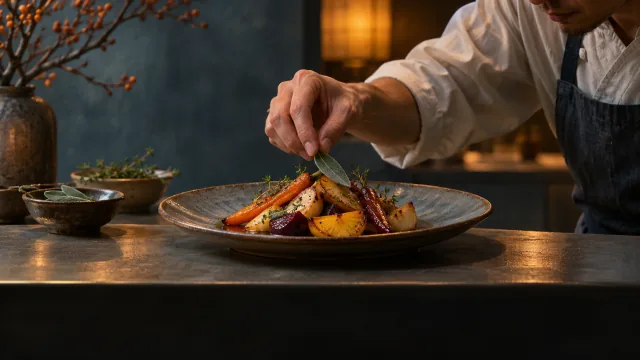
Ask for a slow push toward the dinner table, a gentle slide past a dish or a stable medium shot for a thank-you moment. Avoid packing many actions into five seconds.
Describe a quiet upper or lower area and keep faces and food away from it. Add precise subtitles, event details and offer terms in a video editor afterward.
A family, dish or storefront photo can set the opening scene. Faces, signs and food details may change during motion; inspect the result before sharing.
Create a welcoming opening shot for a gathering invitation, a serving moment for a dinner recap or a calm scene for your own gratitude recording. This generator creates a new short clip; it does not assemble your existing dinner footage.
Keep the final action simple so you can hold the last frame longer during editing.
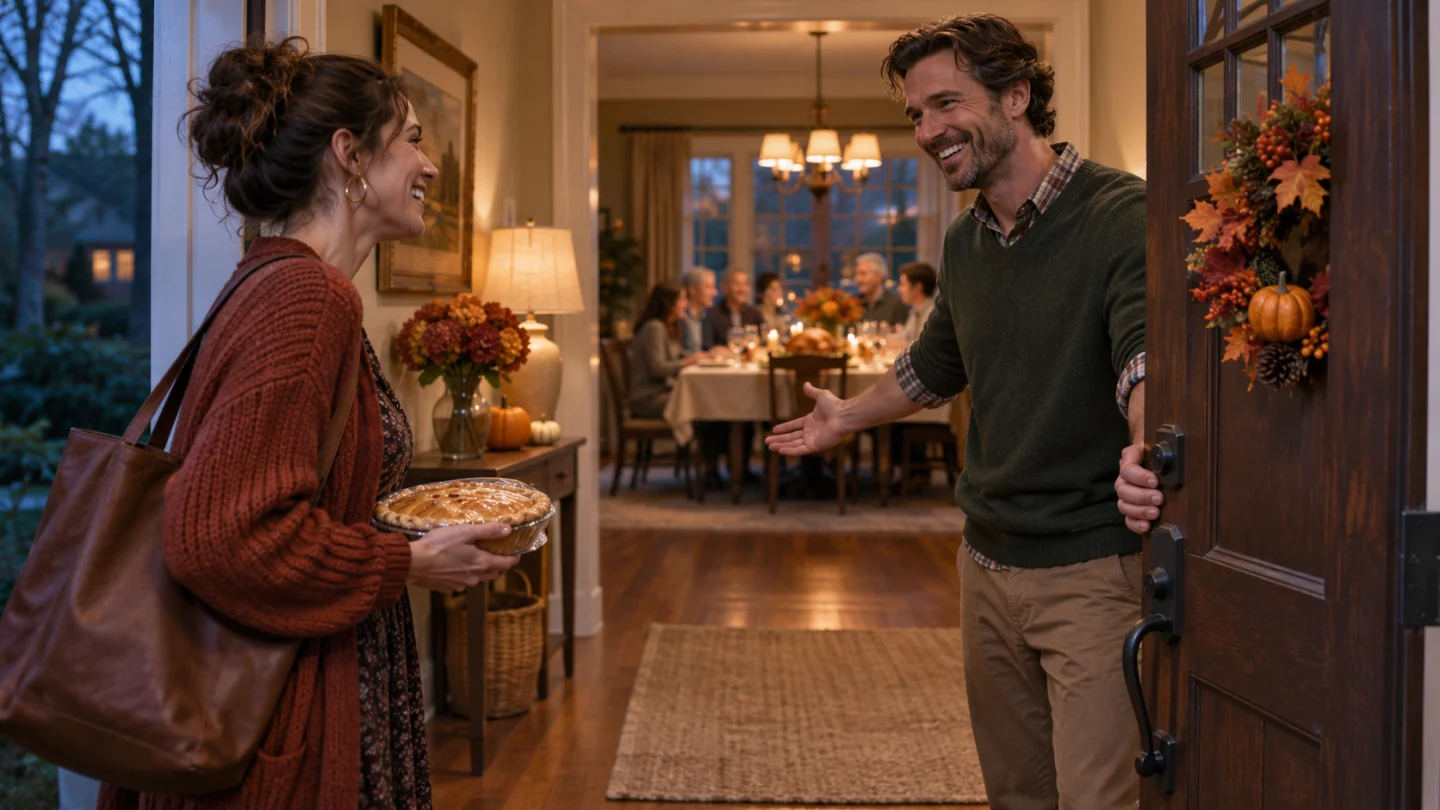
Show a dish arriving at the table or a classroom activity about sharing and gratitude. Keep the action simple, choose the screen orientation for the destination, and add confirmed times, offers or activity instructions during editing.
Confirm the date, booking details and offer terms yourself before adding them to the clip.
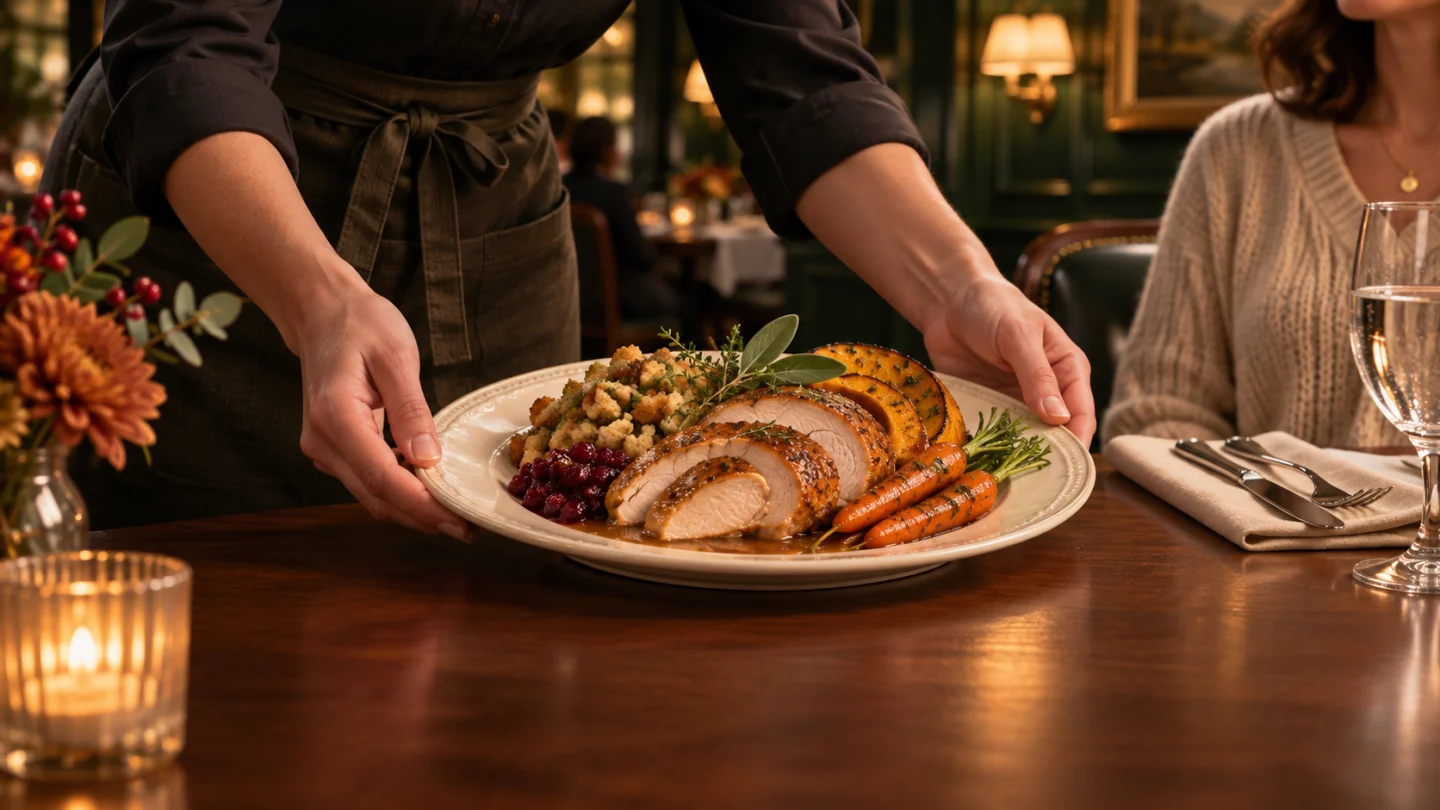
Name the setting, action and camera move. Supply the date if needed, or reserve space to add it later.
Use text alone or switch to image-to-video with one photo. Choose 4–15 seconds, aspect ratio and resolution; review the credit estimate.
Sign in to generate, inspect motion and details, then download. Add exact subtitles, your recorded voice and final event information in an editor.
No. The default is text-to-video. Switch to image-to-video only if you want to supply one first-frame photo, such as a family scene, a dish or a storefront.
This page uses MiniMax H3. It starts at 5 seconds, 16:9 and 768P, with 4–15 seconds, other aspect ratios including 9:16, and 768P or 2K available. Choose the actual duration in the settings, not just the prompt.
This page has no subtitle editor, voice recording or voice-cloning controls. Use the generated clip as footage and add your exact subtitles and recorded monologue in a video editor. Review any generated audio before publishing.
No. The page offers text-to-video and image-to-video with one image. It does not expose video upload, reference-to-video, clip assembly or a timeline editor.
Not reliably. A photo guides the opening scene, but identity, objects and signs can drift as motion is generated. Check the full clip; add exact branding and essential wording afterward.
Supply the date yourself; the default brief includes none. Generation requires sign-in and SceneFlare credits. Review the current estimate after choosing settings; a new generation uses credits again.
Choose one scene, set its length and leave space for your final message.