
Prompt editing
Start with an uploaded image, then guide the edit with plain-language instructions.
Preview
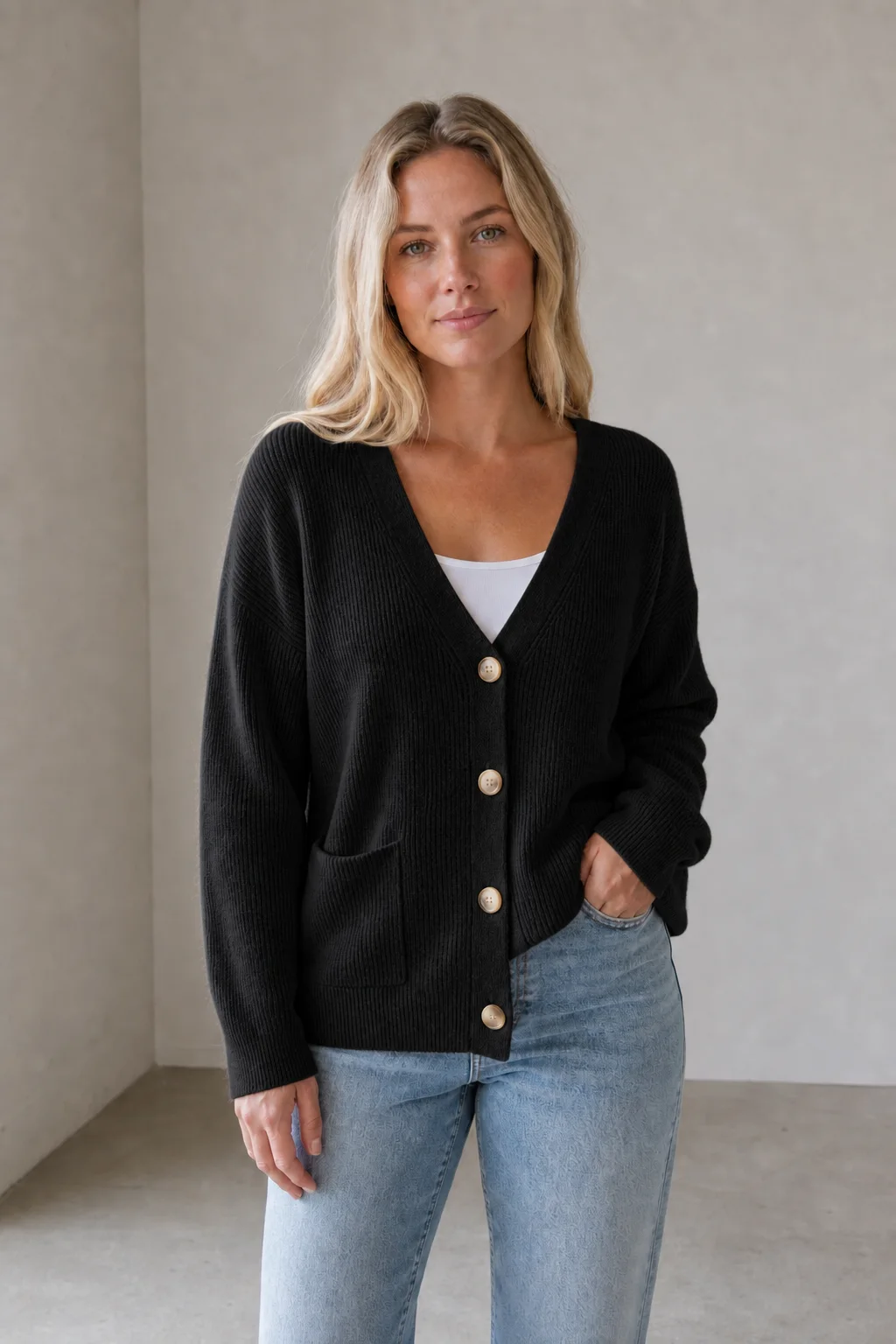
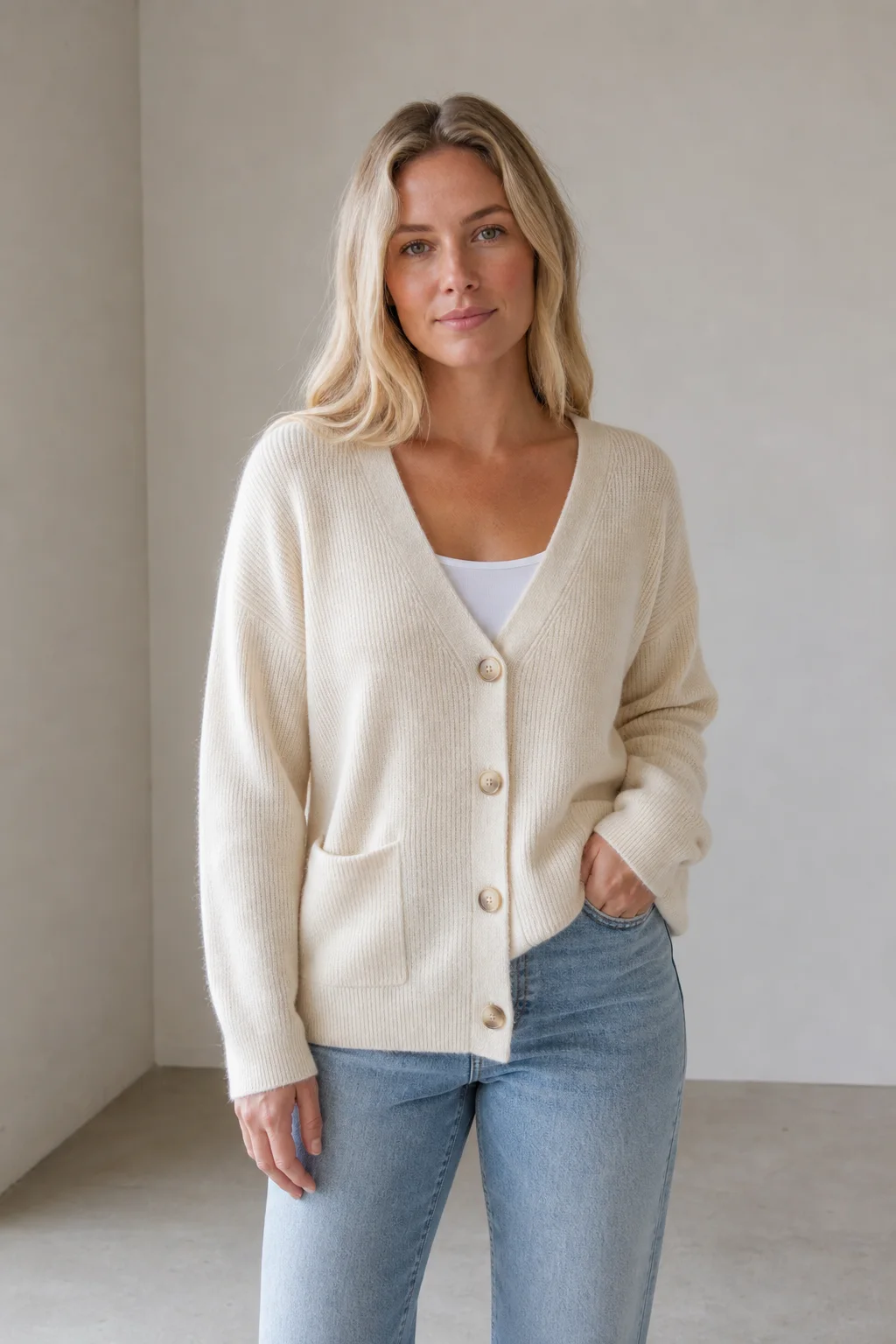
Continue the workflow with image models and tools for generation, background removal, upscaling, and prompt-based editing.
Open GPT Images 2.0 in Sceneflare.
Open Nano Banana 2 in Sceneflare.
Open Seedream 5 Lite in Sceneflare.
Open Image to Image AI Generator in Sceneflare.
Open Background Remover in Sceneflare.
Upload a source image, describe the exact change, and use Sceneflare as an AI image editor for product cleanup, background replacement, style revisions, and image-to-image experiments.
Start with an uploaded image, then guide the edit with plain-language instructions.
Use product photos, portraits, content images, or visual references that need targeted changes.
Review edited images in the same workflow before downloading or refining them.
Built for high-intent editing tasks from the SEO plan: upload a source image, tell the model what to change, and move into related image tools when the job needs cleanup or enhancement.
Start from the source image instead of a blank prompt, so the page matches users searching for an AI image editor with prompt.
Describe what should change, what must stay consistent, and which details need protection.
Remove visual distractions, improve lighting, and keep labels, edges, texture, and product identity intact.
Swap busy scenes for cleaner product, social, or campaign backgrounds without rebuilding the subject.
Test editorial looks, color direction, and presentation styles while preserving the original composition.
Link users to GPT Images 2, Nano Banana 2, Background Remover, and Image Upscaler for the next step.
Focus the page on practical uploaded-image edits with commercial search intent: ecommerce cleanup, background changes, and prompt-led visual revisions.
Clean product photos for listings, ads, and launch pages while keeping shape, labels, texture, and key details consistent.
Start from the original product image or ecommerce listing visual.
Ask for cleaner lighting, less clutter, and preserved product identity.
Compare edges, labels, reflections, and surface texture before download.
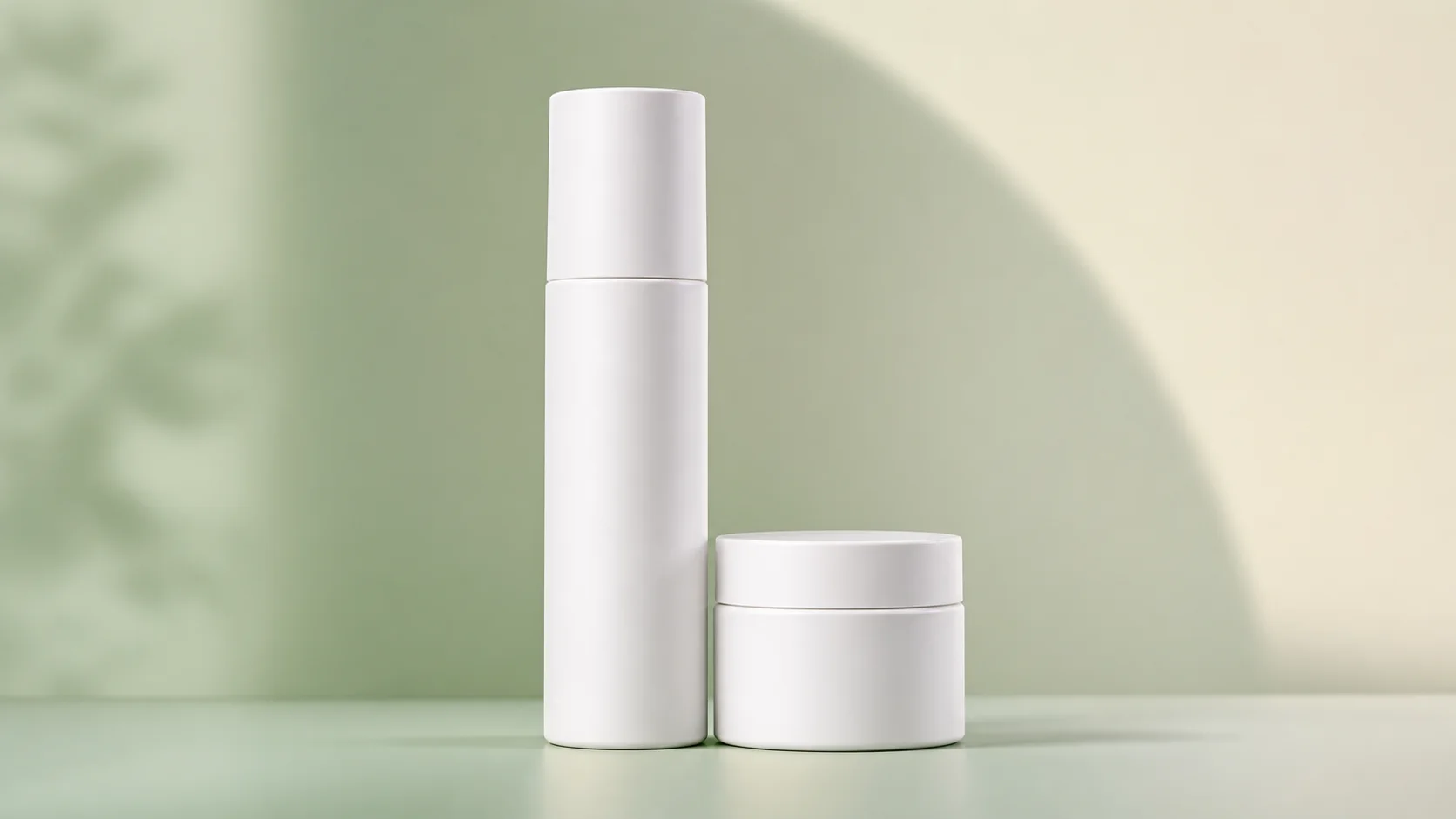
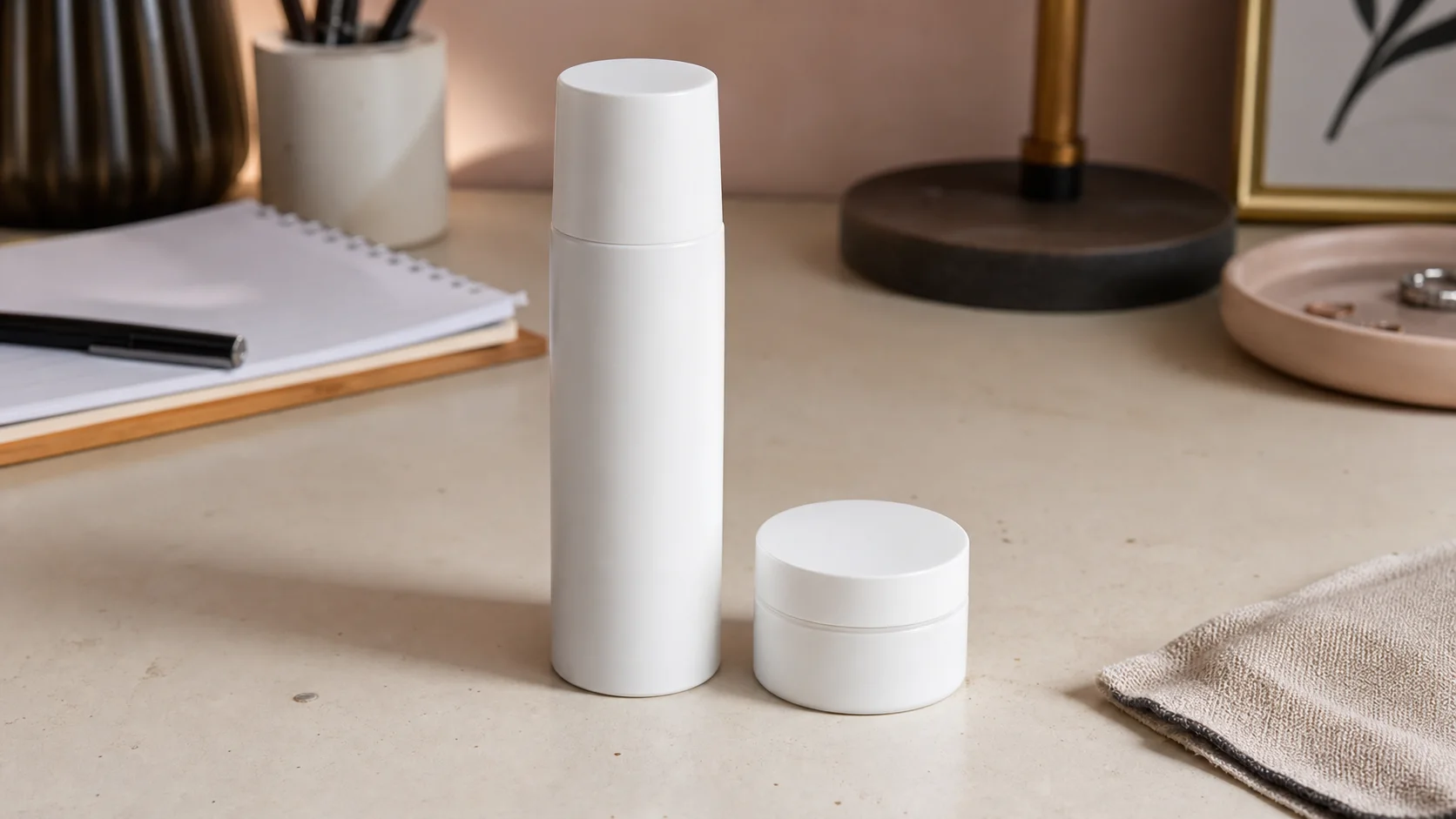
Replace a busy or mismatched background with a cleaner scene while keeping the uploaded subject recognizable.
Use the source image as the anchor for shape, pose, edges, and product identity.
Describe the replacement background, lighting, and surface in plain language.
Check shadows, contact edges, and scene fit before using the result.
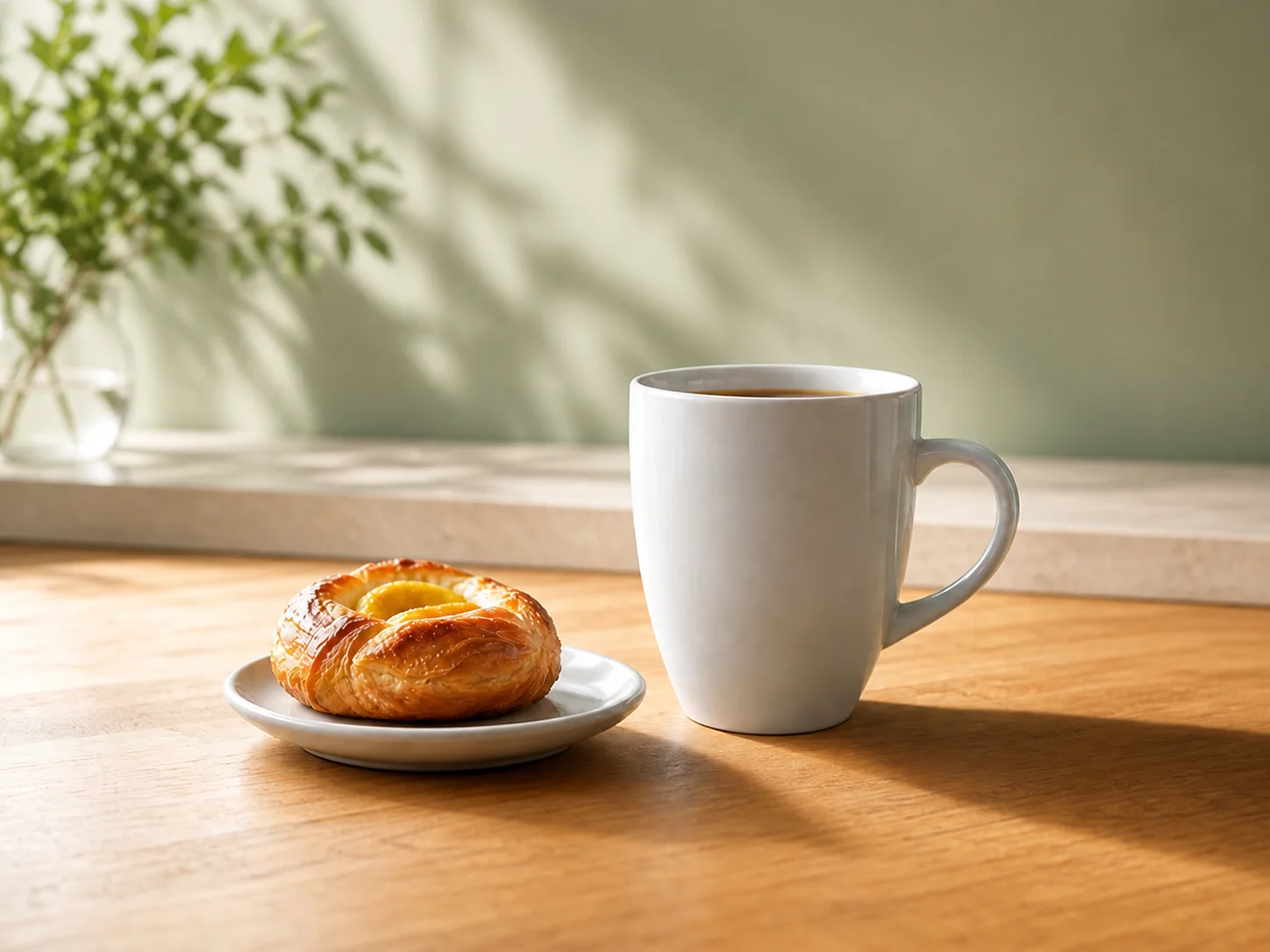
Keep the composition but revise lighting, mood, color direction, or editorial style for a new campaign angle.
Use the image that already has the composition or subject you want to preserve.
State what can change and what must stay consistent in the edited version.
Generate variations and keep the strongest result for review or download.


Add the image you want to change, clean up, or restyle.
Write a prompt that explains the change, the preserved details, and the intended use.
Review the AI-edited image, compare it with the source, and download or iterate.
It is an image editing workflow where you upload an existing image and describe the edit in text, such as cleaning a product photo, changing the background, or revising the style.
Yes. This page is designed for uploaded-image editing, so the source image guides the AI result instead of starting only from a text prompt.
Yes. It is a good fit for ecommerce cleanup, lighting improvements, background simplification, and preserving important product details.
Yes. Describe the new scene, lighting, and surface while asking the model to keep the subject shape and edges consistent.
Use the default image model first, then switch to another available image model when you want a different editing style or output behavior.
Upload a source image, write the edit prompt, and generate a cleaner product photo, new background, or revised visual style in Sceneflare.